Show Sequencer
Backing tracks, video, MIDI and lighting from one iPad, on one clock.
Contents
- Before the first gigWhat the app is, the rules it keeps, and what you need to plug in
- The rigThree setups, cabling order, and what each piece does
- Getting songs inThe import grid, the song editor, every control
- SetsRunning orders, what happens between songs, backdrops
- Routing and the mixerBuses, outputs, levels, mute and solo
- TonightThe pre-show check: the set, the rig, and a line check per bus
- ShowtimeEvery pane, every control, and how a show runs
- VideoAttaching a screen, fades, screen latency and the Sync Check
- The song alignment windowLining a song's video and lighting up against its audio, with a preview, markers and an explicit Save
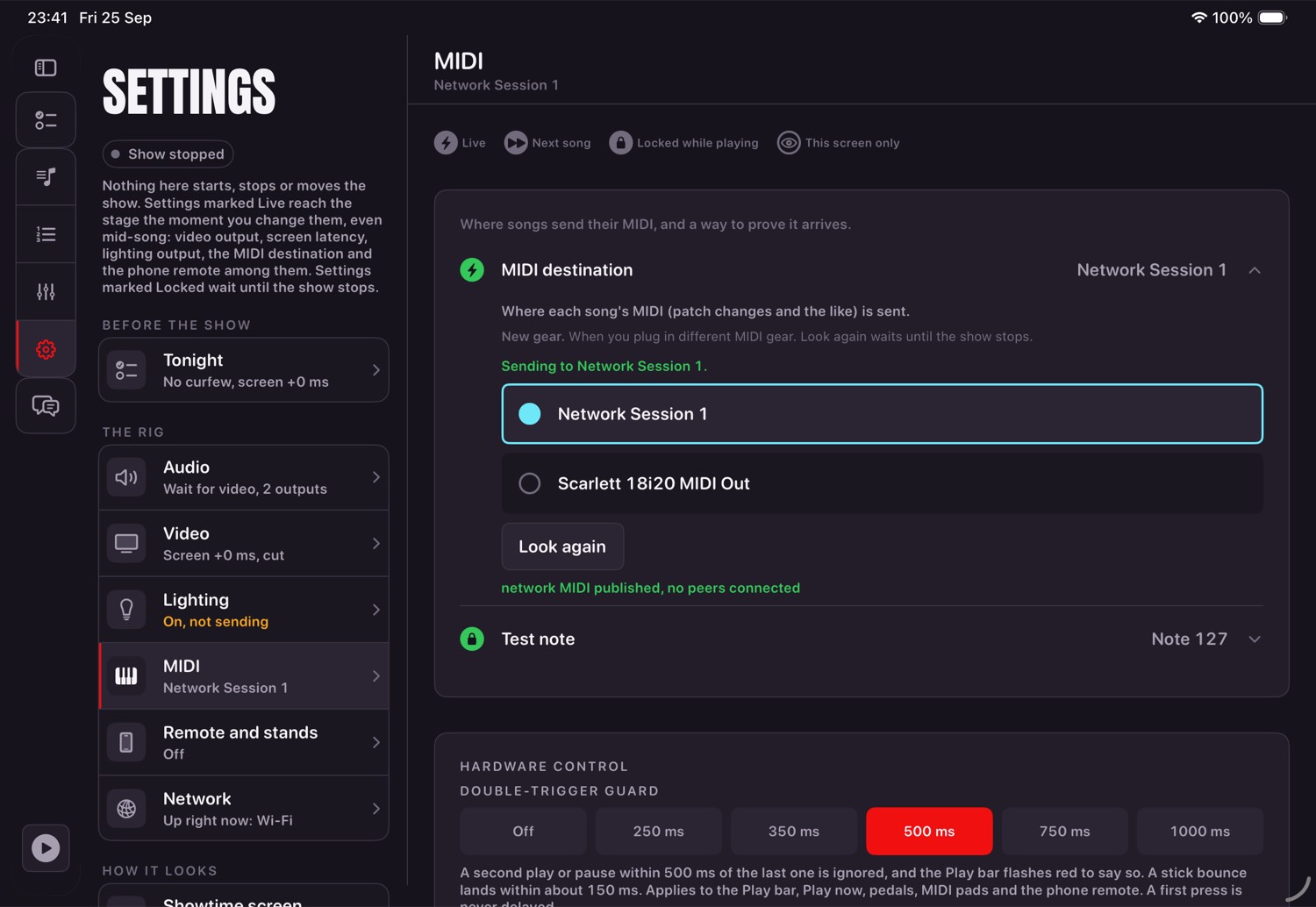
- MIDIDestinations, test notes, and starting another machine
- LightingCapturing DMX, watching it, sending it out
- Capturing DMX from the rigThe wired link, two invisible traps, and reading Test DMX Input before you commit to a take
- The phoneRemote mode, the web remote, the password, and the mix from a pocket
- Stands: charts and score partsA read-only page for the band, what works today and what is not built yet
- NetworksWired and Wi-Fi, addresses, and keeping lights off the air
- Backup and moving iPadsOne file, what is in it, and restoring
- Settings, area by areaEvery setting, what it does, and what it would do to a running show
- When something is wrongSymptoms, causes, and the log to send
- AppendicesWhat is on disk, developer switches, glossary
Before the first gig
Ten minutes of reading that will save an hour at a soundcheck.
What this app is
Show Sequencer plays a band's backing tracks and, at the same time, the things that must stay with them: video on a screen behind you, MIDI to whatever else is on stage, and lighting. It runs from an iPad at the kit, and it is built so that the person operating it is usually also playing.
One clock
Everything runs from the audio clock. Video, MIDI and lighting all read that clock; none of them can push it. This is the single most important thing about the app, and it is why a set that drifts on other rigs stays locked on this one. When you align a video or a lighting capture later in this manual, you are moving that thing against the clock — never moving the clock.
Two modes, kept apart
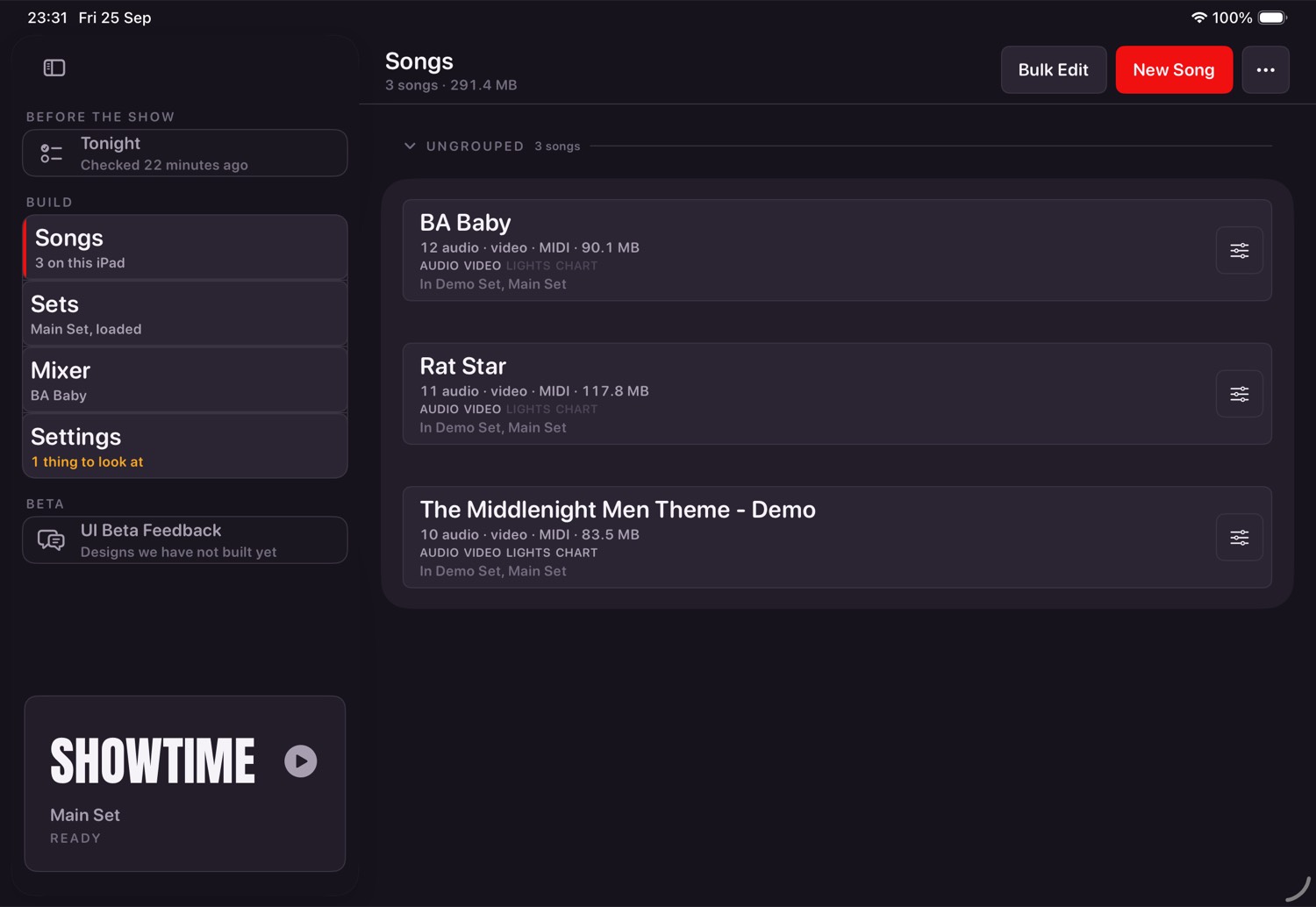
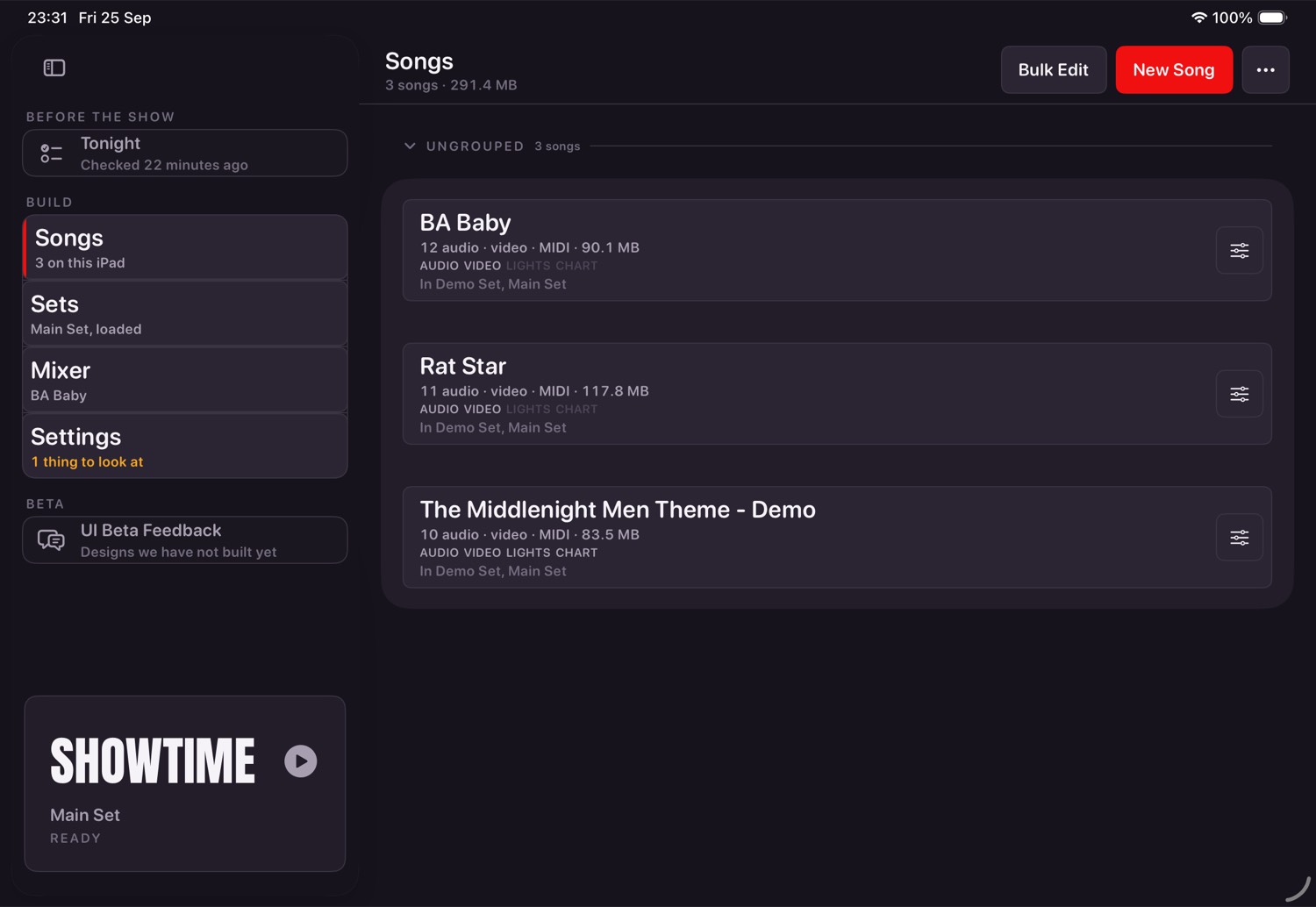
Build is where you prepare: import songs, name tracks, set levels, build the running order, set the rig up. It is four doors — Songs, Sets, Mixer and Settings — and each one carries a line saying what is behind it, so how many songs are on the iPad or whether the rig wants a look is readable without going in. Showtime is the performance screen: fixed layout, big targets, nothing that rearranges itself. You reach Showtime through one door at the foot of the sidebar, and you leave it through one control in its own top corner, with a confirmation, so it cannot happen by accident.
What you need
| Piece | Why |
|---|---|
| iPad | The show runs here. Everything else is optional. |
| Audio interface | More than two outputs: separate click, backing, stems. Class-compliant USB. |
| Powered hub or dock | The iPad charges while the interface, MIDI and Ethernet stay connected. |
| Screen or projector | Optional. Attach it before the show, not during. |
| MIDI destination | Optional. An interface with DIN, or a network session for testing. |
| Network | Optional, and only for lighting and the phone remote. Wired beats Wi-Fi. |
| Footswitch | Optional. It presses Play, so your hands can stay on sticks. |
The order things happen in
- Plug the interface in and power it before launching the app, so the outputs are there to be found.
- Attach the screen if you are using one, before the show rather than between songs.
- Open the app. It prepares in the background; the Showtime door says READY when it is done.
- Load the set you are playing. With no set loaded the show plays the library in name order.
- Open Tonight and walk it. It checks the set, the rig and every bus, and says what will bite before the doors open rather than after. Chapter two covers it.
- Check the status lights on Showtime: audio, screen, MIDI, lights and DMX.
- Play the first song from the Play bar or the footswitch.
The rig
What to plug in, in what order, and why each piece is there.
The smallest rig that works
An iPad and a pair of headphones. Every song plays, video appears on the tablet itself, and nothing else is needed. Useful for building a set on a train; not what you take to a gig.
The band rig
| Piece | What it does | Notes |
|---|---|---|
| USB audio interface | Separate outputs: click to in-ears, backing to front of house, stems where you want them | Class-compliant. Plug it in and power it before opening the app. |
| Powered USB-C hub | Keeps the interface, MIDI and a network adapter attached while the iPad charges | A show that runs flat is a show that stops. |
| Screen or projector | The song's own video, or the backdrop when it has none | Attach before the show. The app holds a surface ready so a song starts instantly. |
| MIDI out | Starts another machine, changes patches | DIN from the interface, or a network session over Wi-Fi. |
| Footswitch | Presses Play | So your hands can stay on sticks. |
Adding lighting
Lighting arrives over the network as Art-Net. Two directions matter, and they are separate jobs: capturing a song's lighting from a rig that already exists, and sending a captured song back out to a node. Chapter ten covers both.
The order to plug things in
- Interface, powered, into the hub. Then the hub into the iPad.
- Screen. If it arrives late the app copes, but video readiness only settles once it is there.
- MIDI, whether by DIN from the interface or by joining a network session on the Mac.
- Network adapter, if you are running lights.
- Open the app last. It reads what is attached as it prepares.
Fixed addresses, once
If you run a wire for lighting, give both ends a fixed address rather than letting them pick
their own: the lighting Mac's adapter 192.168.10.1, the iPad 192.168.10.2,
mask 255.255.255.0, no router. Then nothing has to be re-pointed between gigs.
Getting songs in
A song is a folder of tracks, not a stereo file with things bolted on.
What the app expects
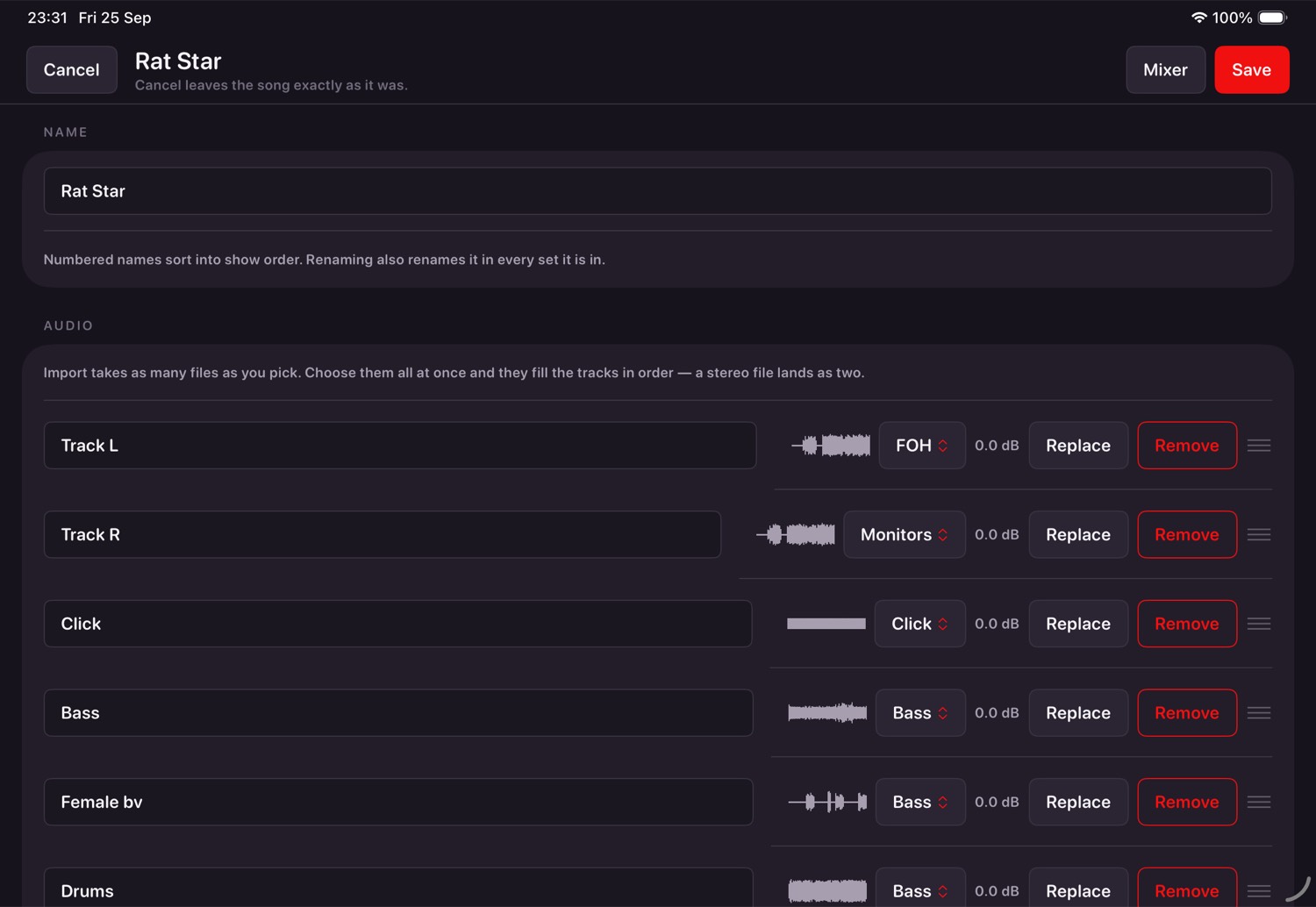
Up to sixteen audio tracks, optional MIDI, optional video, optional lighting. Every track gets its own fader, its own output and its own name. A stereo file becomes two tracks, because two sides were always two faders.
Importing a folder of exports
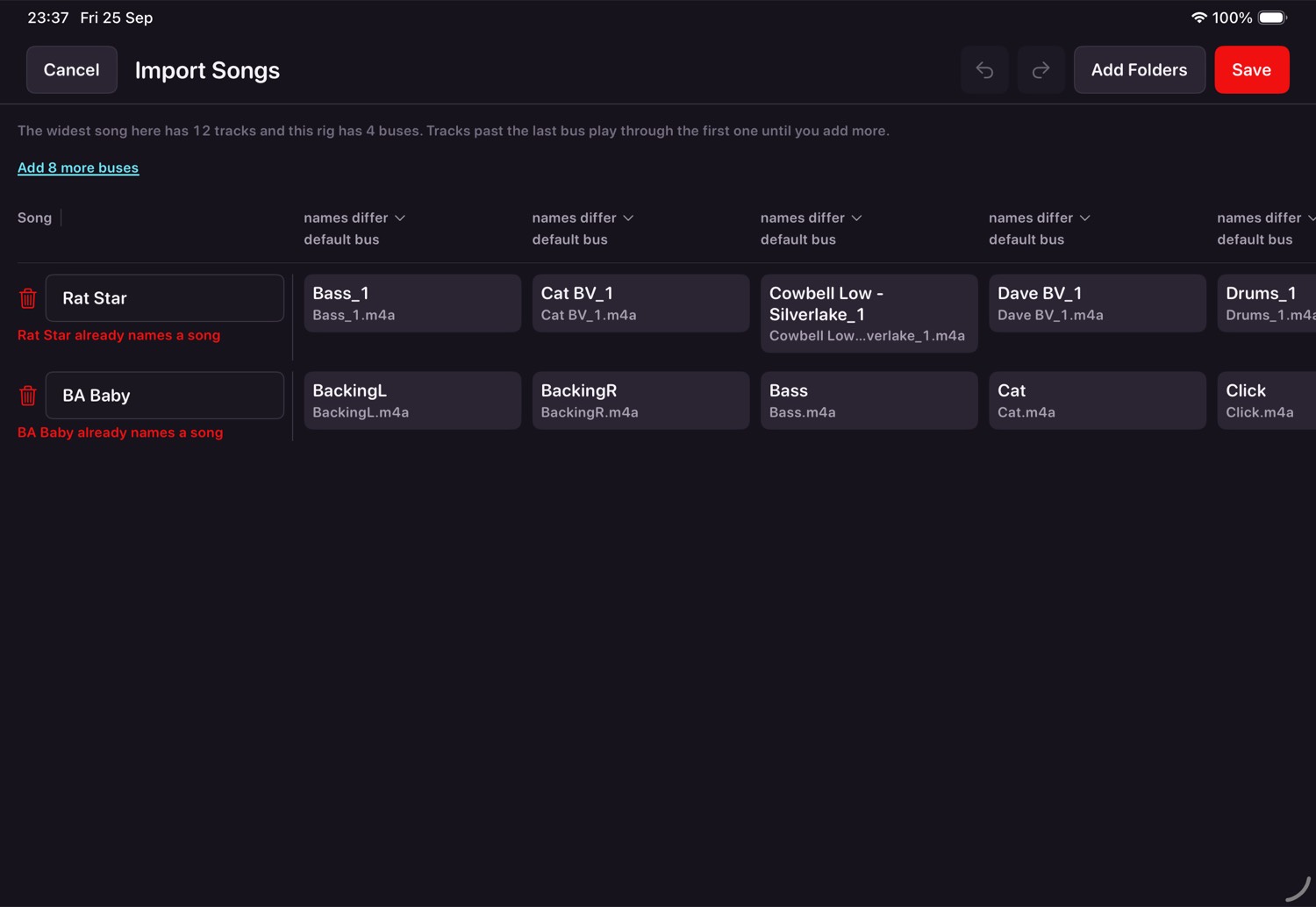
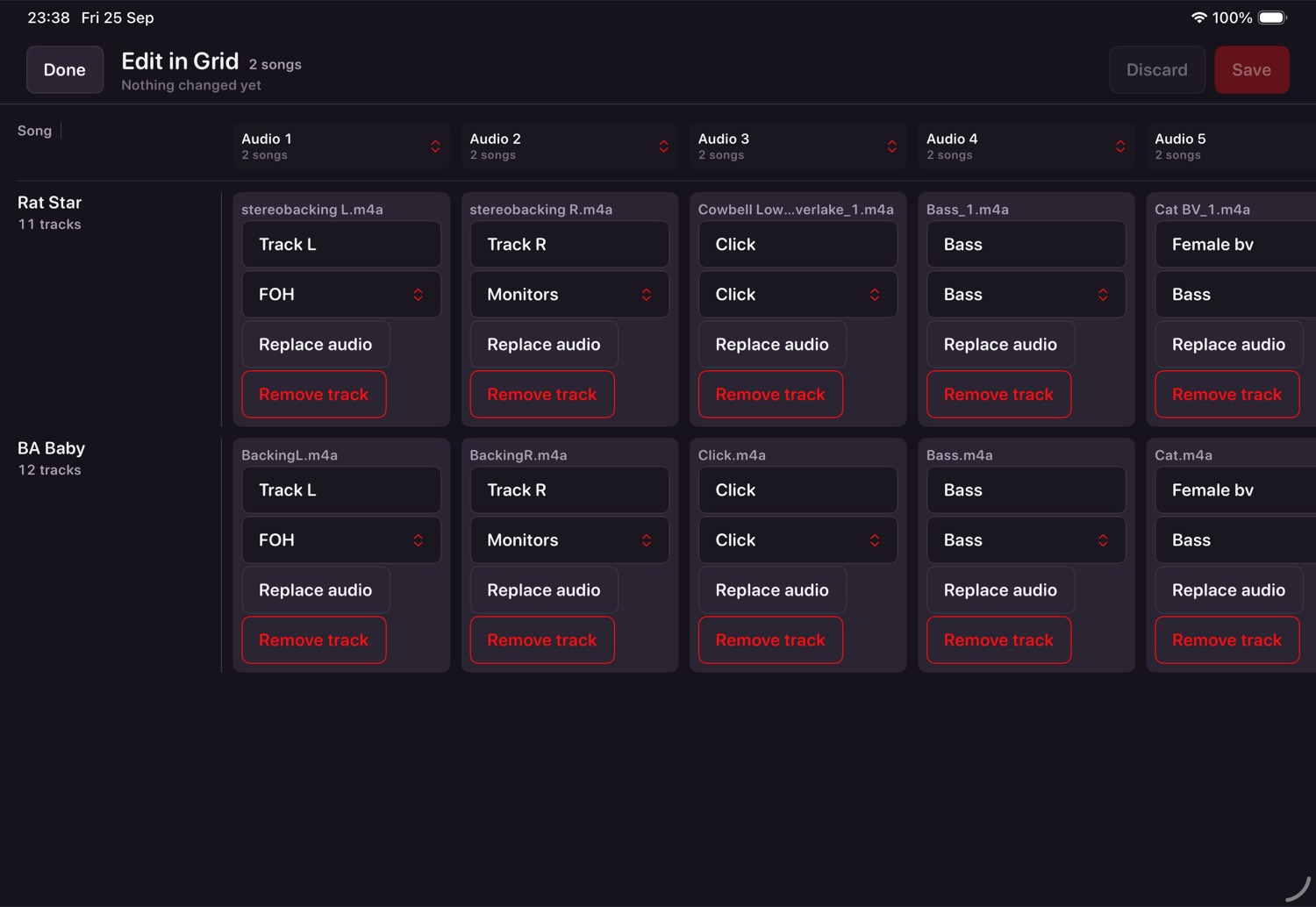
- Songs → Import Songs, and pick the folder your exports live in.
- The grid opens: one row per song, one column per track position.
- Name the tracks. Names travel with the track, so replacing a file later keeps the name.
- Set each track's output. Click to one, backing to another, stems wherever you want them.
- To move a track along its row, hold it until the fill sweeps across it (half a second), then drag. A quick drag anywhere, on a track or not, scrolls the grid. Carry a track to the left or right edge and the grid scrolls under it, faster the closer you go to the edge.
- Save. Each row is written as it finishes, so a long import can be watched rather than waited on. Once every song is saved the top-left button says Done; while songs are still waiting it says Cancel and asks before forgetting them.
There is a short, silent walkthrough on the import screen itself, showing the whole thing happening: picking the folders, what the grid does with them, and pressing Save. It loops, and it is there because the first import is the one moment where a picture beats a paragraph.
The song editor
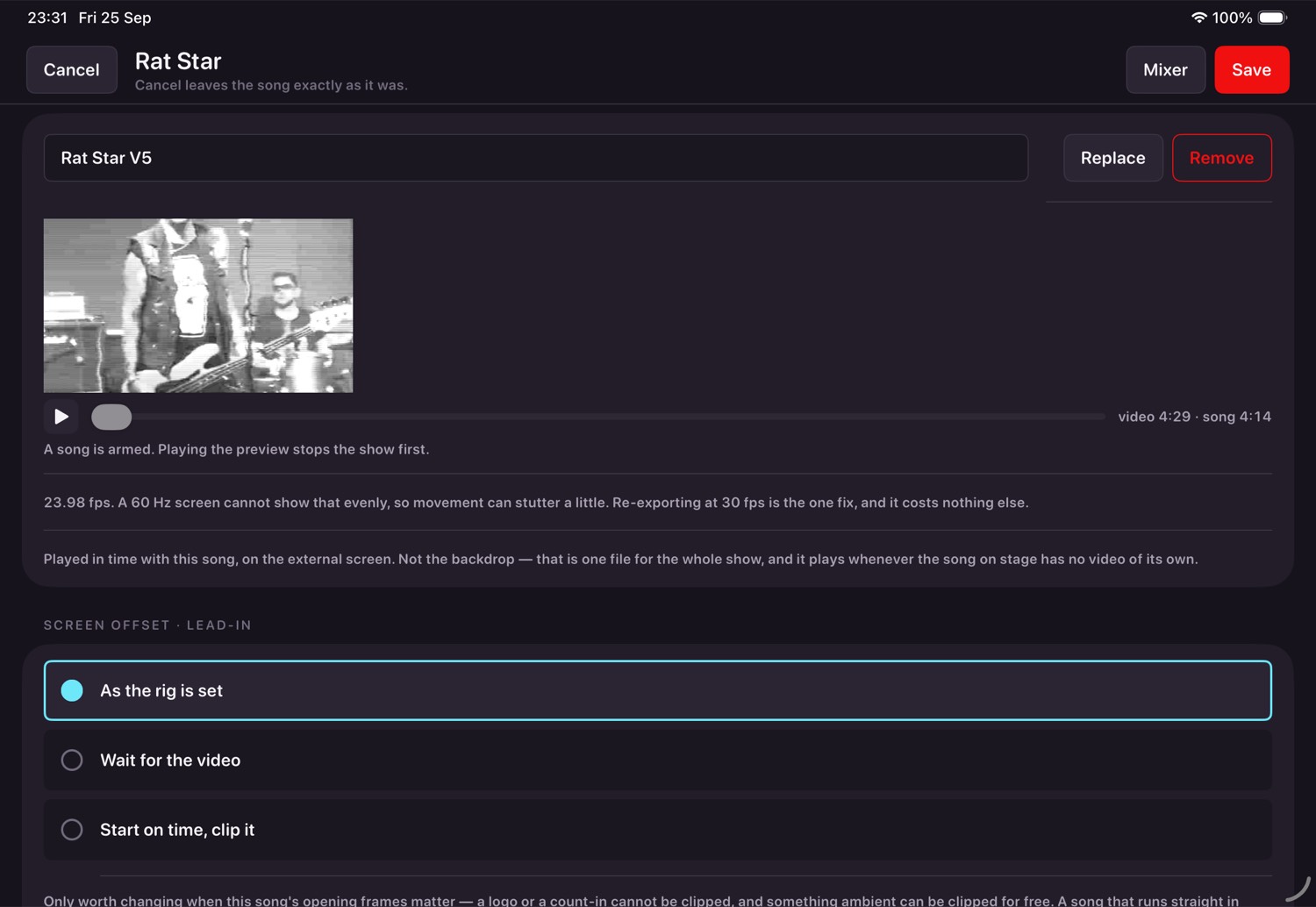
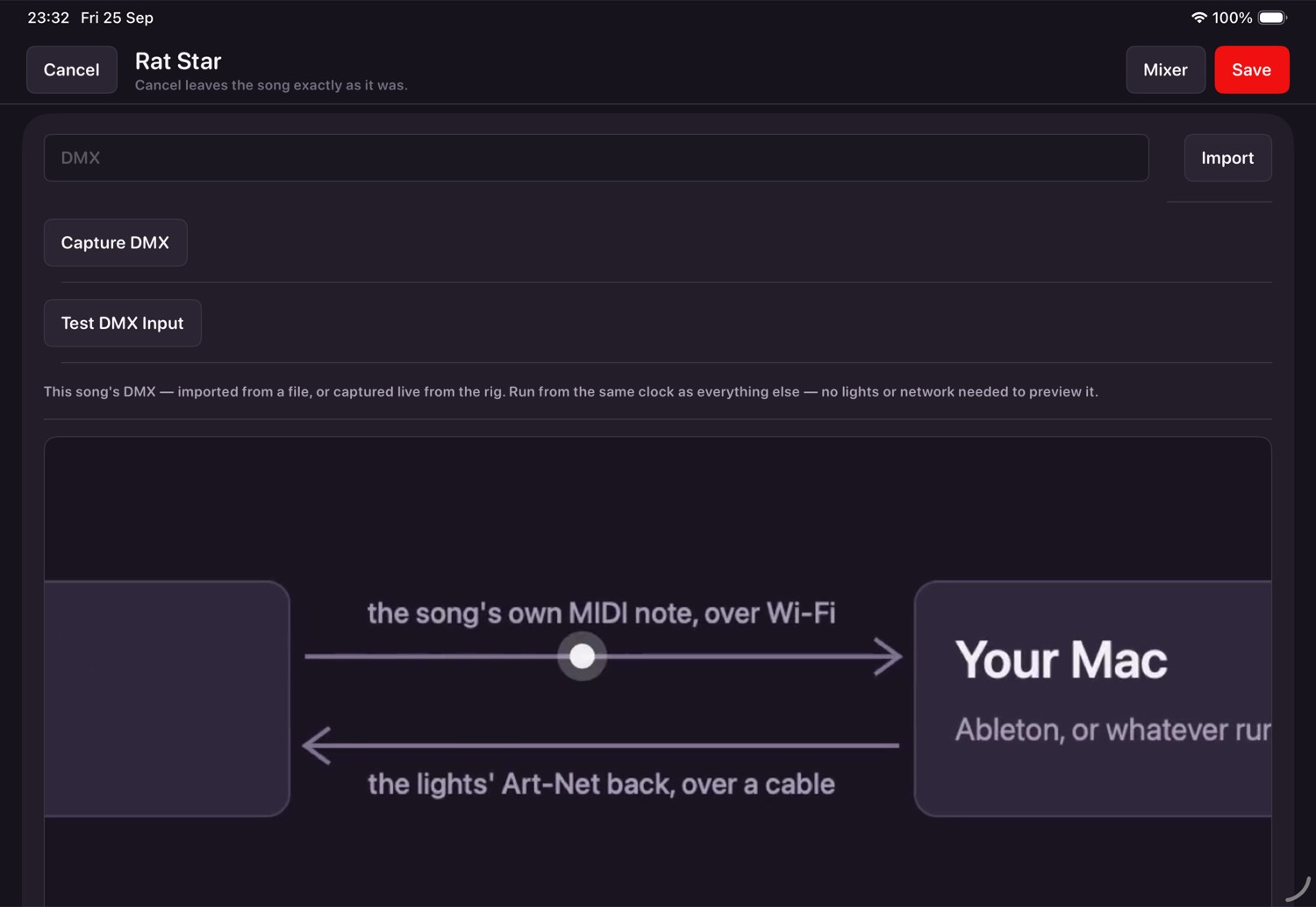
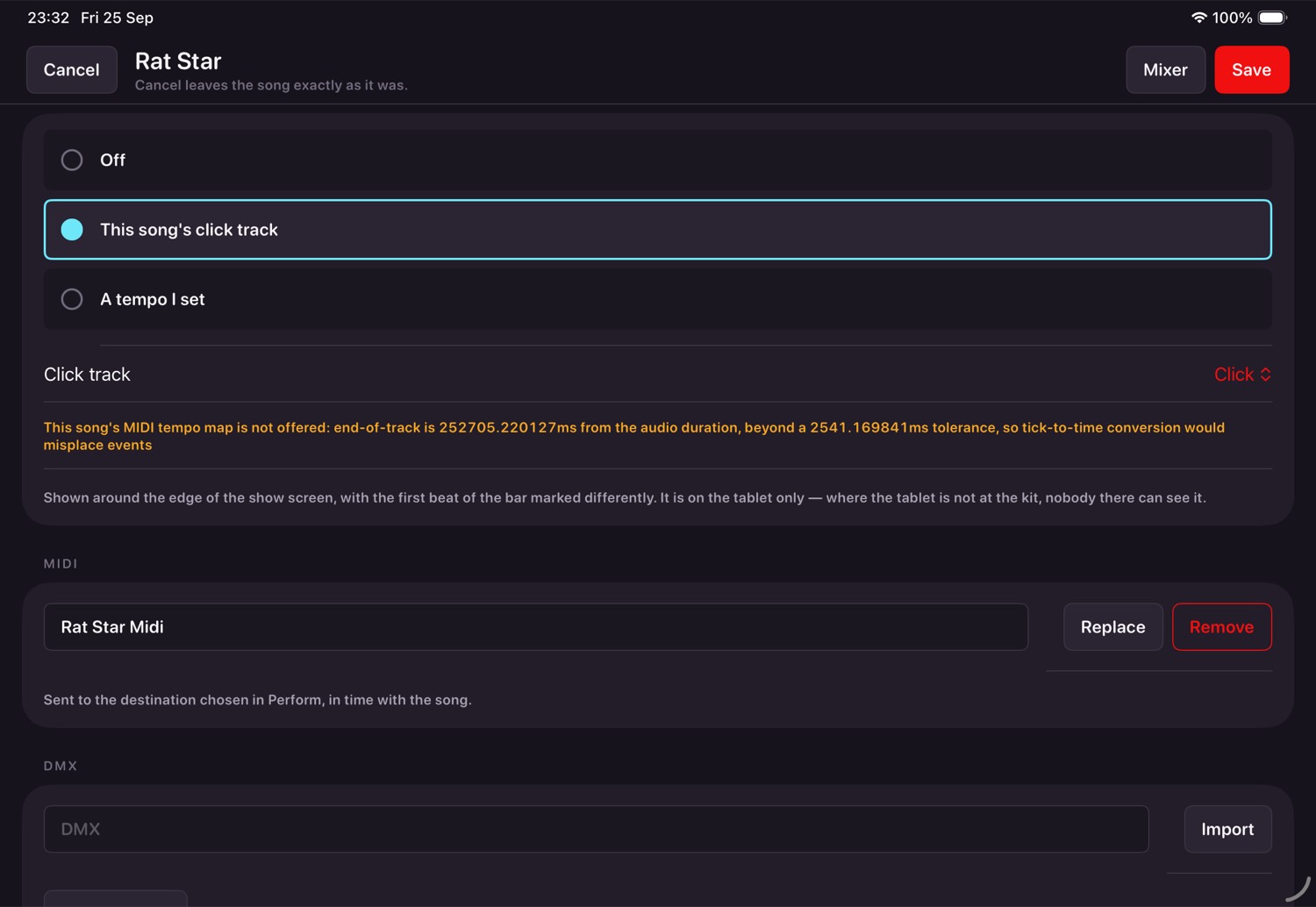
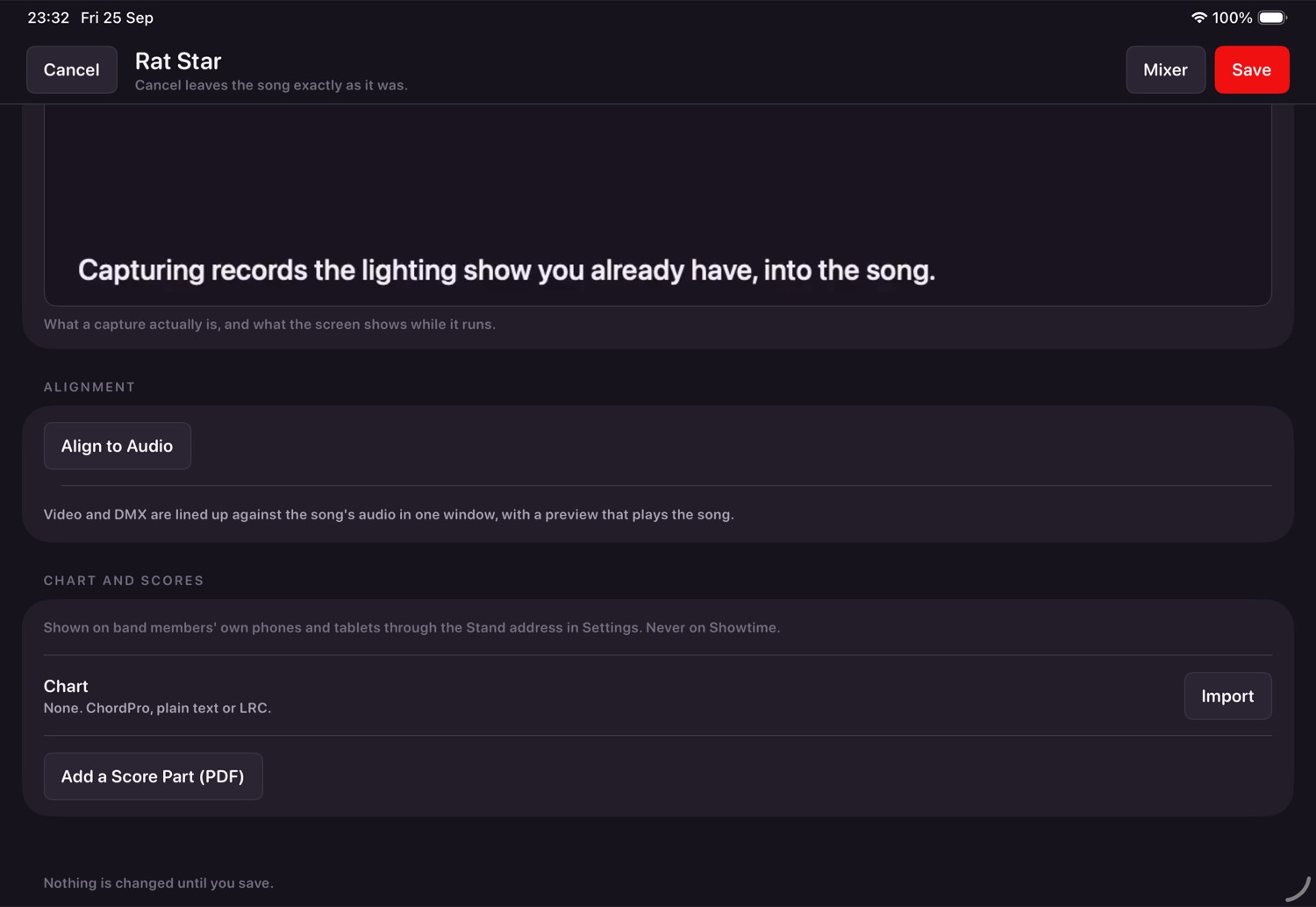
Tap a song's slider icon in the library to open it. Each section is covered below.
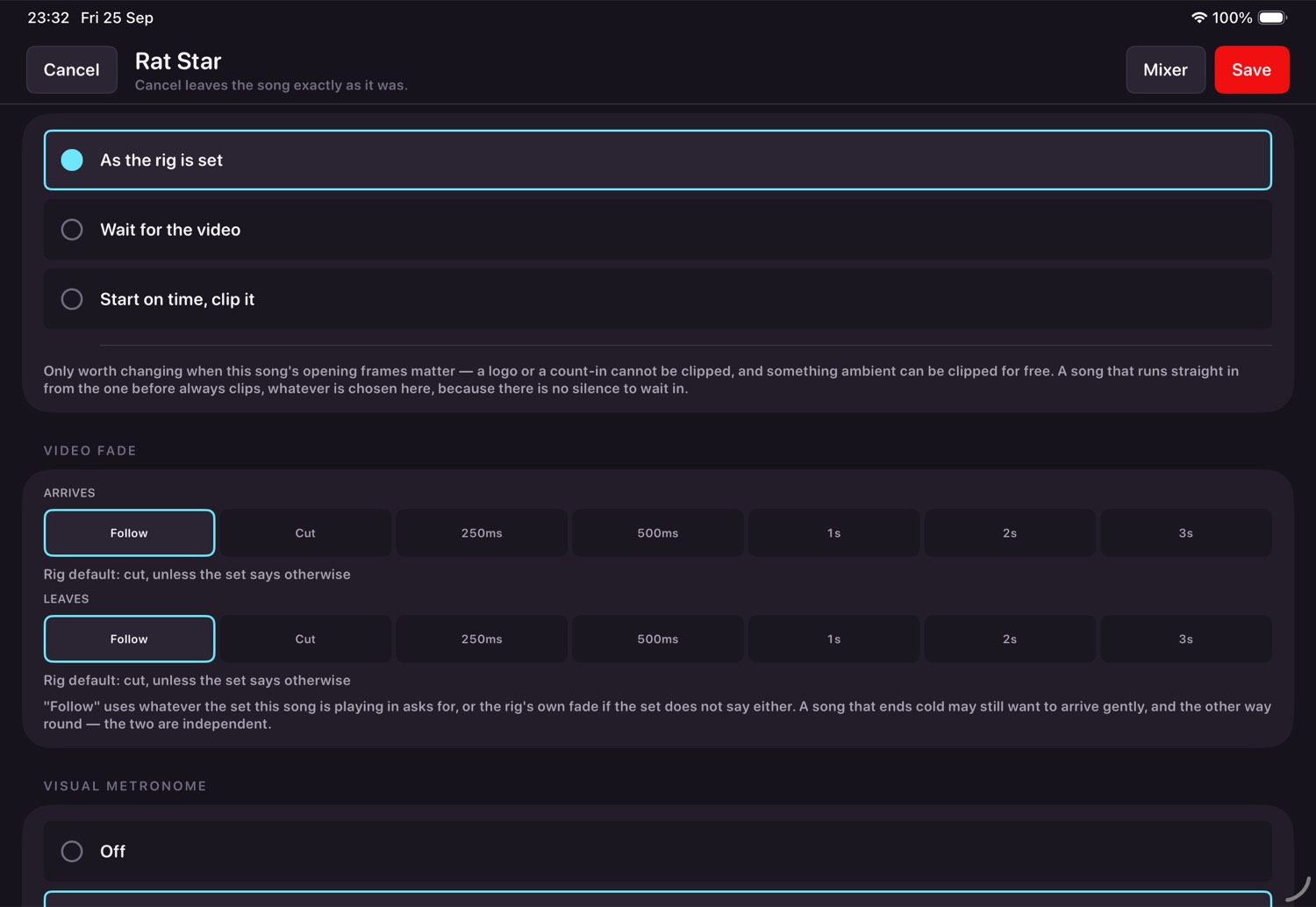
Charts and score parts
Further down the editor, CHART AND SCORES holds the song's lyric-and-chord chart and any PDF score parts, for band members' own phones and tablets. They never appear on Showtime. Chapter thirteen covers them.
Folders
The Songs screen groups into collapsible folders, and a heading is always drawn with its count. New folder in the header makes one; a half-second hold on a heading renames or deletes it, and deleting a folder never deletes a song — they become ungrouped. In Bulk Edit, Move to folder… files a whole selection at once, and the sheet's first row makes a new folder and files them into it in the same step.
None of this moves anything on disk. A song is still named by its own folder under Documents, so sets, the running order and every command that names a song are untouched by filing one. A folder is a way of looking at the library, not a place a song lives.
The set editor's song picker gets the same folders as a filter, so building a set from one band's material does not mean scrolling past another's.
Deleting a song
Swipe a song's row to the left in the library and tap Delete. It always asks first: Delete this song? Everything in its folder goes, and any set that names it shows it as missing. Keep it backs out. Deleting is refused while the show plays.
Press and hold a song for more
Hold a song's row in the library for half a second and a menu opens beside it: Edit this song, Align to audio, Add to a set, Delete this song. Everything in that menu is also reachable the ordinary way - it is a shortcut, never the only route to anything. While you hold, the row fills with colour so you can see the hold registering; let go early and the fill retreats rather than opening anything. Align to audio opens the song's alignment window (chapter nine); if the show is playing it asks to stop the show first.
An entry you cannot use right now sits in the menu dimmed, with the reason underneath, rather than failing silently - Delete this song, for instance, while the show is playing. The same gesture and the same rule - stated reasons, never a dead control - turns up again in the next two chapters and in the mixer.
Sets
The running order, and what happens in the gaps.
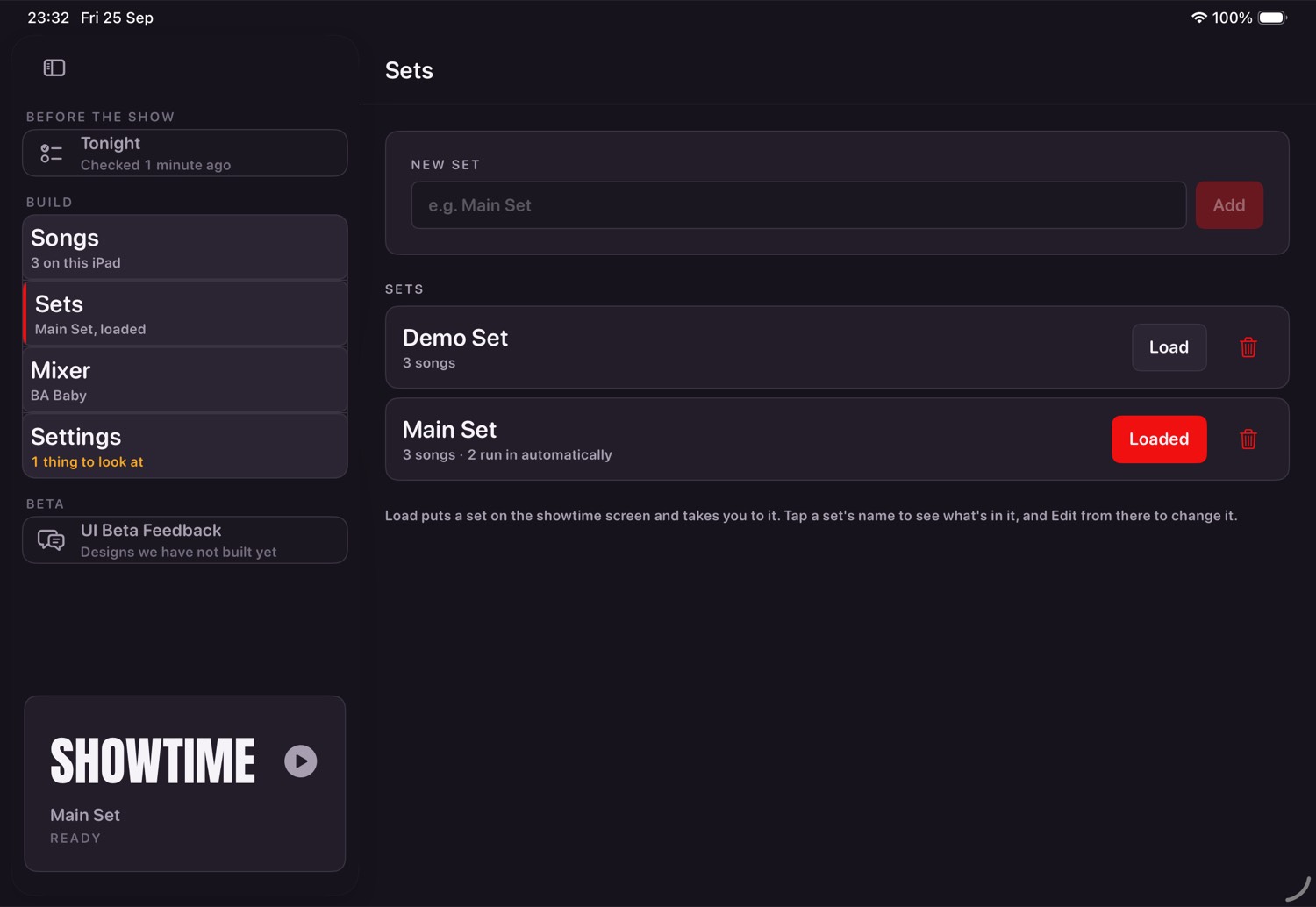
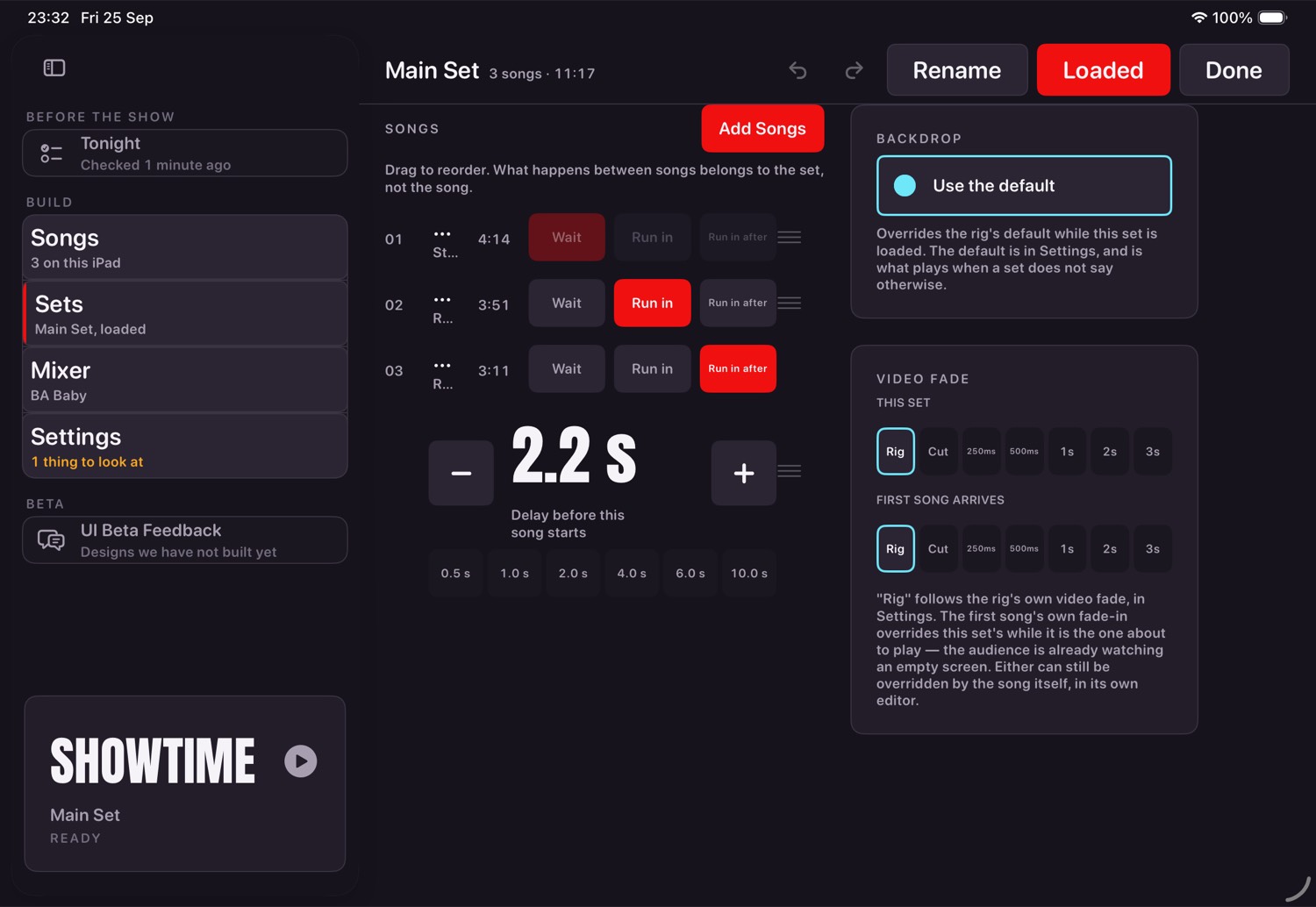
What happens between songs
This belongs to the set, not the song: the same recording waits for the singer in one set and runs straight in on another.
| Choice | Meaning |
|---|---|
| Wait | The show stops at the end of the song and waits for you. |
| Run in | The next song follows immediately, with no gap. |
| Run in after | The next song follows after a gap you set, in half-seconds. |
Beside a gap's stepper sits a row of one-tap presets: 0.5 s, 1 s, 2 s, 4 s, 6 s and 10 s. The one that matches the current gap is lit. Use the stepper for anything in between.
One row carries the song, how it starts and, for "run in after", the gap. The stepper moves in half seconds and a row of presets — 0.5, 1, 2, 4, 6 and 10 seconds — puts each one a single tap away. A song may appear twice, which is what an encore is.
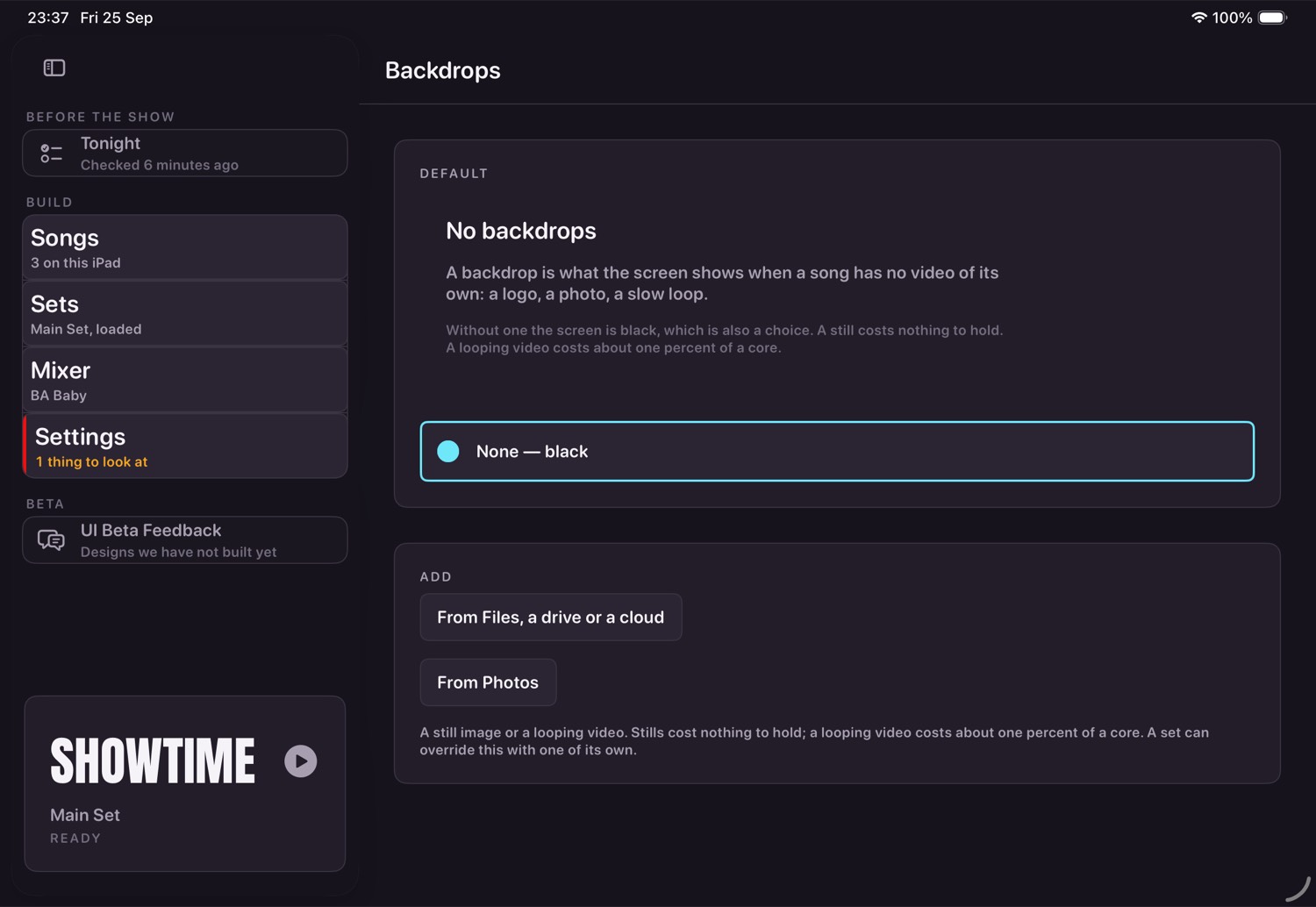
Renaming and deleting a set
Rename sits in the set editor's header, and beside Edit and Load in Manage Sets' preview. It refuses an empty name, a name another set already has, and any rename while the show plays, and says which. Renaming the set that is loaded keeps it loaded.
Deleting a set, from its bin or its hold menu, always asks first: Delete this set? The running order goes; the songs stay on the iPad. The same goes for a backdrop's bin on the Backdrops screen.
Press and hold, here too
The same half-second hold from chapter three works on a song's row inside a running order - Edit this song, Remove from this set - and on a set's own row in Manage Sets - Load (or Unload), Edit this set, Delete this set. Nothing here is offered that a visible control could not already do; the hold just shortcuts to it.
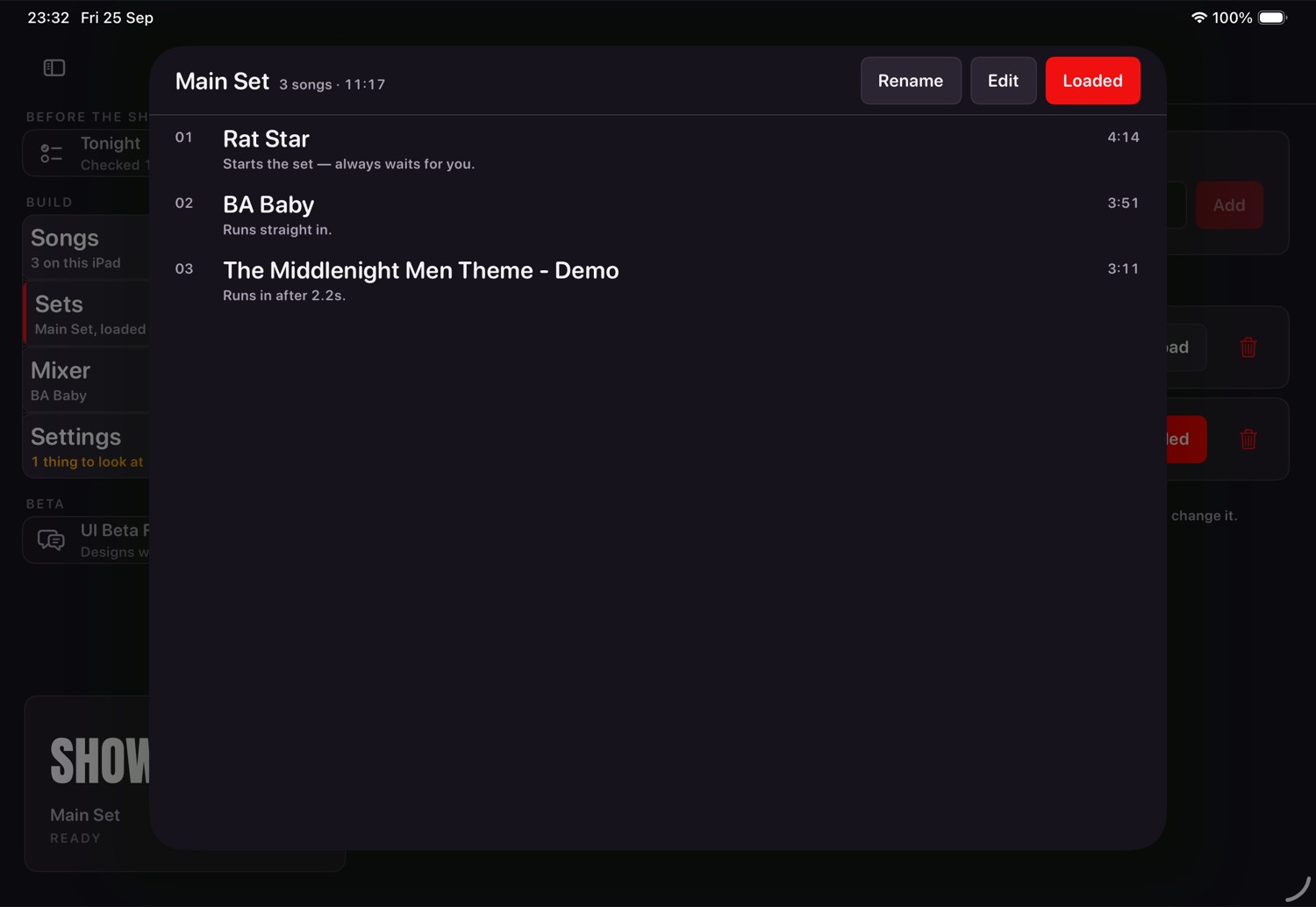
Routing and the mixer
Tracks belong to the song. Buses belong to the rig. Changing interface never means editing songs.
The idea
A track says which bus it feeds. A bus says which physical output it leaves by, and how loud. Move the rig to another interface and you re-point the buses; every song is untouched.
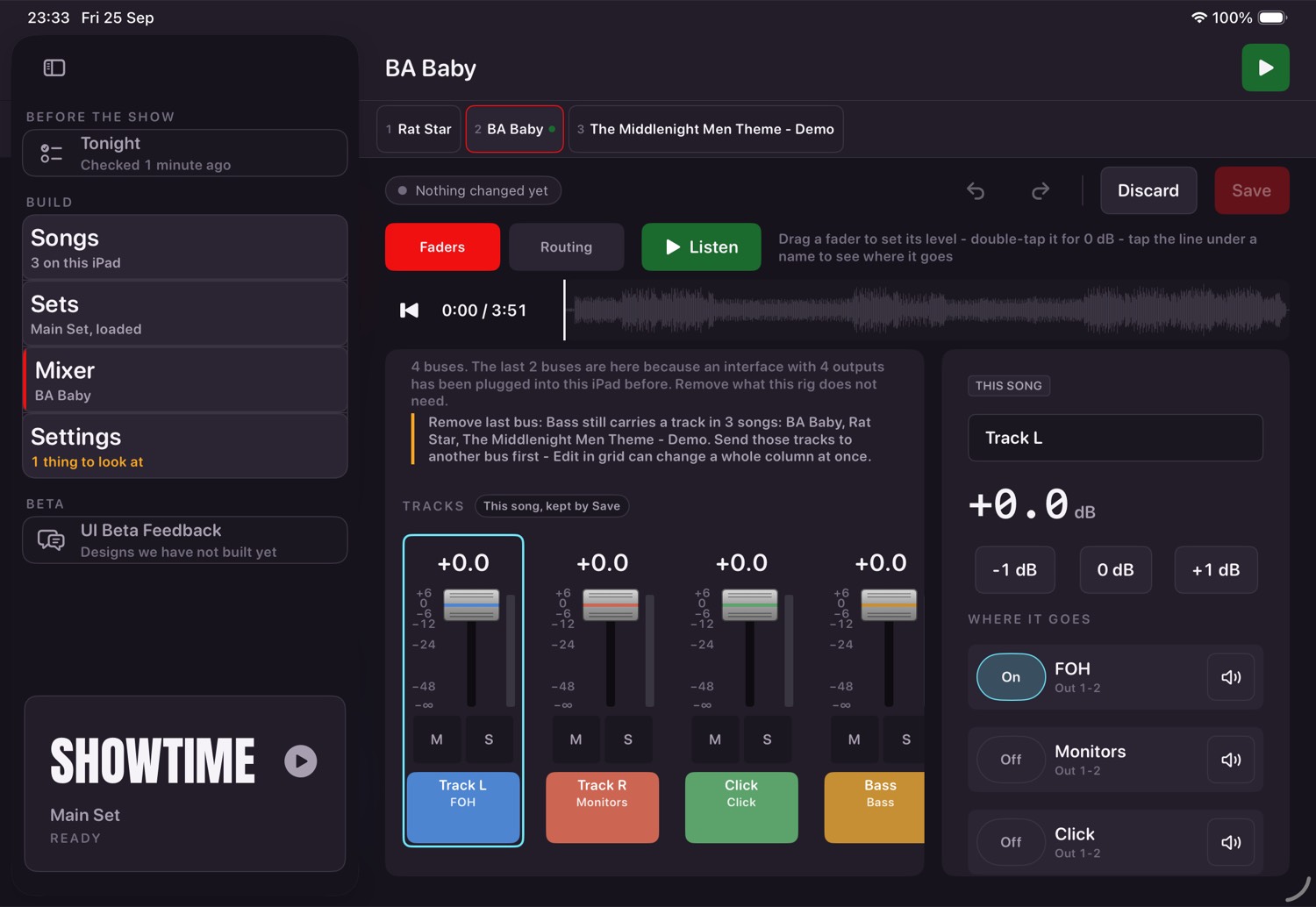
Working the faders
- Drag the cap. A tap elsewhere does nothing — a screen at the kit gets knocked.
- Double-tap a cap to put it back to 0 dB.
- M and S are live only and never saved. Showtime shows "MUTE/SOLO ACTIVE · Clear" whenever any are on, so none can be left up by accident.
- The mixer has the same one-tap clear: Clear mute and solo appears in the column header whenever any mute or solo is on, and clears every one of them, tracks and buses.
A strip reads the same either side of the board: the dB readout at the top, the fader on its printed scale with a meter beside it, then M and S, then the coloured name plate at the foot. A track strip's plate carries a second line saying where that track goes; a bus strip's says which output it leaves by. Bus levels belong to the rig, so they are the same in every song.
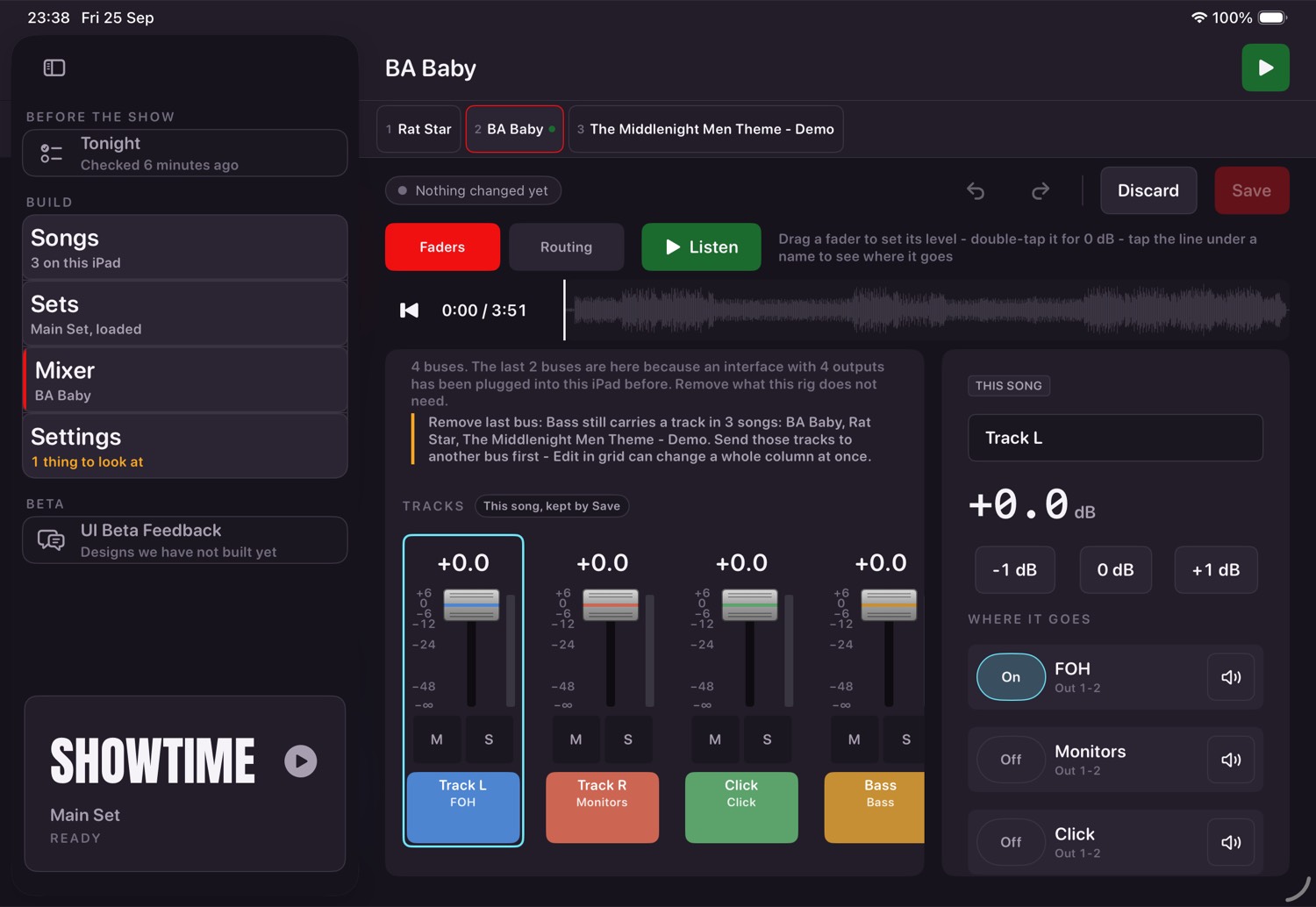
Naming and routing
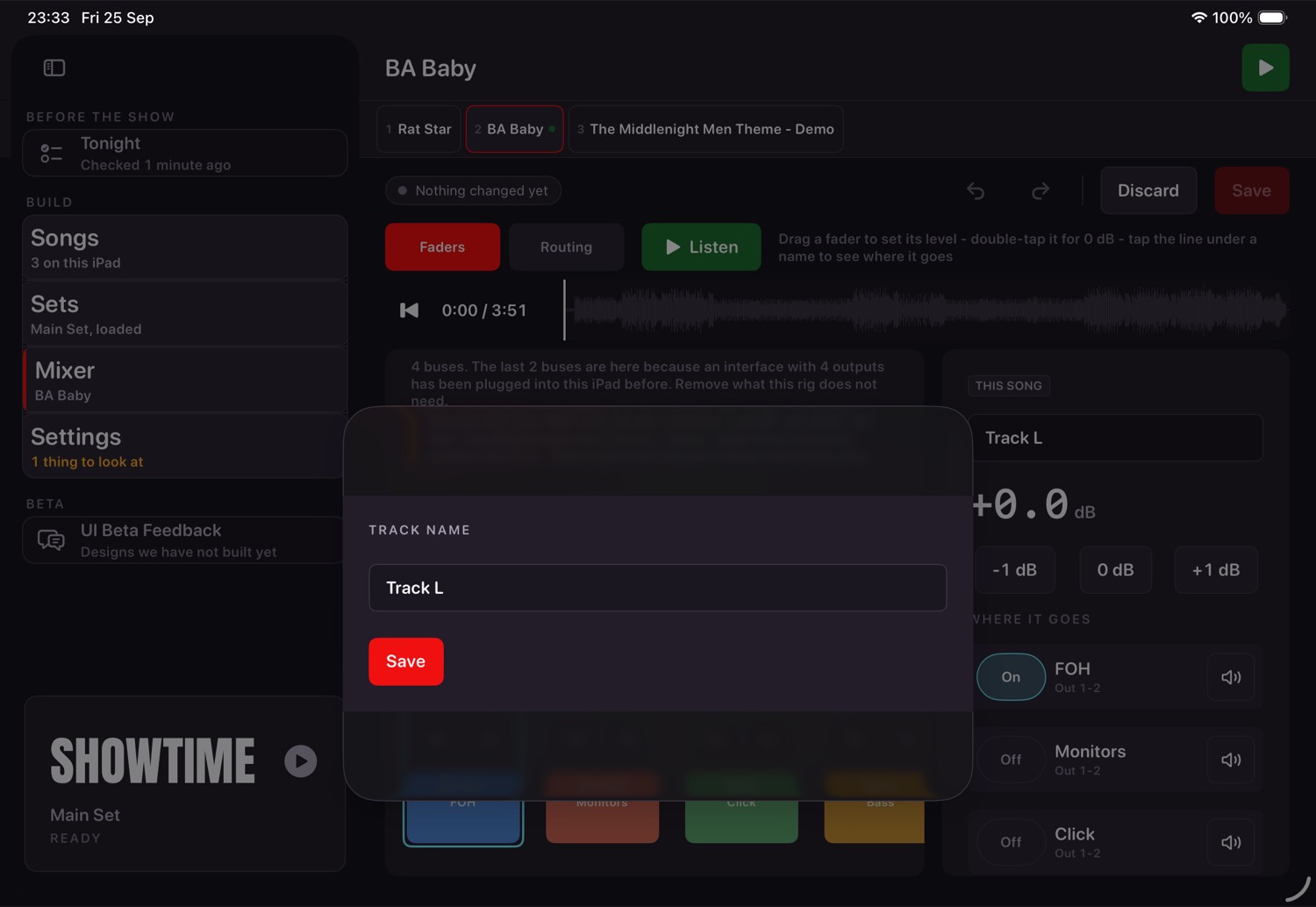
Tap a bus's name plate to rename it or send it somewhere else. The outputs it offers are the ones the connected interface can actually honour, so the label and the speaker can never disagree: on a box with a routing matrix that is every output it has, and on a plain two-output interface it is left, right or both, because that is all a bus can be given there. The targets are large, because this gets used at a soundcheck with a torch in your teeth.
Hold either name plate instead of tapping it, and a menu opens with a few more shortcuts: the same rename (or rename-and-reroute for a bus), plus Reset to 0 dB, Mute and Solo - the same half-second hold as chapter three's library rows, refusing whatever the show would refuse at the time, with the reason stated rather than a dead row.
Add bus declares another. A new bus has no output until you choose one, so it can never appear in the wrong speakers. Removing one is refused while a track still feeds it.
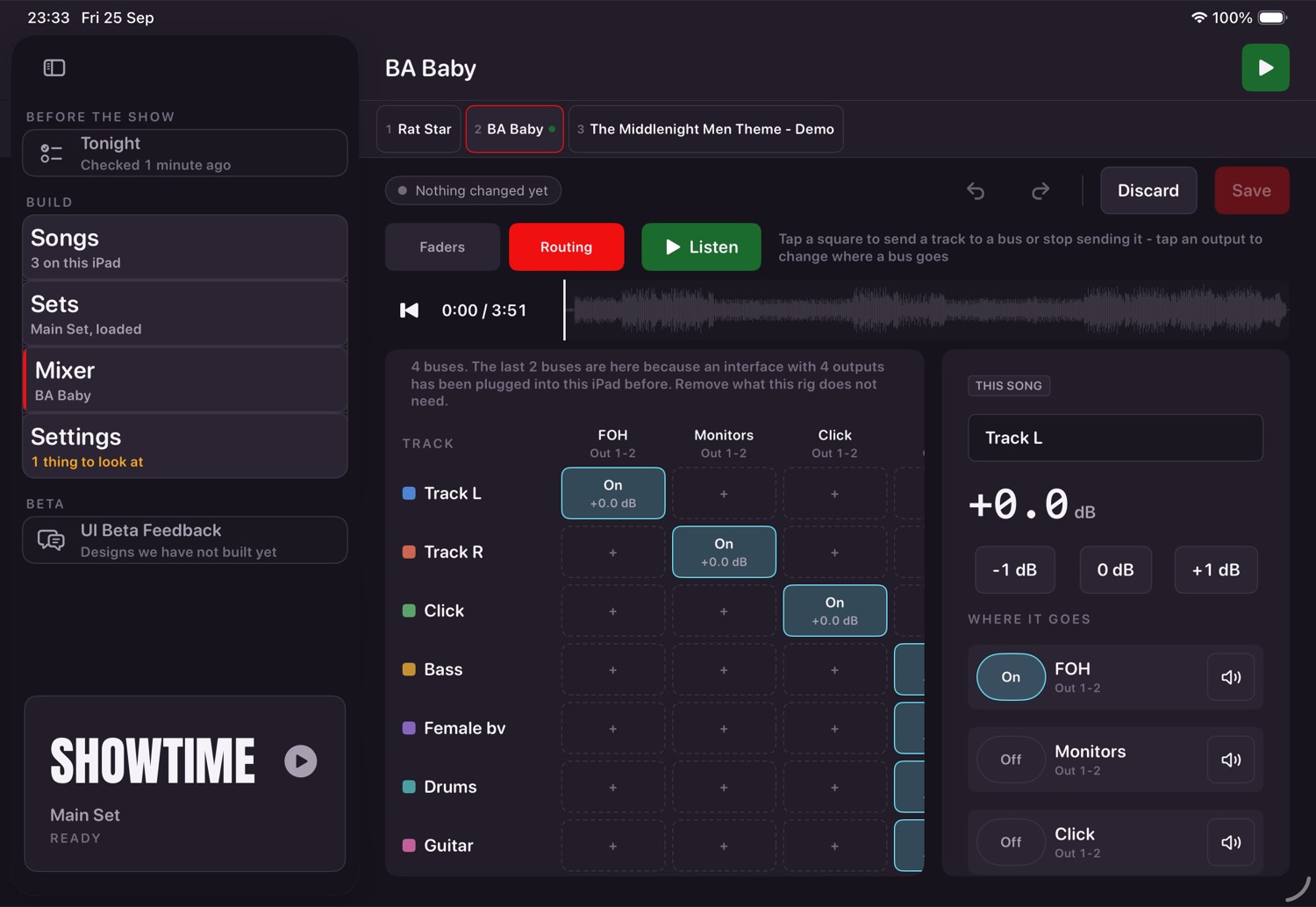
Feeding more than one bus
A track's strip carries a second line under its name: where it goes. Tap it to open the sends sheet - every bus the rig has, a mark against each one this track already feeds, and PRIMARY beside its main destination. Tap another bus to add it as a send, up to about four destinations in total; tap a send off to remove it, down to the one it cannot lose. Each send past the primary carries its own trim slider underneath.
Adding or removing a send is refused while this song is playing, the same rule as adding or removing a bus. Trimming a send's level is not refused - it moves at once, like any other fader.
Tonight
The check that runs before the doors open, so the surprises happen while there is still time to do something about them.
Tonight sits above the four doors, at the top of the sidebar, and it is first for a reason: it is the one screen that looks at the whole rig at once and tells you what is wrong in plain words. The Showtime door offers it once per session when something is red, and never gets in the way a second time.
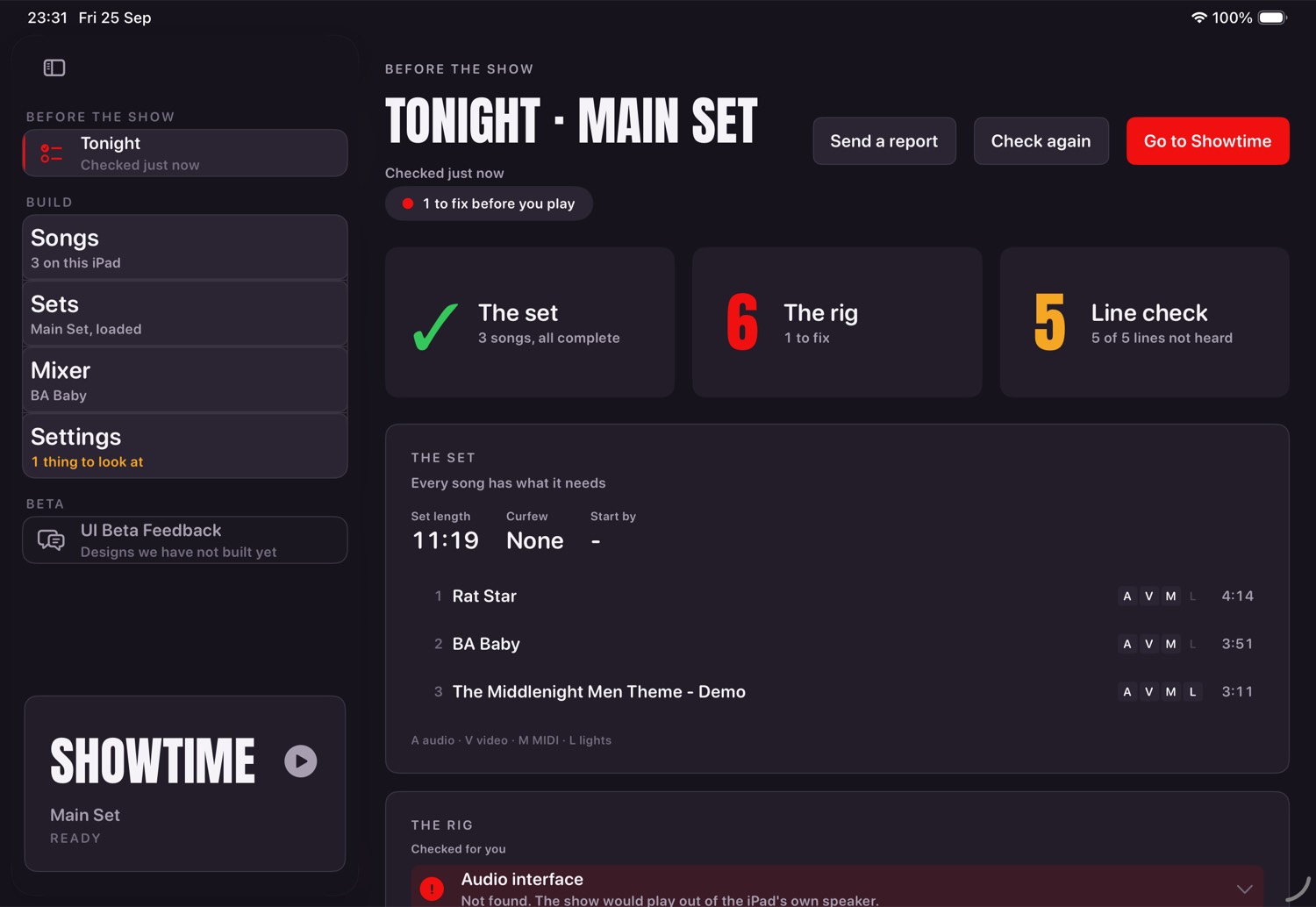
The set
One row per song in the running order, saying what it carries and what it is missing. A song the set names that is not on this iPad is named here rather than discovered at the gap before it. Under a song's title it also says, without grading it, when that song sends a track somewhere this rig has no bus for — the track plays, through the front-of-house bus, and chapter five's mixer is where you would change it.
The rig
Interface, screen, MIDI, lights, network, free space, battery. Each line is graded: green is fine, amber is worth a look, red is something to fix. A line you can act on carries the way to fix it, and tapping it takes you to the setting rather than making you find it.
The line check
A row per bus. Ping plays a tone down that bus alone for a couple of seconds; tap Heard it and it moves to the next. It is the fastest honest way to find out which speaker is which, and it is the only part of Tonight that makes a noise. It stops on its own if the show starts.
A MIDI row after the buses sends the same test note Settings does. It is graded manually and never blocks anything, because a MIDI destination that is not answering is a normal state for a rig that does not use one.
Going on anyway
Nothing here stops you. Go on with problems? asks once and lists what is still red, and then takes you to Showtime. The check is advice from something that can see the whole rig at once, not a gate.
Under the Tonight row in the sidebar is when it was last looked at — "Checked 18 minutes ago", or, past six hours, a reminder that it no longer counts for tonight. Opening it by hand is free and changes nothing; loading a set or relaunching the app arms the door's one offer again.
Showtime
One screen, fixed. Everything here is meant to be read at arm's length, mid-song.
The status bar
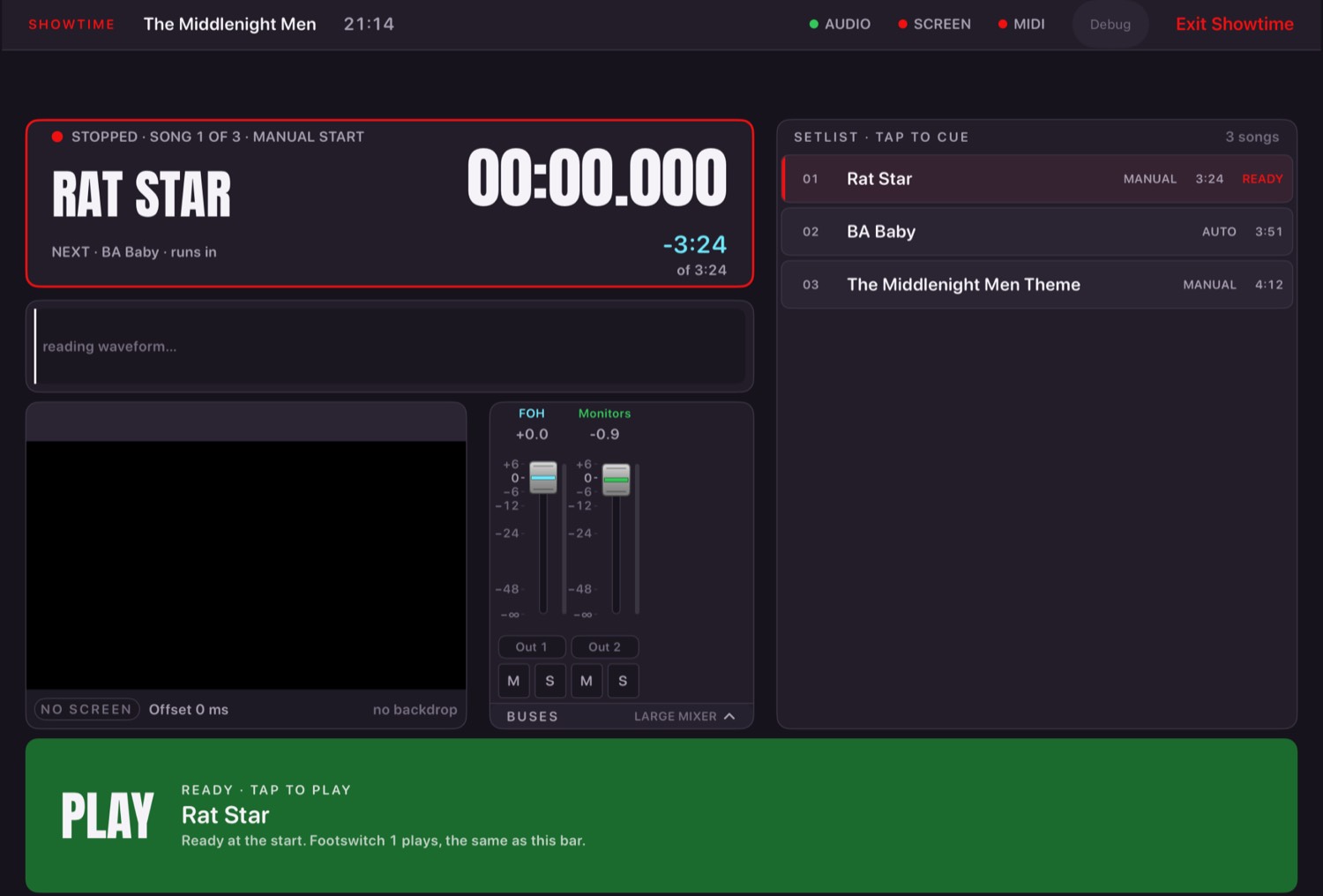
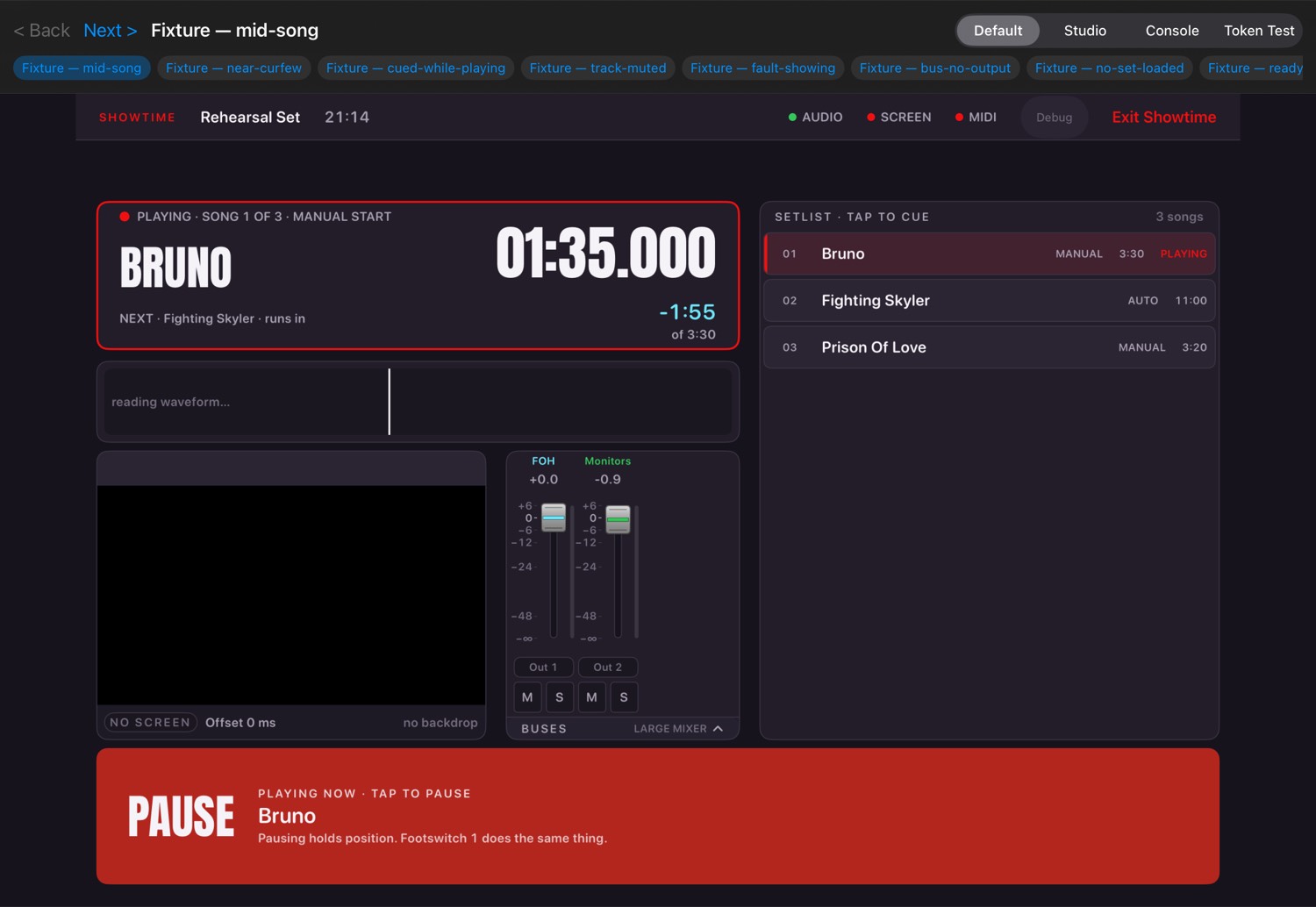
Left to right along the top: the loaded set, the time, any warning in plain words, then a dot each for audio, the screen, MIDI, lights and DMX, and finally Settings, Debug and the way out. A dot is green when the thing it names is working, amber when it wants a look, and unlit when there is nothing to say — a rig with no screen is a valid rig, so colour on this bar always means do something.
| Light | Green means |
|---|---|
| AUDIO | The engine is running and the outputs are there. |
| DISPLAY | A screen is attached and video will be presented. |
| MIDI | A destination is open. |
| DMX | This show carries lighting. Grey means this song has none; it pulses while lighting is changing. |
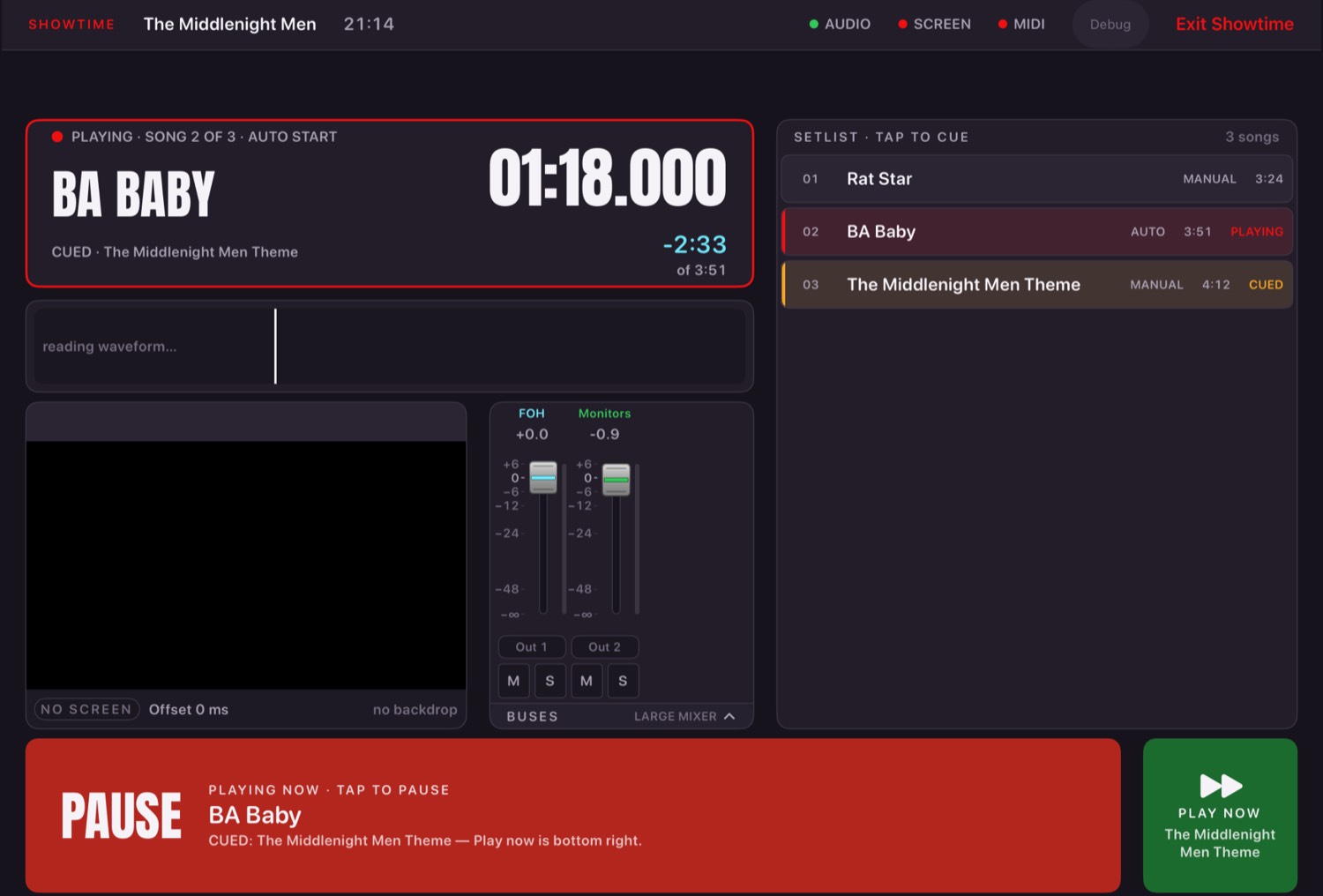
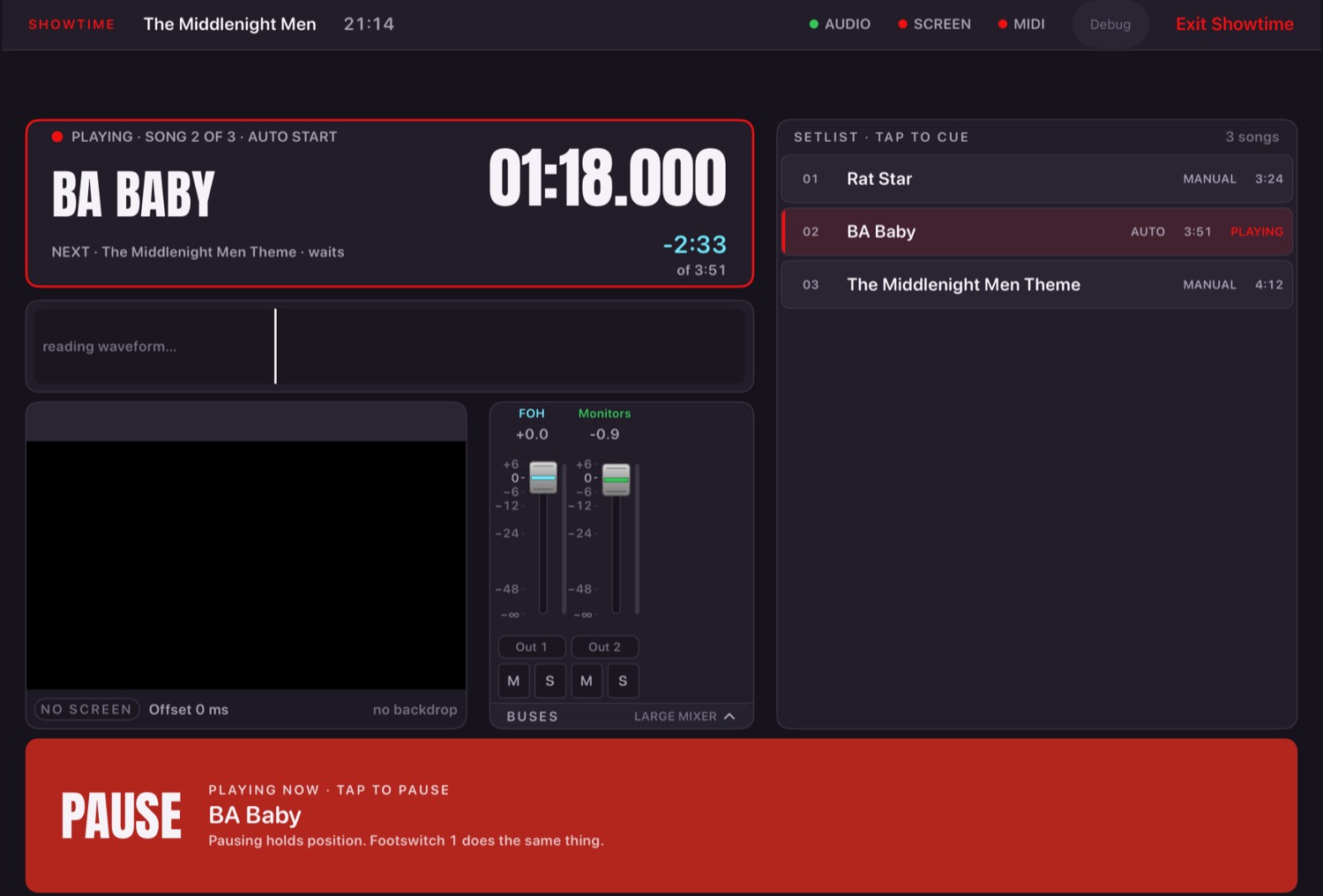
The now-playing card
Status, the song, the timers, and underneath the title what comes next and how it starts. Tapping the title opens that song's mixer; holding it opens a menu with the song editor, the alignment window and the chart.
The setlist
Each song is its own row with its own edge, so what you can press is obvious in the dark. Tap one to cue it — never to start it. READY marks what Play will start; AUTO marks a song the set runs into. The list scrolls itself as the show moves on, and stops fighting you if you have scrolled it by hand.
Cueing, and playing now
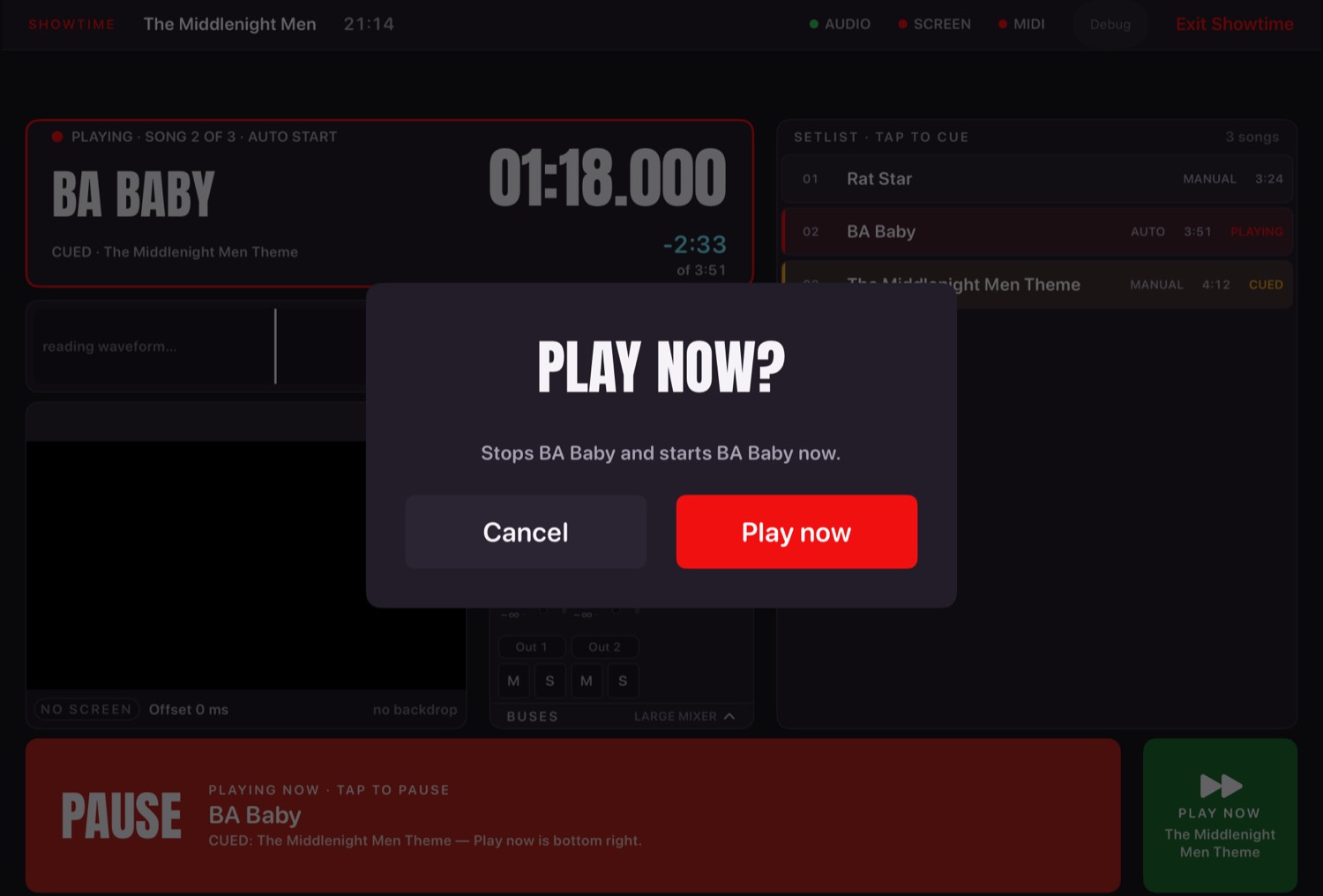
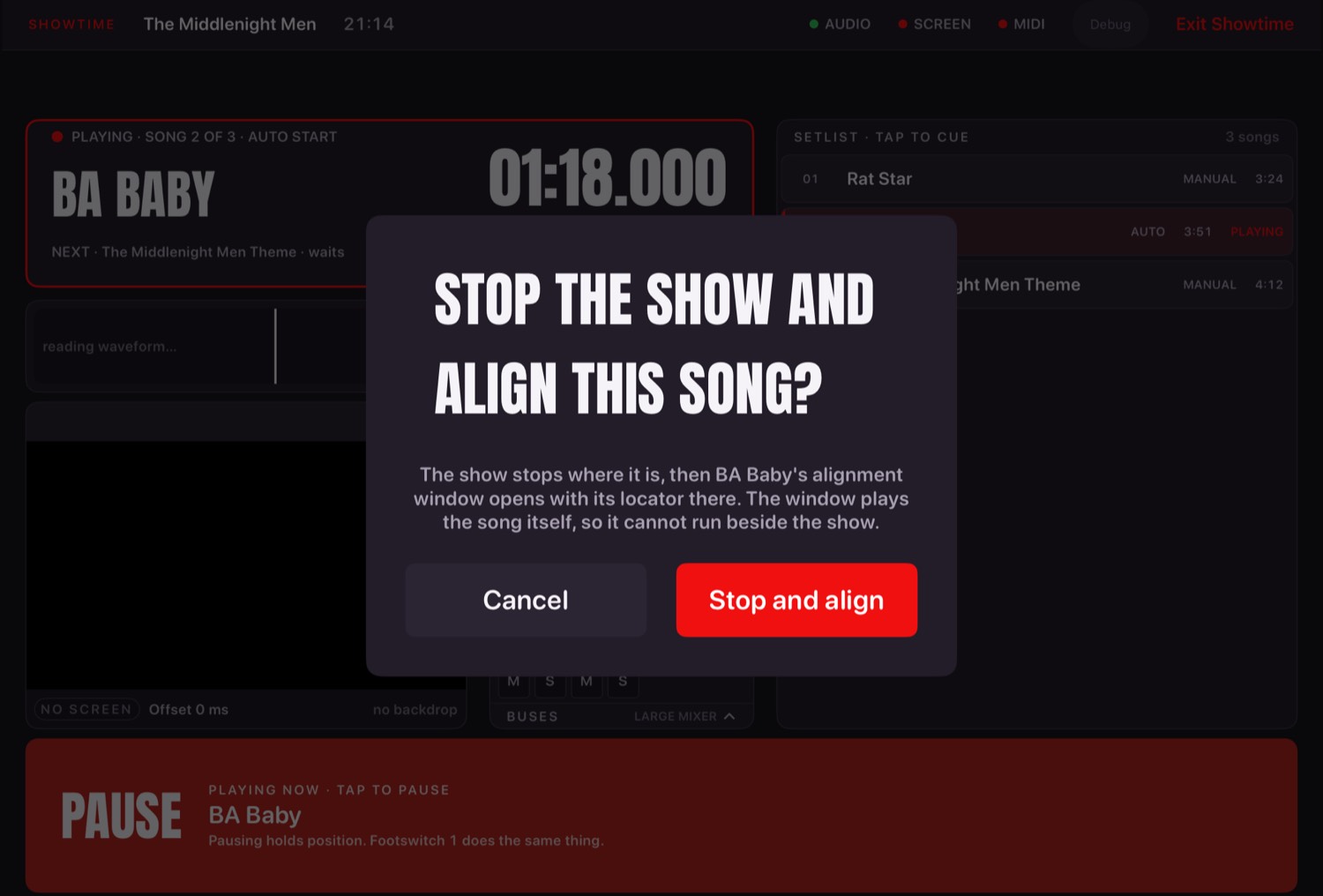
Hold the video pane for half a second, when the armed song has video or DMX, and Showtime opens that song's alignment window (chapter nine), with its locator where the show is standing. If the show is playing it asks first: Stop the show and align this song? There are only two answers, Cancel and Stop and align. There is no "keep playing" choice here, because the window plays the song itself and can never run at the same time as the show.
The curfew
The banner shows the curfew, how long until it, what the rest of the set still needs, and your slack — the number that says a song is about to be cut before it is cut.
Tap the banner to change it. A venue that moves the curfew mid-show does not require leaving Showtime: the banner opens a time wheel with Cancel and Save, and Save recalculates everything without touching playback.
Leaving
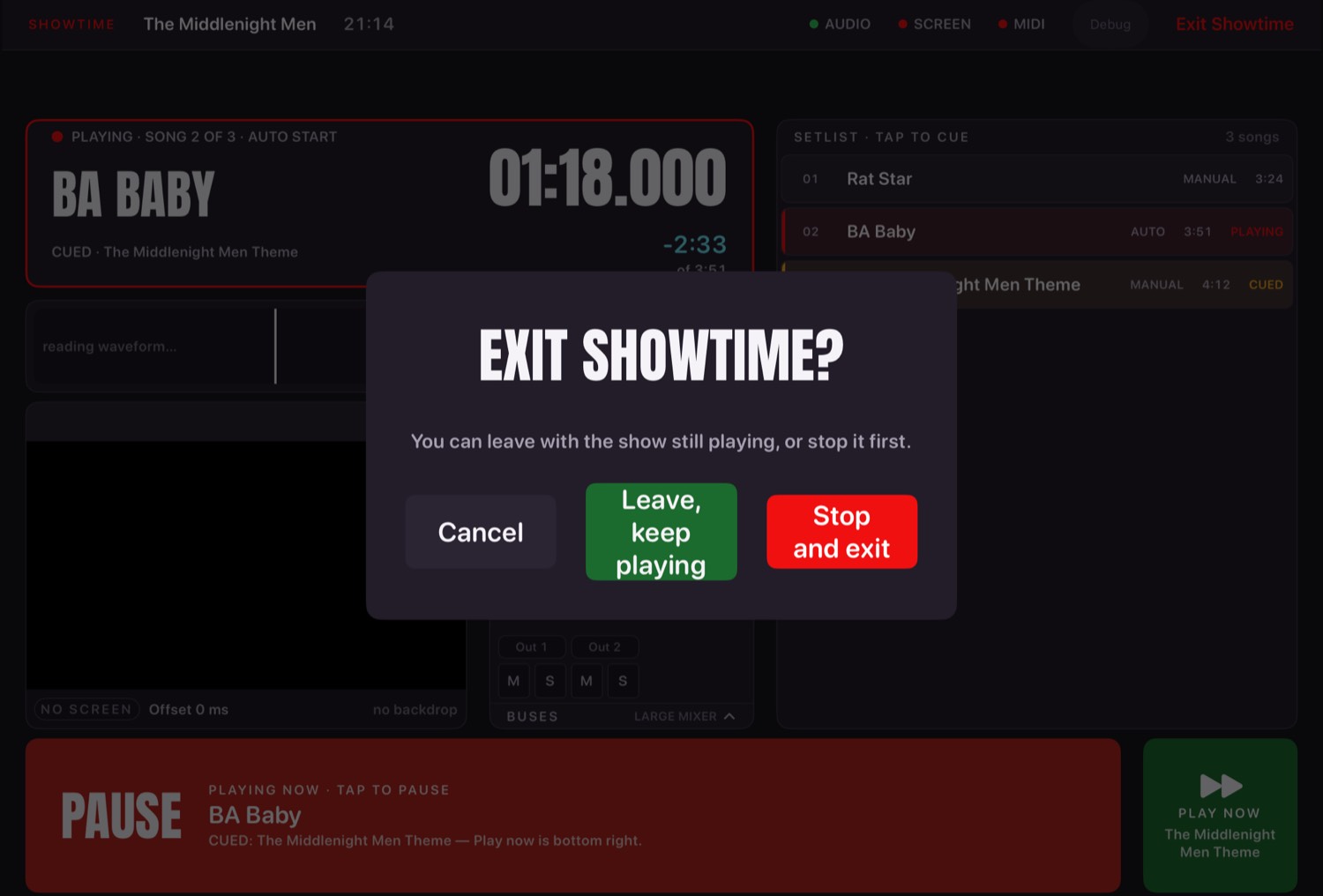
Leaving Showtime no longer has to stop the show. Exit Showtime, in the status bar's top corner, always asks first and offers three ways forward:
| Choice | What it does |
|---|---|
| Cancel | Stays on Showtime. Nothing changes. |
| Leave, keep playing (green) | Drops back to Build mode with the show still running. The transport carries on under the Play bar at the foot of the sidebar. |
| Stop and exit (red) | Stops the show first, then leaves. |
The two active choices deliberately lead with different words - "Leave" against "Stop" - rather than sharing one, so which choice keeps the music going reads from the word alone, at a glance, in the dark.
Solo Showtime
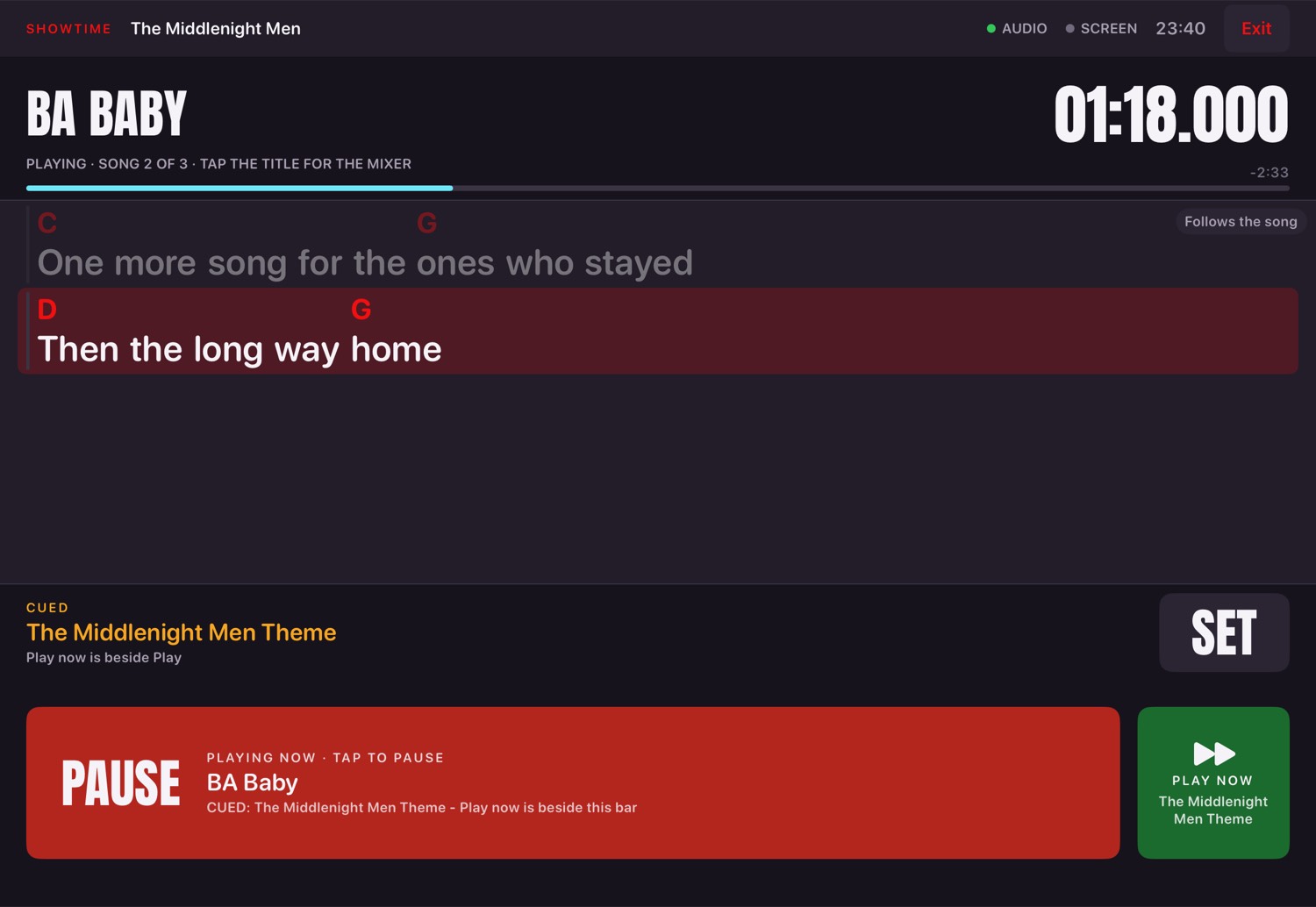
A second Showtime, for one performer on one iPad rather than a band with a drummer operating. Switch to it in Settings → Showtime screen; the door opens whichever you chose.
It is chart-led: the song's words and chords fill the screen, scrolling themselves if the chart has been timed, with the current line held a third of the way down. Underneath are the next song and the transport, and that is the whole screen — no faders, no video pane, no waveform, no Settings and no Debug. A drawer over the chart holds the running order; tapping a song cues it and never plays it, exactly as the band screen's setlist does.
It is the one screen built with pedals in mind first, since a solo performer's hands are on an instrument: the same pedal keys work here as everywhere, and the Play bar is sized to be found with a foot rather than a glance.
The Debug button's hold
Debug, beside Exit Showtime, opens on a two-second hold when no passphrase is set - a stray tap does nothing, and the button fills with colour as you hold so you can see it building rather than wondering whether you pressed it right; let go early and the fill retreats instead of opening anything. Set a passphrase (chapter seventeen's TROUBLESHOOTING card) and a plain tap opens a password prompt instead.
The buses pane
The rig's outputs with live meters, M and S, each strip carrying its name in colour at the top so what you are holding reads from across a stage. Whole strips only — it scrolls rather than resting on half a fader. Tapping the BUSES label at its foot opens the same strips large, over the rest of the screen; it never touches the transport.
Video
On the same clock as the audio, with the screen's own delay accounted for.
Getting a picture
- Attach the screen before the show. The app keeps a surface open so a song starts instantly.
- Check DISPLAY is green on Showtime. Amber says no screen is attached, or video output is off in Settings.
- A song with no video of its own shows the backdrop — a still or a loop, set for the rig and optionally per set.
Fades
Set the rig's own fade in Settings, override it per set, and override that per song — separately for the way a song's video arrives and the way it leaves. A song with no video reveals the backdrop rather than dipping through black.
Two different delays
There are two numbers that decide when a picture appears, and they fix two different problems. It is worth getting straight which is which.
| Number | What it fixes | Where it lives |
|---|---|---|
| Screen latency | The screen, projector and cable are slow. Every song's picture arrives late by the same amount. | Settings, SCREEN LATENCY. One number for the whole rig. |
| A song's own video shift | This one video file was cut or exported a little early or late against its audio. Only this song is out. | That song's alignment window (chapter nine). Saved with the song. |
The two add together. Get the screen latency right first, on the real screen, with the Sync Check. Only then shift a song that still looks wrong. If every song looks late by the same amount, the fix is screen latency, not every song.
Screen latency and the Sync Check
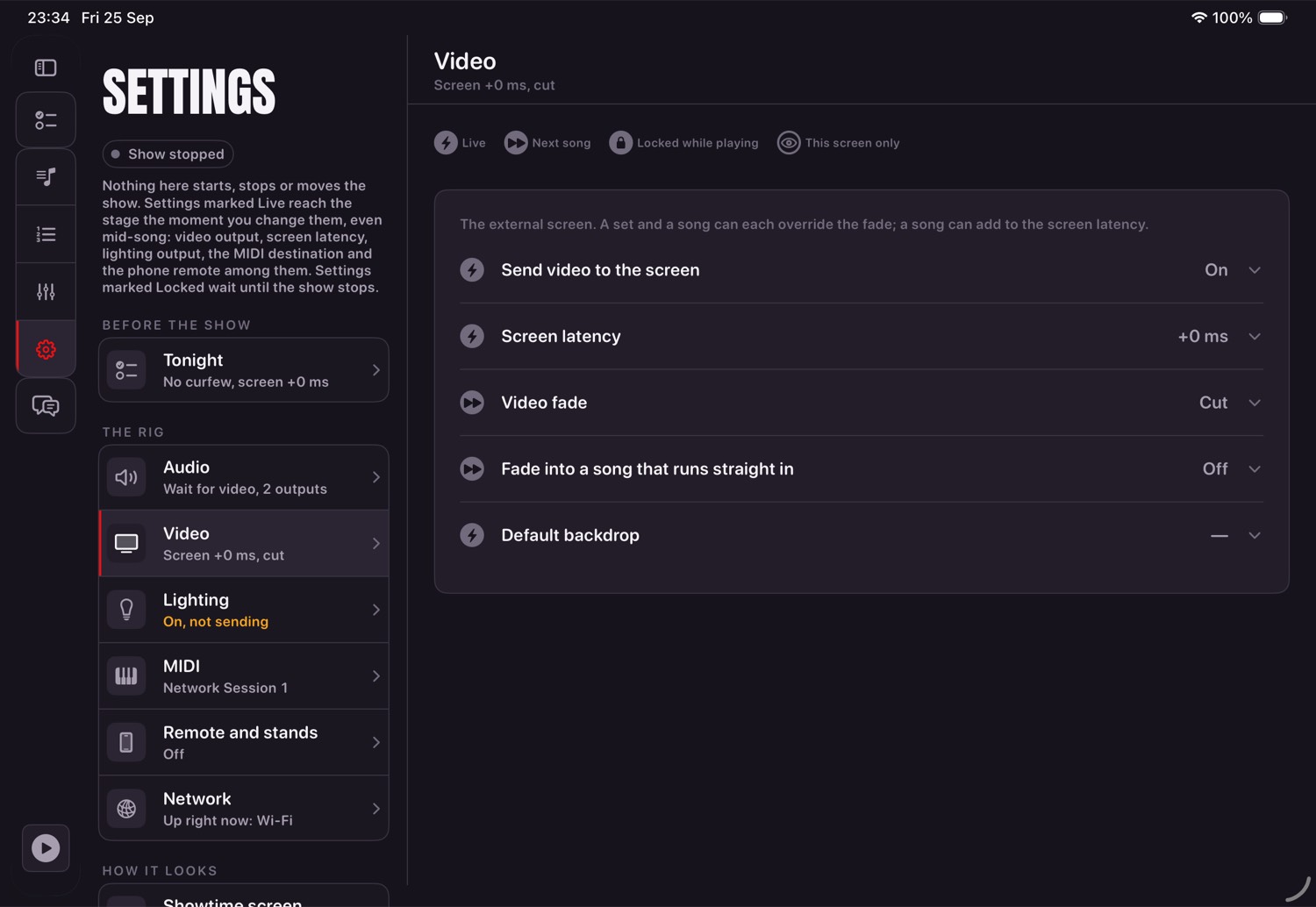
The card shows the latency in milliseconds, with its size in frames once a song with video has been armed. -10 ms, Zero and +10 ms change it. A bigger number drives the video further ahead of the audio, for a slower screen.
- Stop the show. The Sync Check is refused while anything plays.
- Tap Play Sync Check. It plays a flash and a click together through the real outputs and on the real screen, outside the running order.
- Watch the audience's screen, not the iPad, and step the latency until each flash and click land together.
- Tap Stop Sync Check. The new latency is saved then, and the song that was armed comes back where it was. It does not start playing.
99 - Sync Check from the library. Without it the button is greyed out and says so.
With no external screen attached the card warns you, because the number is for the screen the
audience sees.When the armed song carries its own video shift, the card mentions it in one line, and says it is changed in that song's alignment window, not here.
The song alignment window
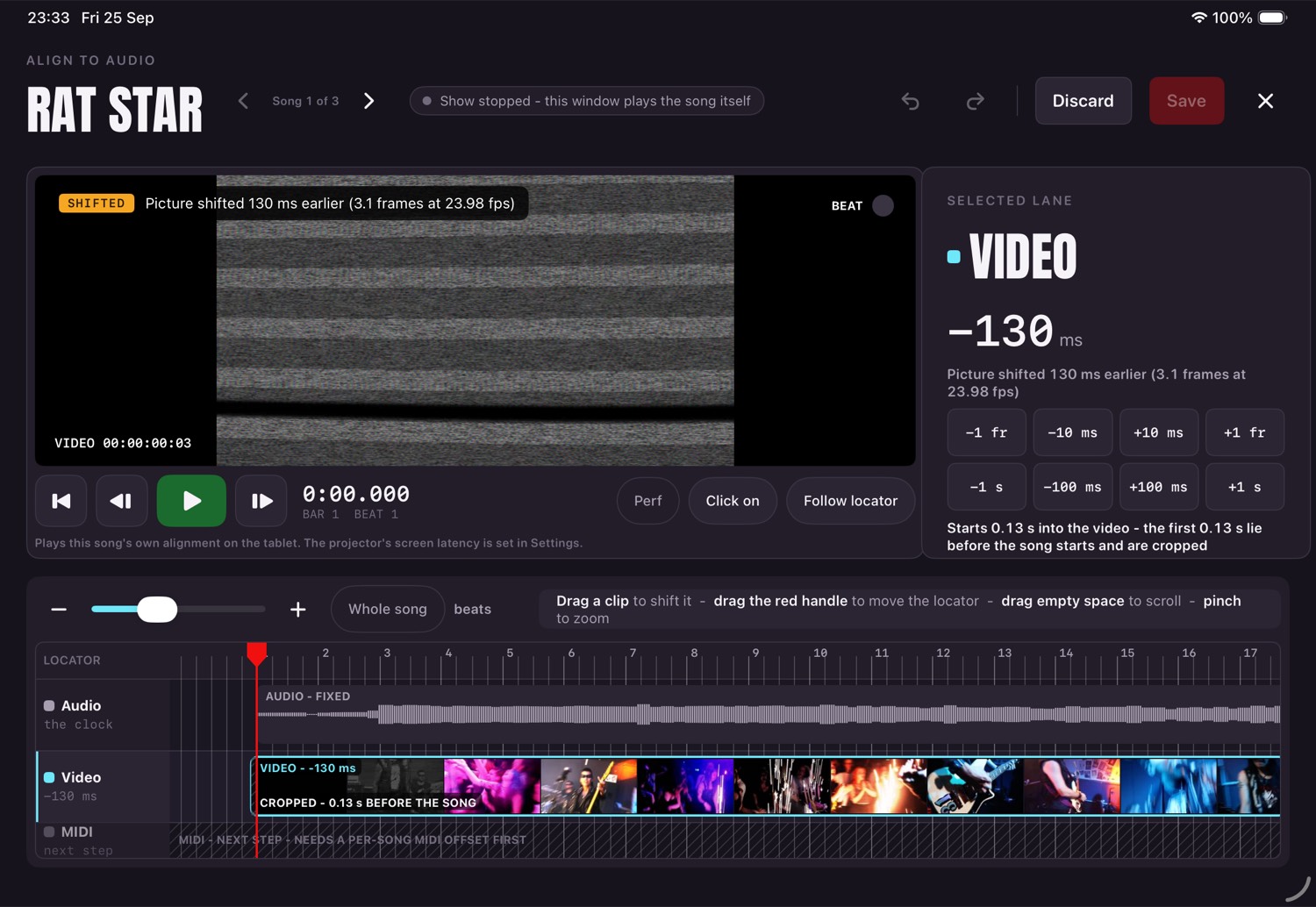
One window per song. The audio stays still. You slide the video and the lighting until they sit right against it.
What it is for
A song's video or lighting sometimes arrives slightly early or late against its audio: a video exported with a few frames of black at the top, or lighting that came from another machine. The alignment window is where you fix that, once, for that song. The fix is saved in the song and used at every show. A capture made on this iPad with Capture DMX needs no alignment, because the iPad that started the song also heard the lights.
Getting in
| From | How |
|---|---|
| The song editor | The ALIGNMENT section, Align to Audio. Shown when the song has video or DMX. |
| The Songs library | Hold the song's row, then Align to audio. |
| Showtime | Hold the video pane for half a second. The locator starts where the show is standing. |
| The Universe Matrix | Its Align to Audio button. The window opens on the DMX lane. |
It opens on the Video lane if the song has video, otherwise on DMX. The song editor's button is refused, with the reason underneath, for a song that has not been saved yet, for a song whose files have changed since it was saved, and while the app is still preparing.
The lanes
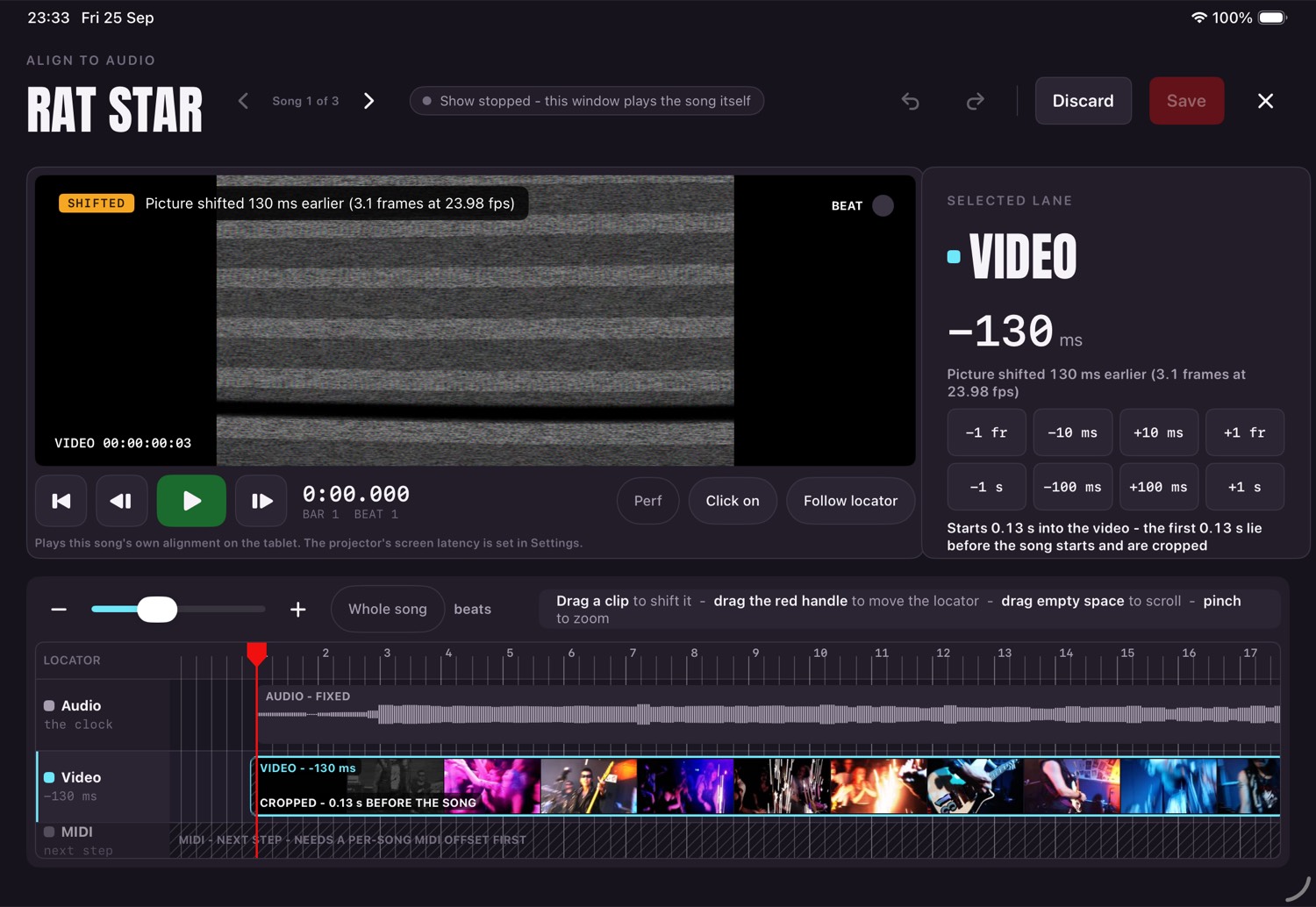
| Lane | What it shows | Can it move? |
|---|---|---|
| Audio | The song's waveform | Never. It is the clock everything else lines up against. |
| Video | A strip of the video's own frames | Yes. Drag it. |
| DMX | How busy the lighting is, moment to moment | Yes. Drag it. |
| MIDI | Hatched out and marked as the next step | Not yet. It needs a per-song MIDI offset first. |
Drag a clip right and it plays later; drag it left and it plays earlier. The selected lane's panel (beside the preview, or on a narrow screen a sheet opened from the lane's name) shows its shift in milliseconds and, for video, in frames. It says it plainly - "Picture shifted 40 ms later (1.0 frames at 25 fps)", or "plays unshifted" at zero. It never claims the picture is in time just because of the number.
What your fingers do
| Gesture | What it does |
|---|---|
| Drag a clip | Shifts that lane against the audio. There is no snapping. |
| Drag the red handle, or tap the ruler | Moves the locator, the line that says where you are in the song. |
| Drag empty space | Scrolls the timeline. Nothing is edited. |
| Pinch | Zooms. The grid gets finer as you go in: bars, beats, then halves down to sixteenths, then single video frames or milliseconds. |
| Double-tap a lane | Drops a marker there (a target, on the audio lane). |
The zoom bar above the lanes has -, a slider, +, Whole song, and a readout of the finest grid line on show. A strip beside it says in plain words what your finger is doing right now.
Nudging
For exact steps, the lane's panel has -1 fr, -10 ms, +10 ms and +1 fr (one frame at the video's own rate; 1 ms steps instead when there is no video), and Reset to 0. The DMX lane also has Suggest: it looks for the lighting's sharp hits against the song's beat and proposes a shift, with how sure it is. If there is not enough to go on it says so and changes nothing. A suggestion is one undoable step, like any other edit.
Video has no Suggest, on purpose. A music-video edit rarely cuts on the beat, so a beat matcher would confidently line up the wrong thing. Video is lined up by hand, by watching the singer's mouth against the vocal.
Instead, the Video lane shows Lip sync to vocal track, tagged Soon. It is a placeholder. Tap it and it explains what it will do one day - find the singer's mouth in the picture, line it up against the song's own vocal track and suggest a shift for you to check - and changes nothing at all.
Markers
Markers are there to help your eyes, nothing else. Drop a target on the audio at a clear moment - a word, a hit - and a marker on the video or lighting at the matching moment, then drag the clip until they meet. When a marker sits on a target, both are drawn in green with a tick and the word "Aligned".
The MARKERS list shows every marker with its time. Tap a name to rename it; tap the cross to remove it. Marker at locator and Target on audio drop one where the locator is. Markers are saved with the song. If a video or lighting file is later replaced, its old markers are dropped, and the window says how many.
The preview
The preview plays the song itself - its audio through your outputs, at the song's own levels, and its picture in the window, with your unsaved shift already applied. The projector is left alone, and no lighting or MIDI is sent.
| Control | What it does |
|---|---|
| Back to start | Puts the locator at the top of the song. |
| Frame back / forward | One video frame (40 ms with no video). The arrow keys do the same on a keyboard. |
| Play (green) / Pause (red) | Runs the preview from the locator. Space does the same. |
| Beat lamp | Flashes on each beat in the corner of the picture. |
| Follow locator | Keeps the timeline scrolled to the locator while it plays. |
The corner readout says SHIFTED, UNSHIFTED or LINED UP (the last only when a marker actually sits on a target). If the audio output changes while the preview plays, it stops; press Play to carry on.
Undo, Save, Discard
Every finished drag, nudge, reset, suggestion or marker change is one step. Undo and Redo sit in the top bar, greyed out when there is nothing to undo or redo (Command-Z and Shift-Command-Z on a keyboard).
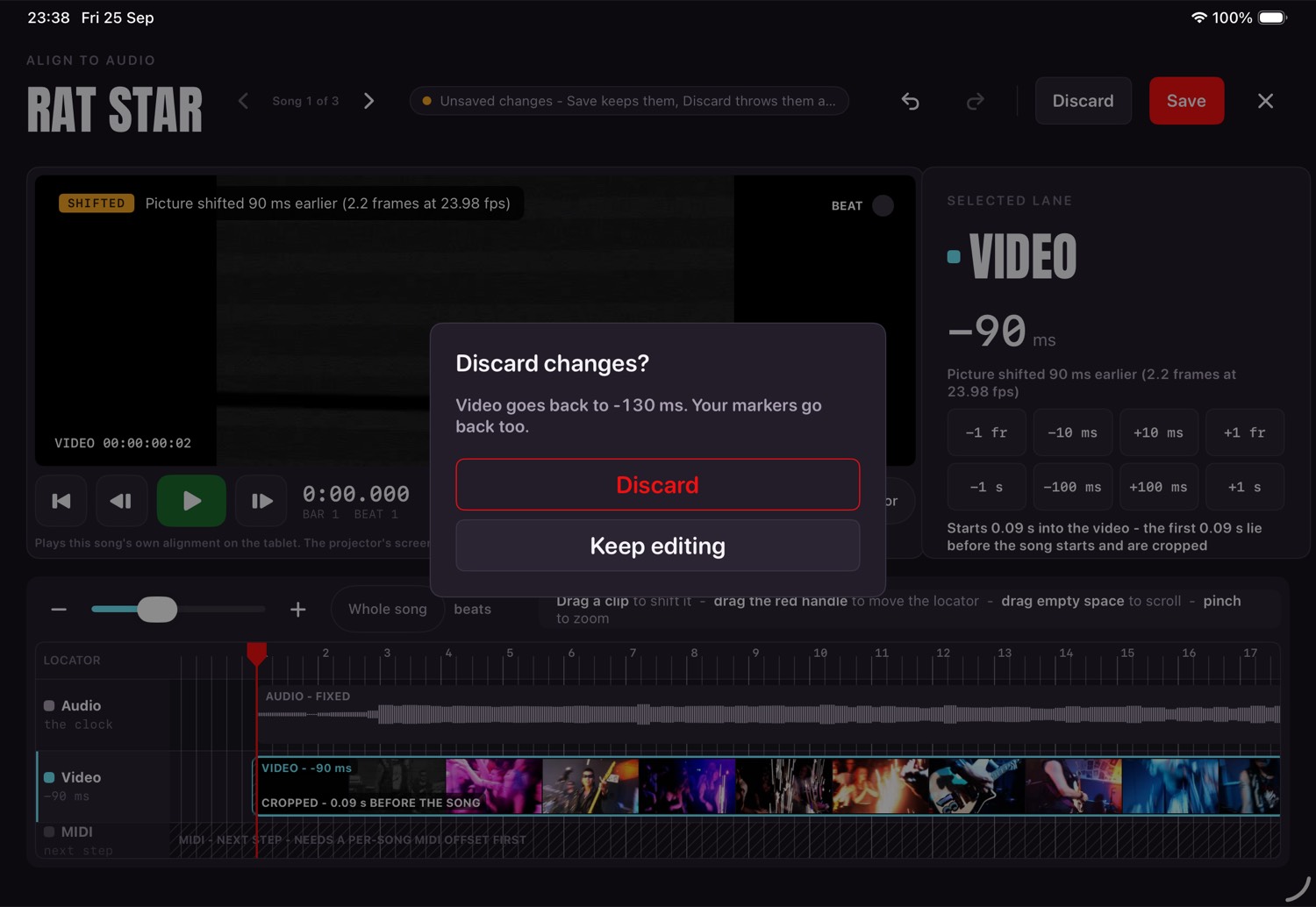
Save is greyed out while the show is playing, and when there is nothing new to save. Save from a window opened in the song editor and the editor picks up the same values, so its own Save or Cancel neither overwrites nor undoes them.
MIDI
What starts the other machine, and how to prove it before the first song does.
Two ways out
- DIN from the interface. The choice for a show: no network, no jitter.
- A network session over Wi-Fi. Useful when the iPad's port is taken by something else — an Ethernet adapter, for instance.
Joining a network session
- On the Mac: Audio MIDI Setup → Window → Show MIDI Studio → double-click Network.
- Under My Sessions, add a session and tick it to enable.
- In Directory, select the iPad and click Connect. It moves up into Participants.
- Set Live routings to that session.
- In your DAW, enable Track and Remote for that input.
- On the iPad, choose that session as the destination and press Test.
Lighting
DMX means anything on that wire — lamps, hazers, motors. The app records it, plays it back on the show's own clock, and sends it out.
Three jobs, kept apart
| Job | Where |
|---|---|
| Capture a song's lighting from the rig you already have | Song editor → DMX → Capture DMX |
| Align it against the song, if it came from somewhere else | The song's alignment window: Align to Audio, from the song editor's ALIGNMENT section or the Universe panel |
| Send it out to a node during a show | Settings → DMX OUTPUT |
Before you capture
- Get the iPad and the lighting machine onto the same network — a wire if you can, Wi-Fi if you must.
- Point the lighting software at the iPad. Sending to its own machine (127.0.0.1) reaches nothing.
- Open Test DMX Input from the song's DMX row. It lists every address the iPad has, and says what is arriving.
Chapter eleven walks the wired setup and Test DMX Input's own log in full, plus the two faults that look exactly like a broken network and are not.
Capturing
- Stop the show. Capture is refused while anything plays, while the app is still preparing, and with no network.
- Song editor → DMX → Capture DMX.
- It arms and plays that song; your MIDI starts the rig exactly as it does in a show.
- Watch the log and the small universe beside it. Channels light as they arrive.
- Stop when you have what you need, or let the song finish.
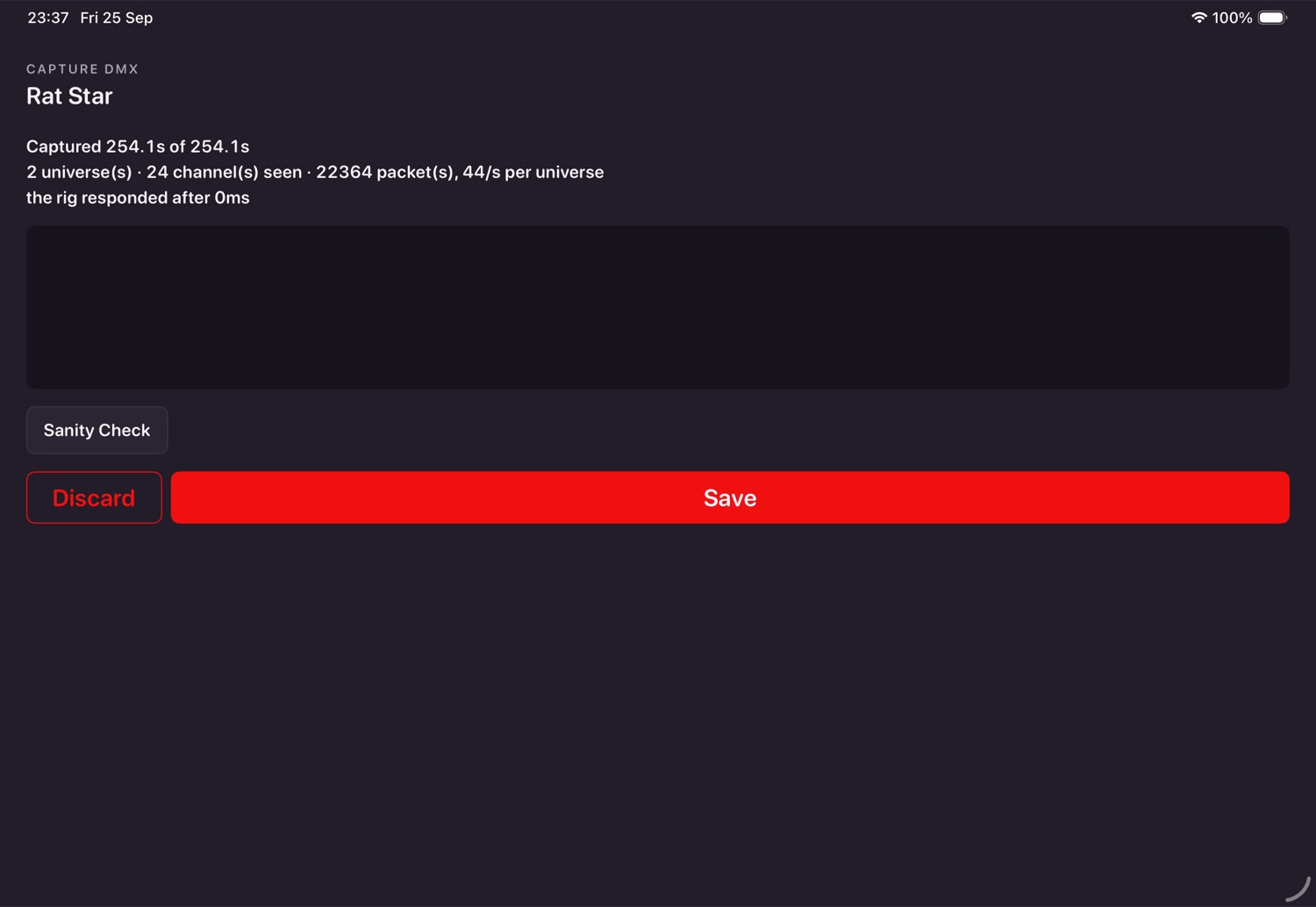
- Read the summary, use Sanity Check to see the activity under the waveform, then Save or Discard.
Watching it
Aligning lighting that came from elsewhere
Lighting imported from a file rather than captured here may sit a little early or late. Open the song's alignment window (chapter nine) - from Align to Audio in the song editor's ALIGNMENT section, or from the Universe panel - and work on the DMX lane: drag it, nudge it, or try Suggest. Drag right to make the lighting later. Nothing reaches the song until you tap Save.
The old lighting-only alignment view, and the live nudging of the lights from Showtime while a song played, are gone. A lighting shift is now changed only with the show stopped, in the window, and takes effect as soon as it is saved.
Sending it out
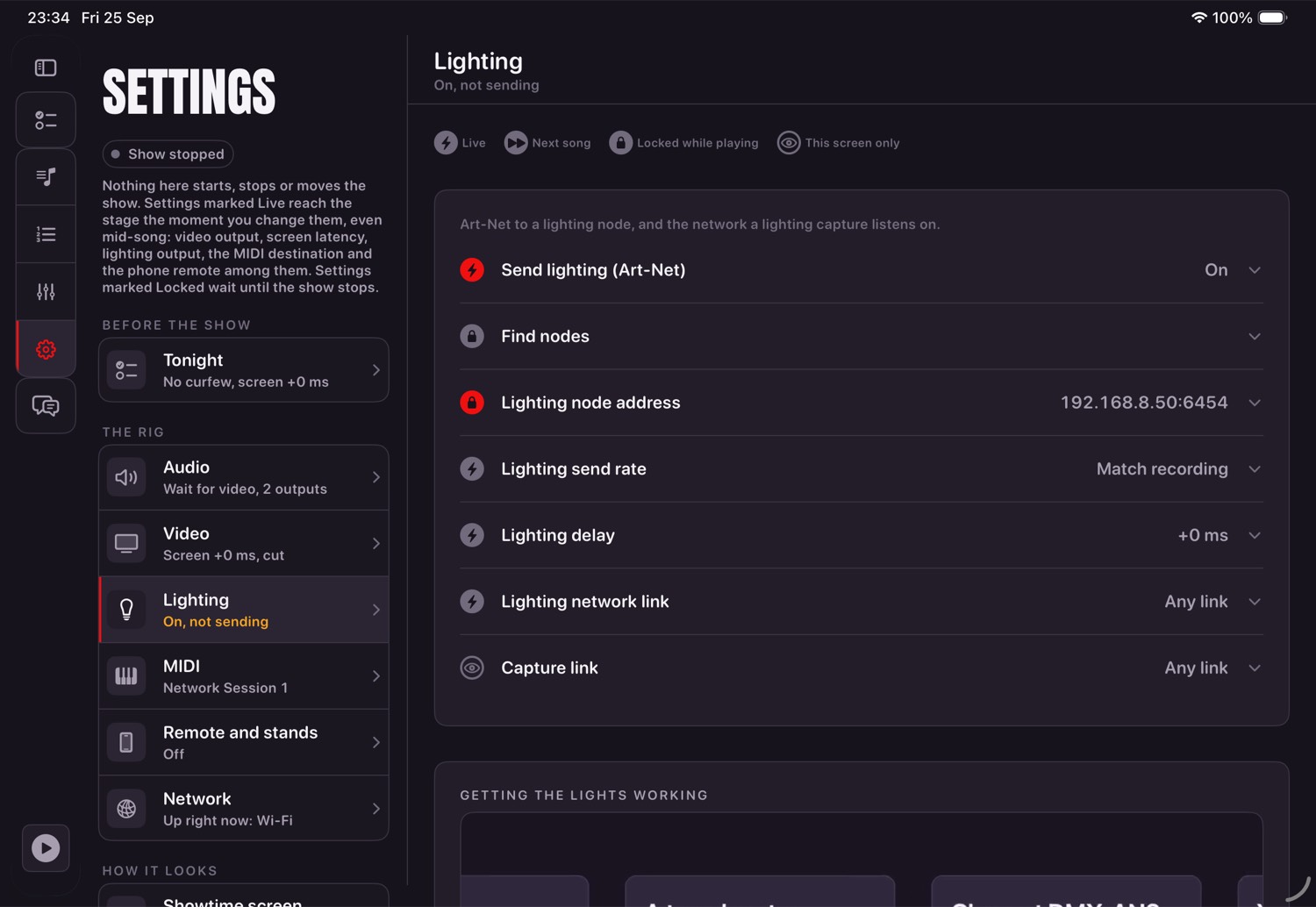
- The last look is held when you stop, at the end of a song and between songs.
- Nothing is sent at all until the first Play after launch. Set the node to hold on signal loss and a crash leaves the stage lit rather than dark.
- Before buying a node, prove the output against a Mac running the recorder in listen mode. The rig notes give the exact steps.
Capturing DMX from the rig
The wired link that makes a capture reliable, and the two faults that look exactly like a broken network and are not.
What Capture DMX actually does
It plays the song on the iPad. The song's own MIDI triggers your lighting software, exactly as
it will on the night, and the iPad records the Art-Net the rig sends back — aligned to the song's
own clock as it arrives, because the same device that started the song also heard the answer. The
result is saved as song-lighting.dmx in the song's own folder.
Wiring the two machines together
- A USB-C Ethernet adapter on the lighting Mac, and one on the iPad. One cable straight between them.
- Give both ends a fixed address rather than letting them negotiate one, so nothing needs re-pointing next time.
- From the Mac,
pingthe iPad's address. A live wired link answers every time, at around a millisecond.
| End | Address | Subnet mask | Router |
|---|---|---|---|
| Lighting Mac's adapter | 192.168.10.1 | 255.255.255.0 | leave empty |
| iPad's adapter | 192.168.10.2 | 255.255.255.0 | leave empty |
192.168.10 — that is what makes them one network. Each end still needs its
own last number: the Mac is .1, the iPad is .2. Give both ends the same
address and the link will not work at all, even with the cable plugged in and everything else
right. No router or gateway is needed for a straight cable between two machines.
Mac: System Settings → Network → the USB LAN adapter → Details → TCP/IP → Configure IPv4 Manually. iPad: Settings → Ethernet → the adapter → Configure IP → Manual.
| Link | Packet loss | Latency |
|---|---|---|
| Wired (adapters, direct cable) | 0 of 100 pings | 1 ms, steady |
| Wi-Fi | 4 of 100 pings | spiking as high as 941 ms |
Measured on the rig. Wi-Fi is fine for the phone remote, which only polls once a second — it is not fine for lighting, and the gap above is why a wire is worth running.
Pointing the lighting software at the iPad
Send Art-Net to 192.168.10.255 — the wired link's own broadcast address — or
straight to the iPad at 192.168.10.2.
Scripts/artnet-relay.swift on that Mac instead: it listens on port 6454
and forwards every Art-Net packet onto the network unchanged. Run it in the foreground, from a
Terminal window on that Mac — never with nohup, and never backgrounded. macOS 15
strips Local Network permission from a process detached from its own session, so a backgrounded
relay has every send to a LAN address refused with "No route to host" — while a ping to that same
address is flawless, which reads exactly like a network fault and is not one. Approve the Local
Network permission prompt the first time it appears.The one thing that costs an evening: App Nap
A second symptom worth naming
Check the link before you commit to a take
Test DMX Input, reached from the song's DMX row, plays nothing and saves nothing. It exists purely to answer one question — is anything arriving, and from where.
| Column | What it shows |
|---|---|
| TIME | When this line was logged. |
| RATE | Frames a second actually arriving, right now. |
| UNIV | Which Art-Net universe the frame belongs to. |
| LIT | How many of the 512 channels in that frame are non-zero. |
| ART-NET | Valid Art-Net packets read, running total. |
| DATAGRAMS | Packets of any kind that have arrived on the port, valid Art-Net or not. |
A healthy link settles around 40–44 frames a second, with ART-NET and DATAGRAMS climbing together. A dead one is exactly that: no new lines, RATE stuck at 0. Each line names the address the frame arrived from, so wired traffic can be told apart from Wi-Fi at a glance. If DATAGRAMS keeps climbing while ART-NET stays flat, something is arriving on the port that is not Art-Net — worth chasing down before assuming the lighting rig itself is at fault.
Doing the capture
- Wire up, point the lighting software at the iPad, and check the rate on Test DMX Input first. A take is only worth taking once the rate looks right.
- Song editor → DMX → Capture DMX, then wait through Getting the rig's attention — the iPad announces itself for a moment before the song starts. Starting the song first, before that finishes, loses the opening seconds of lighting: nothing was listening for it yet.
- Let the iPad trigger your lighting software itself, over MIDI, exactly as it will on the night — do not start it by hand.
- Let the song run to its own end and stop cleanly, or stop it yourself once you have what you need.
- Read the summary, use Sanity Check to see the recorded activity under the song's own waveform, then Save.
When a capture will not behave
| What you see | Likely cause | Fix |
|---|---|---|
| Nothing arrives at all | Software sending to loopback, or the two machines are not really on one network | Point it at 192.168.10.255 or .2 directly; confirm with a ping from the Mac first |
| "No route to host" from the relay, but ping works fine | Relay was started with nohup or left in the background; macOS pulled its Local Network permission | Run it in the foreground, in its own Terminal window; approve the permission prompt |
| Rate collapses to about one frame every six seconds | App Nap throttling the lighting application in the background | Keep it frontmost; tick Prevent App Nap in Finder's Get Info before opening it |
| Traffic dies after about eight or nine seconds | Art-Net node timeout — the controller dropped the iPad after missed polls | Rescan for devices in the lighting software |
| DATAGRAMS keeps climbing, ART-NET stays flat | Something that is not Art-Net is arriving on the port | Check what else on the network is sending to port 6454 |
| Capture is missing its opening seconds | Song was started before the iPad finished announcing itself | Wait for "Getting the rig's attention" to finish before the song starts |
The phone
The band sees the set on their own phones. Whoever holds the password can run the show, and the mix, from there too.
There are two of these, and it is worth knowing which you want. Remote mode is this same app on an iPhone, driving the show running on the iPad: it finds the tablet by itself, so there is nothing to type. The web remote is a page the iPad serves, opened in any phone's browser — no app to install, so anyone in the band can use it. Both are served by the iPad and both work with no internet at all.
Remote mode
At the foot of the door list on an iPhone. It lists the tablets it can see, each row saying which set that one has loaded, which is the fact worth knowing from across a room. Tap one and you get the now-playing card, the setlist and the Play bar, drawn the same way Showtime draws them — no video and no waveform, since the phone does not have the files and streaming them is the one thing here that could cost the show something.
It asks for the password at the first command that needs one, not at the door, and remembers it for that tablet. If the link drops it says so plainly, and says whether the show was playing when it went — that sentence is the most important one in the mode, so it is only ever shown when it is true. It locks itself after a minute untouched, because a phone in a pocket presses things.
The web remote
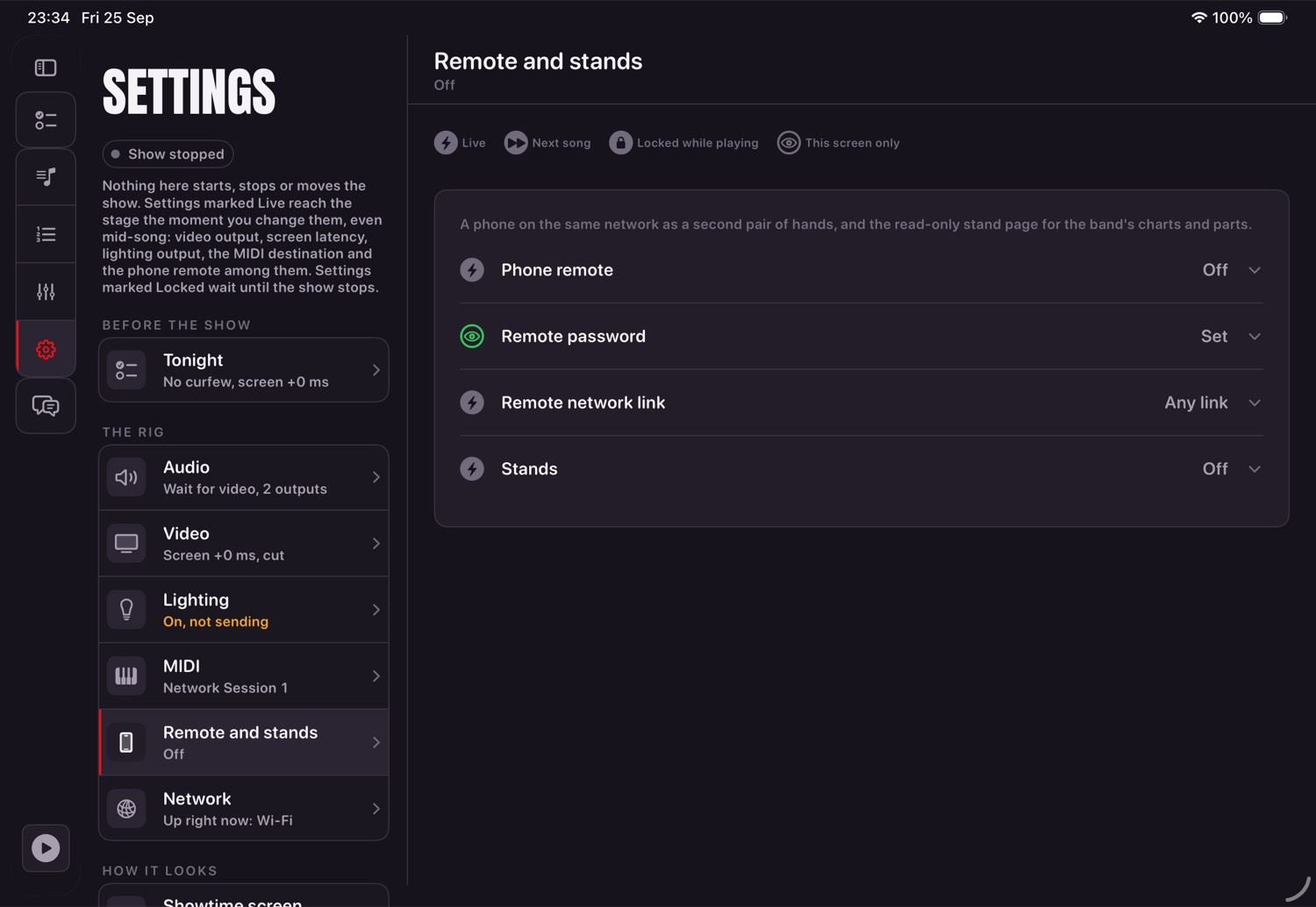
- Turn Serve the phone remote on. The card shows an address.
- Open that address in any phone's browser, on the same network. Nothing to install, and it works with no internet.
- Watching needs no password: the setlist, what is armed, what is playing, time left.
- Set a remote password to allow control - at least six characters. A phone types it once and remembers it.
- Changing the password revokes every phone that knew the old one.
The remote can Play, Stop and cue a song, exactly as before. It now has a second screen too - a SHOW/MIXER switch at the top of the page - carrying the same faders, mute and solo as the iPad's own mixer, tracks then buses. Touch a fader on a phone and the same fader moves on the iPad at once; watch the strip and you will see it happen, or catch it afterwards as a line in the Debug screen's system event log naming which control a remote last changed and when. It still cannot jump straight to another song while one is playing (Play Now), rename or reroute a bus, add or remove one, or change anything under Settings.
The remote password cannot be the same as the stand password (chapter fourteen). The stand address is a separate page for the rest of the band: it shows charts and score parts and can control nothing.
Stands: charts and score parts
Band members' own phones and tablets can show the current song's lyric-and-chord chart, or their own page of the score. Read only. Nothing on a stand can touch the show.
Two addresses, two jobs
| Address | For | Can it control the show? |
|---|---|---|
| Remote Control (chapter thirteen) | Whoever runs the show or the mix from a phone | Yes, with the remote password. |
| Stand | Everyone else in the band | Never. It has no play, stop, cue or mix at all. |
Hand the stand address round freely. It never asks for the Remote Control password, so giving it out never gives out the mixer.
Adding a chart and parts to a song
Open the song editor. The CHART AND SCORES section appears once the song has been saved at least once. Changes here are written straight into the song folder, not held for the editor's Save, and they are refused while the show plays.
- Chart. Import one ChordPro file (
.cho,.chordpro,.chopro), plain-text lyrics (.txt) or an.lrcfile. Replace and Remove sit beside it. A file that is not readable text, is empty, has no lyric lines, or is MusicXML is refused with a sentence saying which. ChordPro directives the app does not use are listed, not hidden. - Score parts. Add a Score Part (PDF), then give it a part name - Keys, Trumpet 1, whatever the player will look for. Every page is prepared on the spot ("Rendering pages..."). A locked, unreadable or empty PDF, one over 40 pages, or a part name the song already has, is refused. Each part can be renamed or removed.
Charts and parts are part of the song folder, so a rig backup carries them. The prepared page images are left out of a backup and rebuilt when needed.
Turning stands on
- Settings, NETWORK group, STANDS card: turn on Serve charts and scores to stands. It is off until you do. iOS may ask for local network permission the first time.
- The card shows an address like
http://192.168.1.23:51828/. Open it in any browser on a stand, on the same network. Nothing to install, and no internet needed. - Optional: set a stand password, at least six characters. A stand types it once. It must be different from the Remote Control password; the card refuses one that is the same. Changing it sends every stand back to the password prompt and leaves Remote Control phones alone. With no stand password, anyone on the network can read the charts, and nobody can control anything.
- The link choice on this card is shared with Remote Control: changing it on one changes it for both.
On the stand
- The page follows whichever song is armed on the iPad, and fetches the next one ahead of time.
- Tap Part to choose Chart or a part by name. The stand remembers its own choice.
- If the armed song has no part by that name, it says so - "No Keys part in this song" - and lists what the song does have. It never shows another part instead.
- A chart wraps to the screen with each chord above its word, and has a text size button (small, medium, large).
- A score shows one whole page upright, two pages side by side on a tablet turned sideways, and one page to the width on a phone turned sideways. Turn with a tap on the right or left edge, a swipe, the arrow keys, or a Bluetooth page-turner pedal.
- Full goes full screen where the browser allows it.
- If the stand hears nothing from the iPad for three seconds it says "not connected" and keeps showing what it has.
Networks
Only lighting and the remote need one. Audio, video and MIDI over DIN do not.
Reading the link
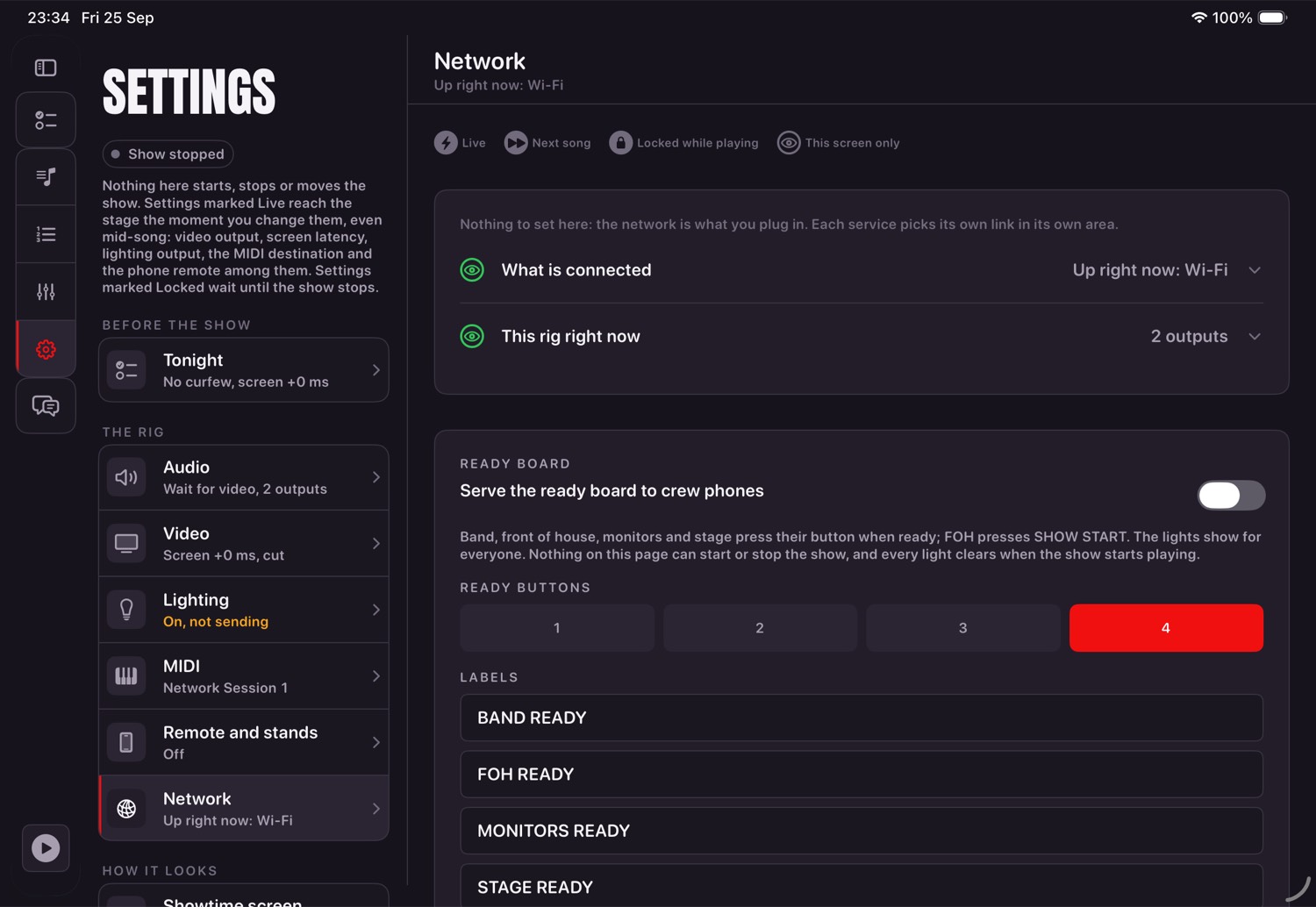
Settings → NETWORK says whether you are on a wired link, Wi-Fi or nothing, and what each service is bound to. Debug → NETWORK lists every interface by name and address — the quickest way to tell whether an adapter is really there.
Pinning a service to a link
Each of the three network users — DMX output, DMX capture, the remote — can be set to any link, wired only or Wi-Fi only. Pinning lighting to wired means it will not quietly fall back to Wi-Fi and stutter; a service pinned to a link that is not present says so rather than pretending.
A wire for lights, Wi-Fi for everything else
- A USB-C Ethernet adapter at each end, one cable between them, or both on a switch.
- Fixed addresses: lighting machine
192.168.10.1, iPad192.168.10.2, mask255.255.255.0, no router. - Restart the lighting software after the link is up — most only offer destinations whose interface existed when they started.
- Leave Wi-Fi on. It carries MIDI and the phone remote at the same time.
Backup, and moving iPads
One file. Everything that matters. Nowhere near the internet.
What is in it
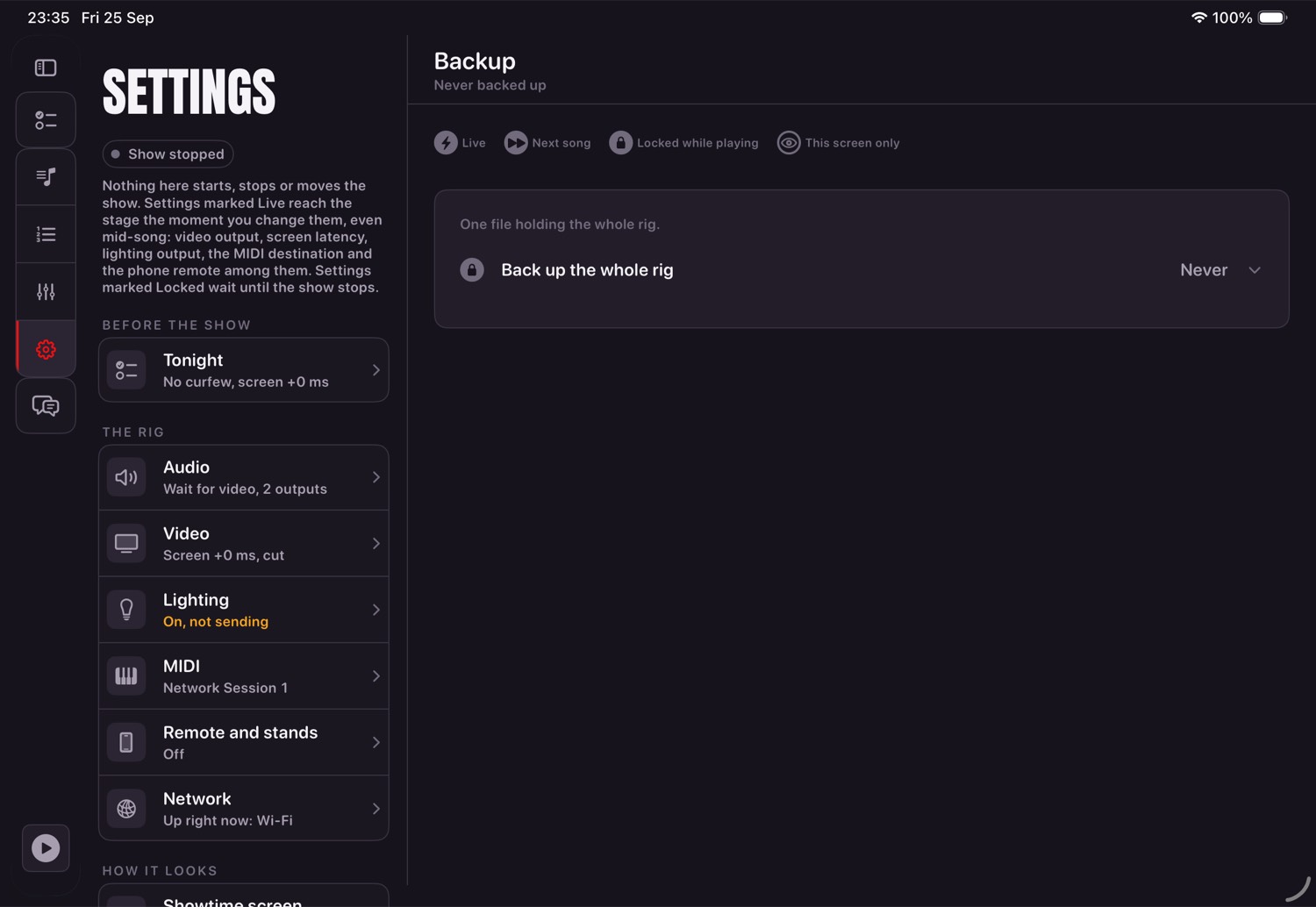
Every song folder whole — audio, MIDI, video, lighting, names, levels, waveforms — every set, every backdrop, every design you dropped in, and the rig's own profile. Left out: where the show last stopped, developer recordings and exported logs.
Backing up
- Back Up Now. It checks there is room first.
- Choose where it goes in the Files app — a USB stick, a cloud folder, anywhere you like.
- It is refused while anything is playing.
Restoring
- Restore… and pick the file.
- It shows what it would replace and what it would add before doing anything.
- Rig settings come back only if you tick the box — another iPad's outputs and MIDI destination may not suit this one.
- Nothing is moved into place until every part has been read, so a half-copied file leaves your library untouched.
Settings, area by area
These describe the rig and stay on this device. A list of areas down the left, the settings themselves on the right, and every one of them says what it does, when you would change it, and what it would do to a running show.
The two marks on a row
They answer different questions and it is worth keeping them apart. The effect mark says what changing this would do to a show that is playing right now:
| Mark | Means |
|---|---|
| Live | Reaches the stage the moment you change it, mid-song included. |
| Next song | Takes effect at the next song boundary, not before. |
| Locked while playing | Waits until the show stops. The row says so and states why, rather than going grey. |
| This screen only | Changes nothing the audience can hear or see. |
The dot beside the title says whether the thing itself is working: green when it is plugged in and answering, amber when it wants a look, and absent when there is nothing to say.
A few settings stage rather than apply: screen latency and the lighting delay collect their steps and write them on Save, with Revert beside it, because nudging a number ten times should not be ten writes to the rig. And four changes ask once before landing mid-show — turning off video output, turning off lighting output, turning off the phone remote, and switching the MIDI destination — since each one takes something away from a stage that is currently using it.
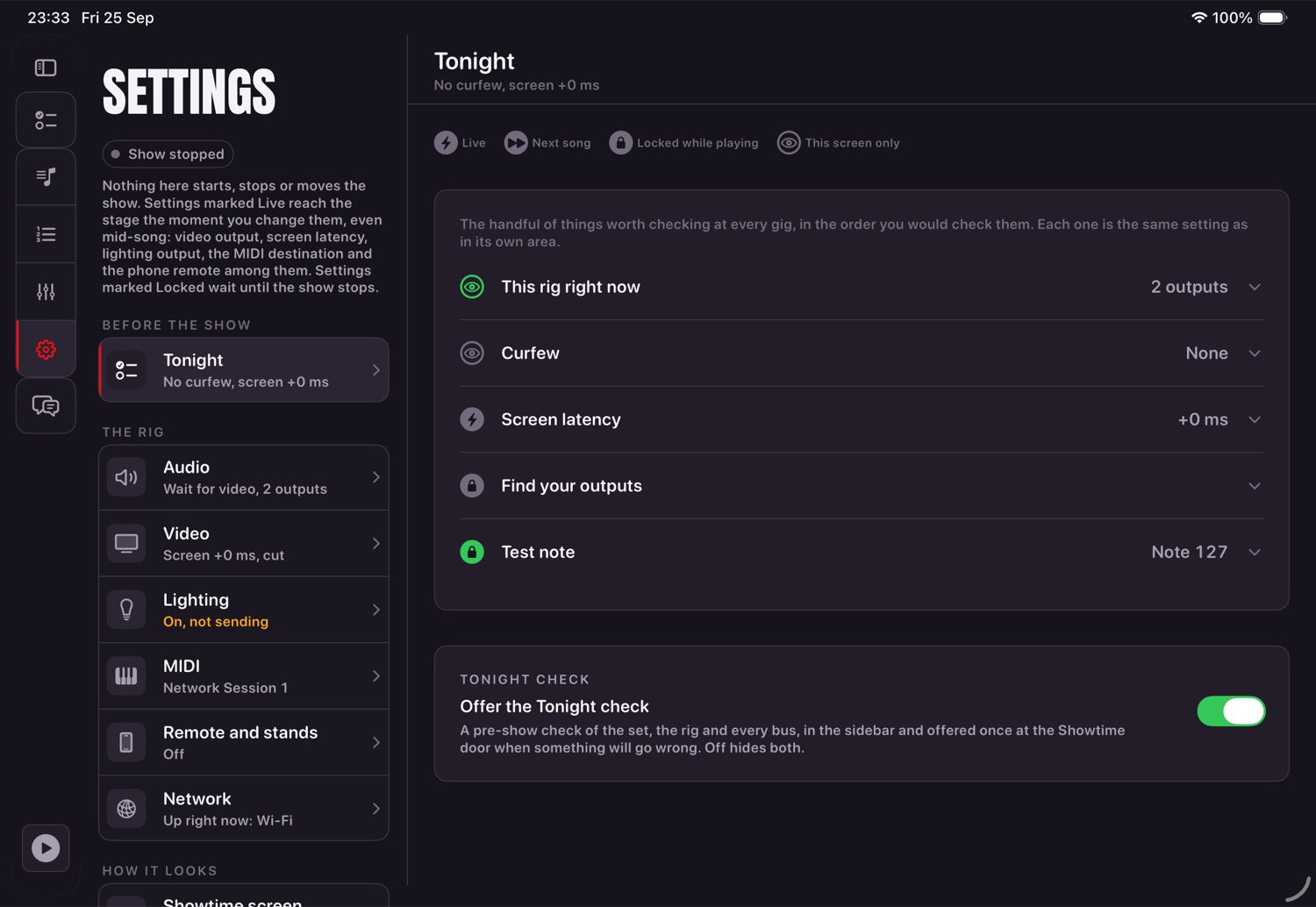
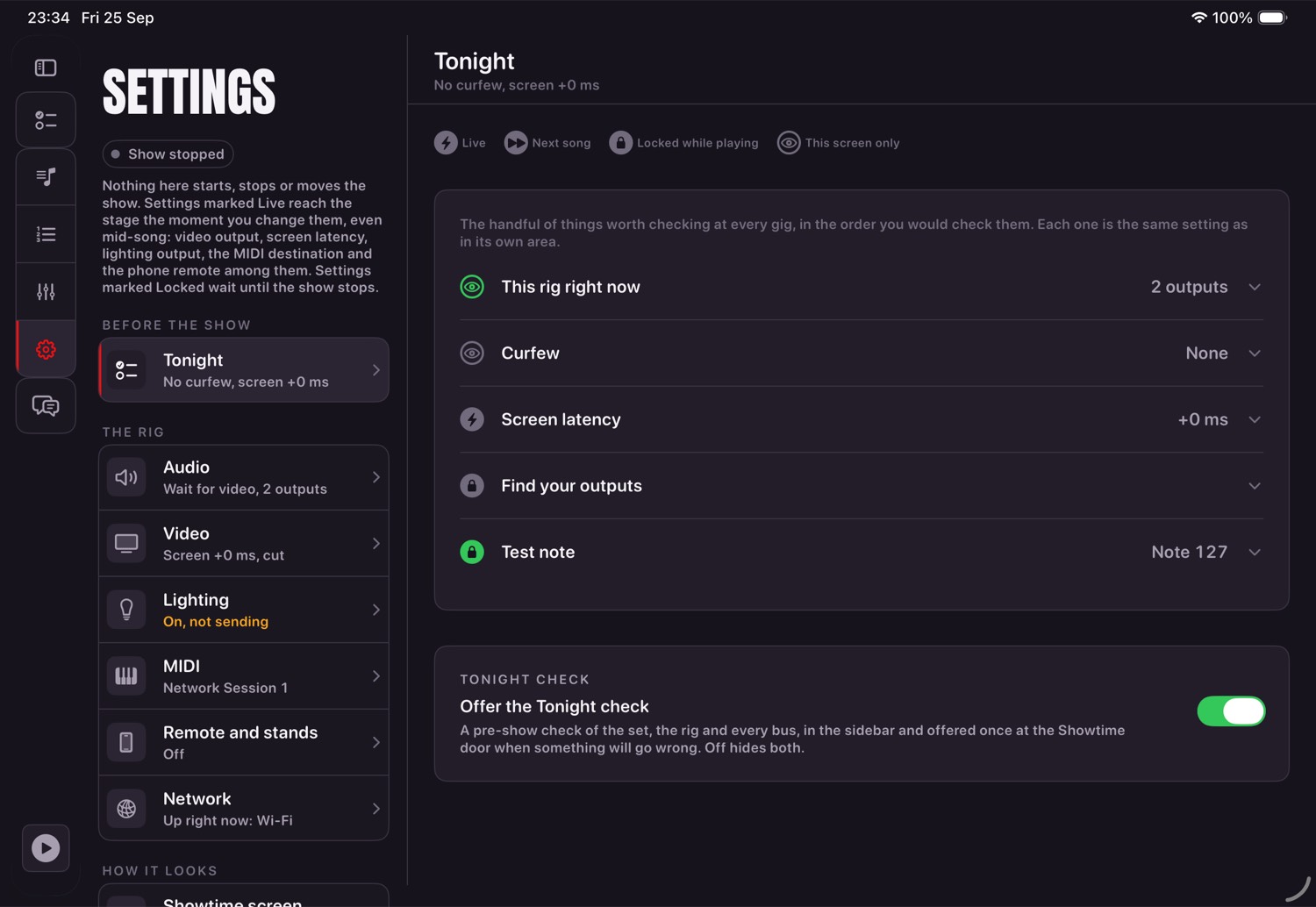
Tonight
First, because it is what you touch on the night: rig status, the curfew, screen latency, Find your outputs and the MIDI test note. Deliberately not lighting output or the phone remote — those are set up once and left alone, and this area is for the things a venue changes.
| Setting | What it decides |
|---|---|
| Rig status | What interface is connected, how many outputs it has, whether a screen is attached, and what routing this device remembers (chapter five). |
| Curfew | Whether to warn against one, and the time. Also editable from Showtime by tapping the banner. |
| Screen latency | How late the audience's screen shows a picture, in milliseconds, with the Sync Check to set it against (chapter eight). |
| Find your outputs | Plays a tone down one output at a time, so you know which is which. Refused while the show plays. |
| MIDI test note | Sends one note to the chosen destination, and says why if it cannot. |
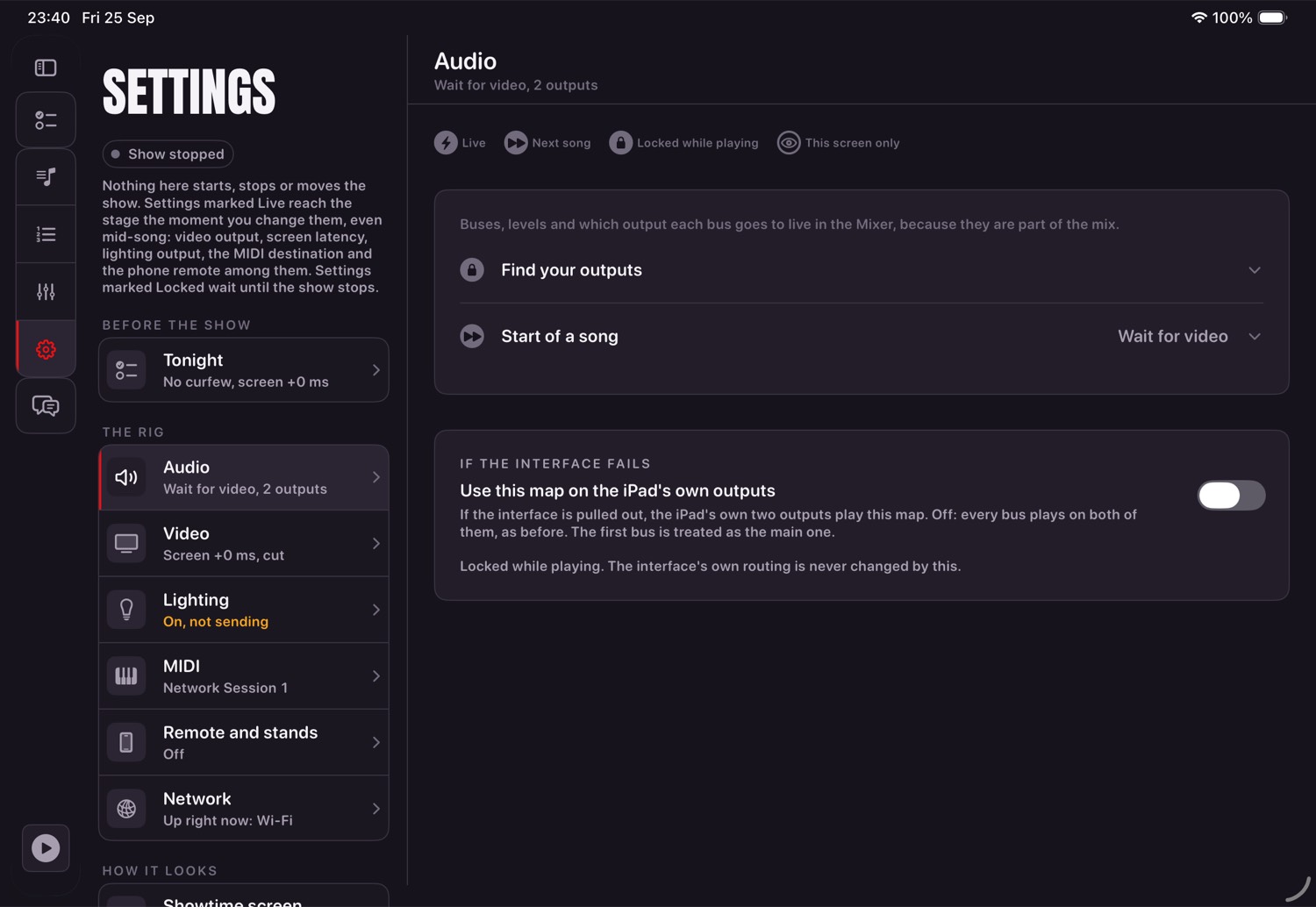
Audio
| Setting | What it decides |
|---|---|
| Lead-in | Whether a song waits for its video or starts on time and clips it. |
| If the interface fails | Off by default. Where each bus lands on the iPad's own speaker if the interface goes — left, right, both or nowhere — so a dead interface is a smaller disaster than silence. |
Video
| Setting | What it decides |
|---|---|
| Video output | Whether video is sent to the external screen at all. On by default. |
| Screen latency | The same setting as in Tonight, with the Sync Check beside it. One number for the rig; a song's own shift lives in its alignment window. |
| Video fade | The rig's own fade, which sets and songs may each override. |
| Backdrops | What plays when a song has no video of its own. |
Lighting
| Setting | What it decides |
|---|---|
| Send lighting | Art-Net out or not. Turning it on is what asks iOS for permission to reach the local network. |
| Node address and port | Where to send it. Committed when you leave the field, not per keystroke. |
| Find nodes | Asks the network who is out there and sets the address from the one you tap. |
| Rate | Match the recording, or a fixed 44 a second. |
| Lighting delay | This output's own hardware delay, staged and saved. |
MIDI
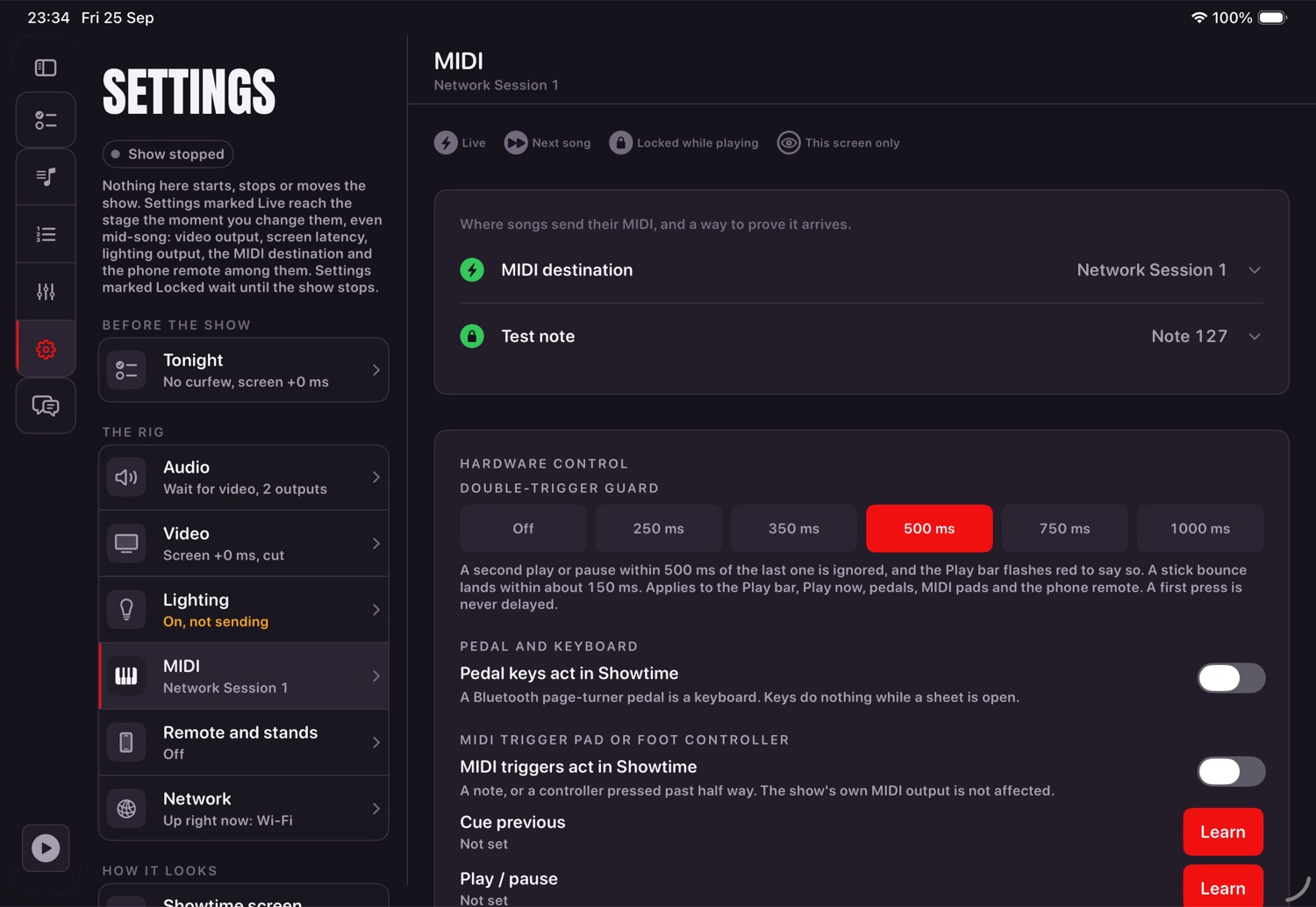
| Setting | What it decides |
|---|---|
| MIDI destination | Where MIDI goes. It says whether it can actually reach what is named, rather than only which name is selected. |
| Test note | Proves the chain before a song does. The result is shown under the button, so a press that could not send looks different from one that worked. |
| Pedals and triggers | Which keys a footswitch sends and what they do; MIDI notes learned from the gear itself; and the guard window that ignores a second press too soon after the first. |
Remote and stands
| Setting | What it decides |
|---|---|
| Remote control | Serve the phone page, its address, and the remote password that grants control of the show and the mix. |
| Stands | Serve charts and score parts to the band's own devices, the stand address, and an optional stand password. Shares its link choice with Remote control (chapter fourteen). |
| Ready board | The shared "ready" page for band, FOH and monitors. It signals people and controls nothing. |
Network
| Setting | What it decides |
|---|---|
| Network | Wired, Wi-Fi or nothing, in plain words, and every interface actually present. No network is a valid rig, so this is never a fault. |
| Link per service | Lighting, a DMX capture and the remote can each be pinned to wired only or Wi-Fi only. A pinned service refuses the other link rather than quietly falling back. |
Showtime screen
| Setting | What it decides |
|---|---|
| Showtime style | Band or Solo. Solo is a chart-led screen for one performer; chapter seven covers both. |
| During a show | Keep the screen awake, the wall clock, time left in the set. |
| Beat flash | Around the whole screen or only the video pane, and how bright and how wide. Never shown on the external display. |
| Turn upright with the iPad | Whether the app follows the iPad's orientation. Off by default, and app-wide rather than per screen, because iPadOS turns every screen or none. |
| Confirm before Play now | Whether the Play now button asks first. |
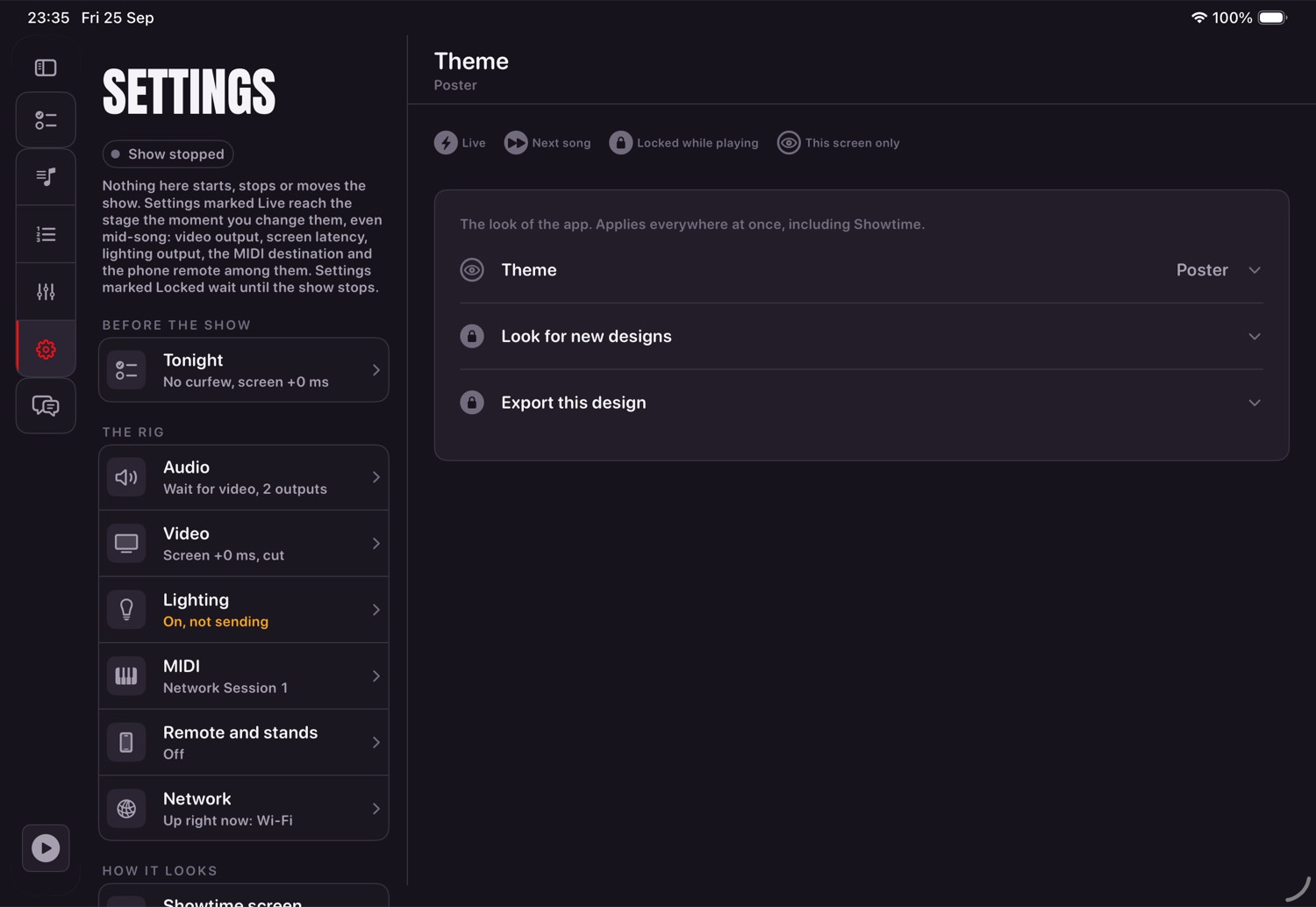
Theme, Backup and Troubleshooting
| Setting | What it decides |
|---|---|
| Theme | The five built in, plus any design dropped into Files. Look for new designs picks those up; Export this design writes the current one out as a starting template. |
| Backup | Back up now, restore, and when you last did (chapter sixteen). |
| Send a report | Gathers the device, the rig and what went wrong into one message with the session log attached, and shows it to you before anything is sent. |
| Debug passphrase | With none set, Debug opens on a two-second hold. Set one for gigs where somebody else can reach the iPad. |
| Start the rig settings again | Two ways out of a rig state you cannot undo, narrower first: forget the remembered interfaces, or reset every rig setting. Neither touches your songs or sets, and each says what goes and what stays before doing it. |
When something is wrong
What it means, and what to send afterwards.
| What you see | What it means |
|---|---|
| A file you copied in isn't there | Tap Rescan on Songs. Files added behind the app's back are not noticed until something looks again. |
| DMX light grey | This song has no lighting. The light stays in place so "none here" never looks like "gone". |
| Capture says "nothing yet" | Packets are not reaching the iPad. Use Test DMX Input to separate the network from the capture. |
| Capture DMX greyed out | Something is playing, the app is still preparing, or there is no link — the reason is printed beside it. |
| Lighting slightly out | Open the song's alignment window and drag the DMX lane. Right is later. Save when it looks right. |
| Every song's video late by the same amount | That is screen latency, not the songs. Run the Sync Check in Settings (chapter eight). |
| One song's video out | Open that song's alignment window and drag the Video lane against the singer's mouth. |
| Save greyed out in the alignment window | Nothing new to save, or the show is playing. Stop the show; your edits are kept. |
| "Video will not be presented" | No screen attached, or video output is off in Settings. |
| MIDI arrives but nothing starts | Check which note the song sends and what the receiving machine is armed for. They are rarely the same across songs. |
| A track plays but no bus fader moves it | That track is sent somewhere this rig has no bus for, so it goes to the front-of-house bus. The mixer names which tracks, and ticking a bus on the track fixes it. |
| Lighting never sends | It holds until the first Play after launch, on purpose. Before that, "not sending" is correct. |
| The node cannot be found | Both ends have to be on one network, and a node fresh out of the box usually is not. Find nodes in Settings asks who is out there. |
| A bus is silent | A bus with no output chosen makes no sound anywhere — that is deliberate, so it can never appear in the wrong speakers. Tap its name plate in the mixer and give it one. |
| The rig is in a state you cannot undo | Settings → Troubleshooting has Forget the remembered interfaces and Start the rig settings again. Neither touches your songs or sets, and each says what goes and what stays before doing it. |
| Debug will not open | Hold it for two seconds. That is deliberate. |
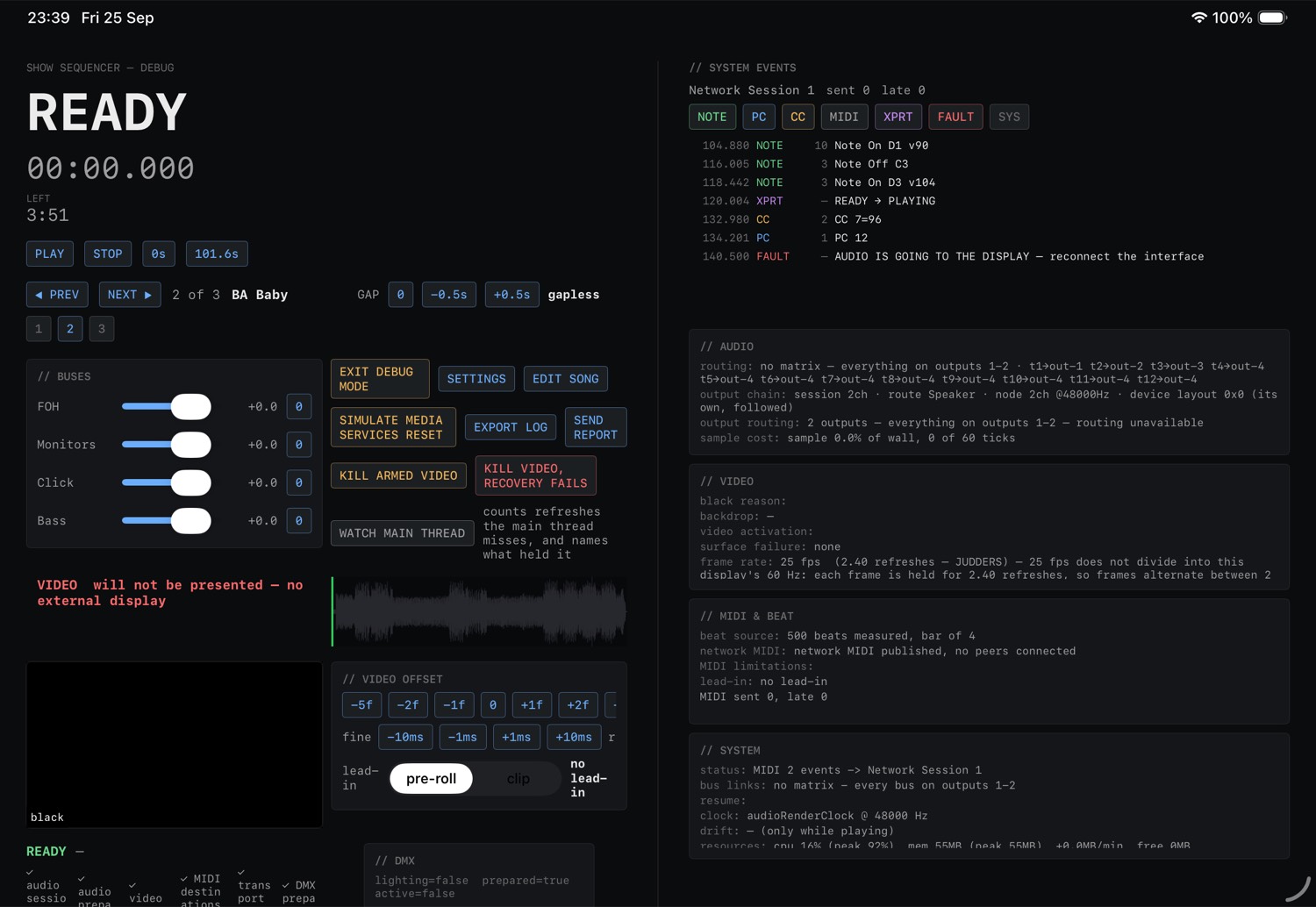
Two panels on it are worth knowing about. The system event log carries MIDI, transport and faults, filterable by kind and kept for the whole session rather than cleared at each stop. Diagnostics carries the numbers behind the plain-words warnings — routing, meter health, dropouts, timing.
Appendices
A · What is on disk
Everything the app writes is plain, versioned and yours. A song folder holds its audio, its
midi.mid, its video.mp4, its song-lighting.dmx, plus
tracks.json (names, order, levels, buses, offsets), waveform.json and
levels.json, and video-filmstrip.bin (the stills the alignment window
shows, rebuilt whenever needed). tracks.json also holds the song's alignment: its
video shift, DMX shift and markers. A song may also hold a chart file and PDF score parts, with
their prepared pages in a hidden .score-pages folder that a backup leaves out. Sets
live in Playlists/, backdrops in Backdrops/,
designs in Designs/, and the rig's own settings in profile.json.
B · The themes
Five ship, and each one answers a different working condition rather than a different taste in colour. They differ in shape, depth, density and type as well — a theme is not a repaint.
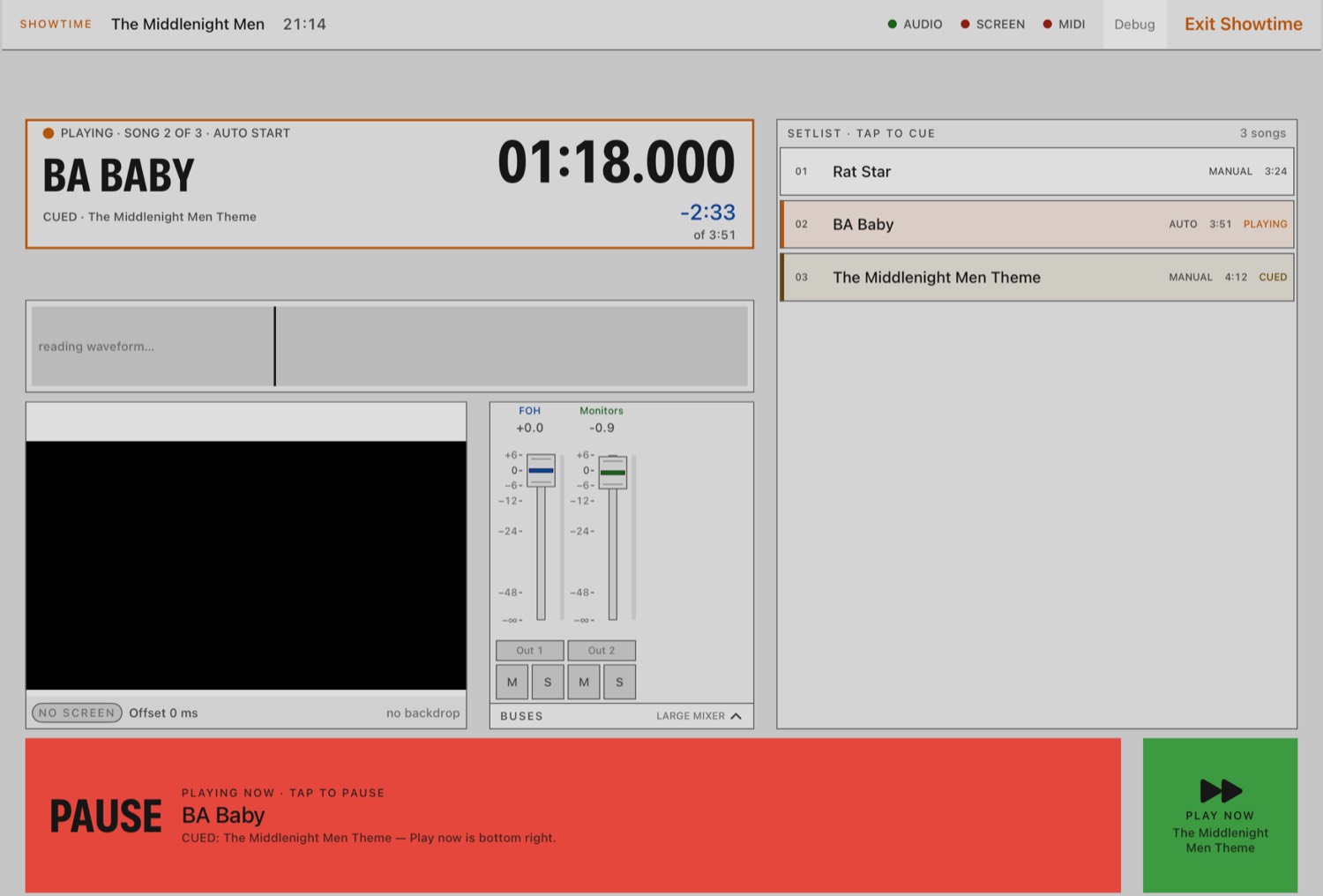
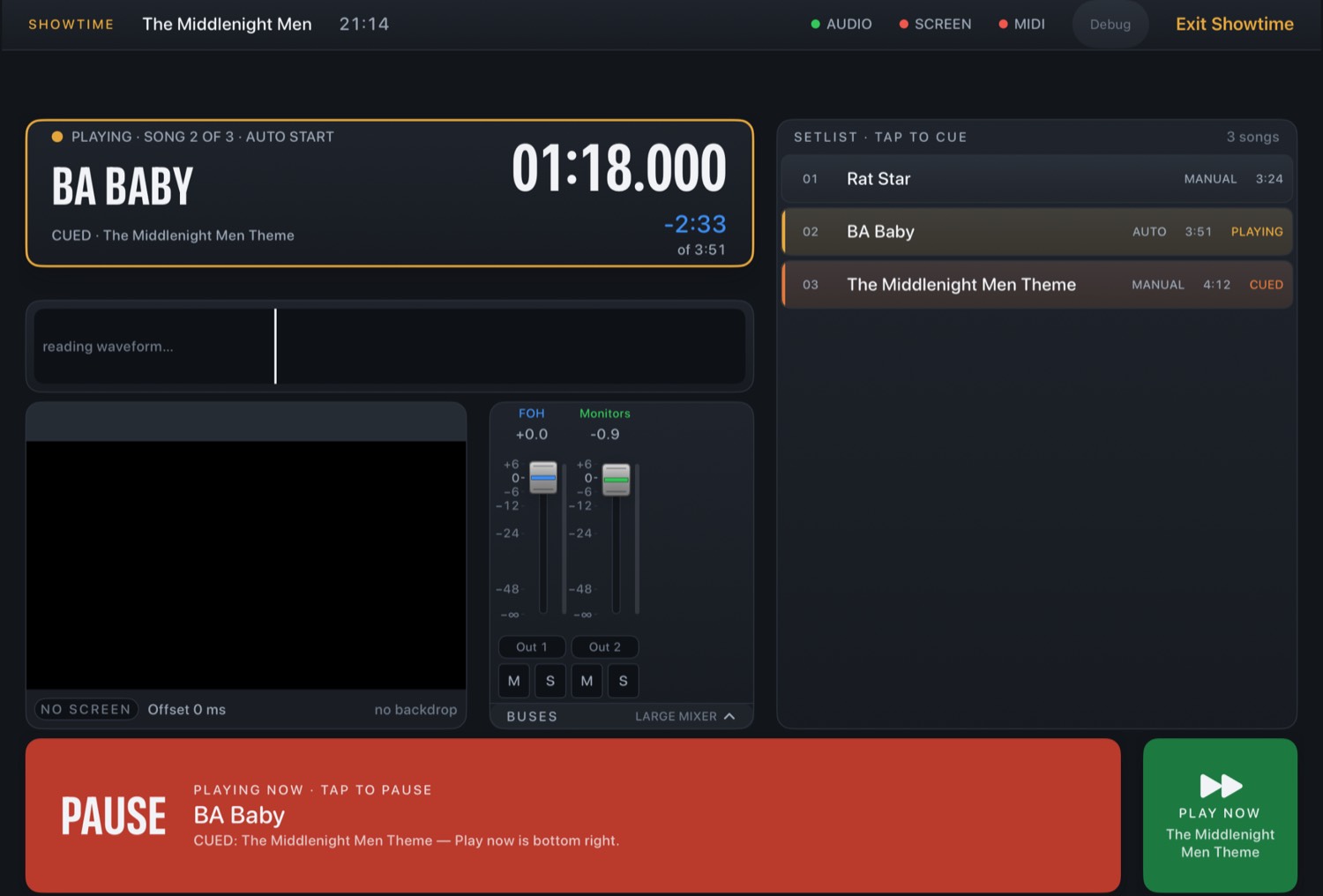
Blackout is for a dark stage: near-black and warm, with the largest targets and type of any of them. Daylight is the opposite problem, an afternoon set outdoors — a near-white page with heavier strokes, because in sun a shadow carries nothing and stroke weight buys more than point size. Poster is the default, and the one every other picture in this manual uses. Any design dropped into Files appears beside them with no rebuild.
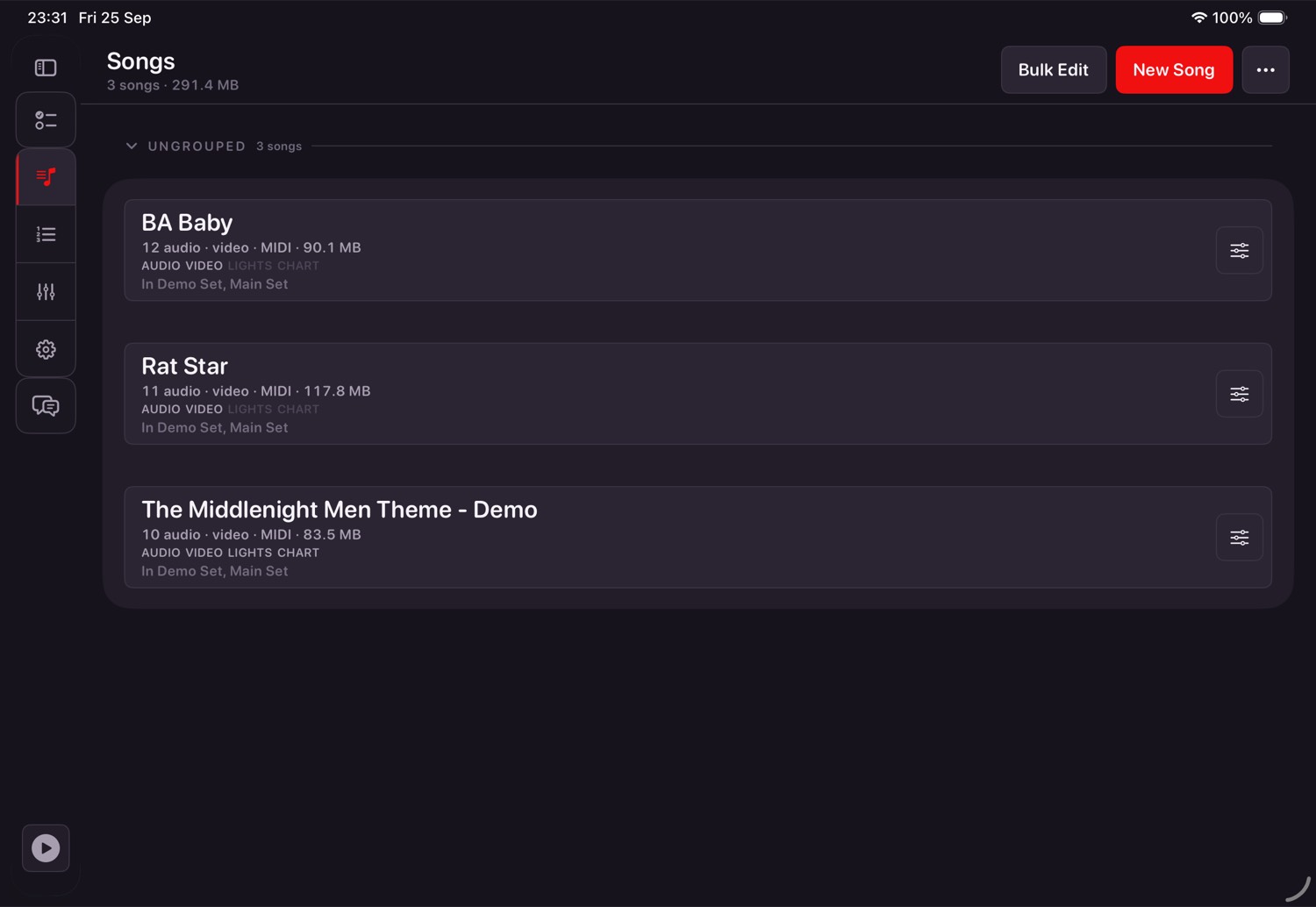
C · The collapsed sidebar
D · Developer harnesses
One screen exists for building the app rather than running a show, reached by launch argument in a development build. The design gallery that used to sit beside it is gone: the two halves an operator actually wanted from it — looking for new designs, and exporting the current one as a template — are rows in Settings' Theme area instead.
E · The rules, once more
- One clock: the audio. Everything else follows it.
- Nothing plays by itself, ever.
- The mixer and the alignment window each have a Save, and nothing is written until you press it. The one exception is a fader moved on the song that is playing: it is heard at once and written when the show stops, never during it.
- The alignment window's preview and the show never play at the same time.
- Heavy work happens before the show, not during it.
- Nothing needs the internet.
- Your show data is plain, versioned files you can read and copy.
- Anything that cannot be done right now says why.