Show Sequencer
Backing tracks, video, MIDI and lighting from one iPad, on one clock.
The short version. Every picture here is the app as it stands, on a rig with three songs and one set loaded — nothing staged. There is a longer manual if you want a chapter on something; this is the page to read first.
1 · The idea in one page
Everything the show does runs from one clock: the audio. Video, MIDI and lighting follow it and can never push it around. That is why a song that drifts on other rigs stays put on this one.
There are two modes, kept deliberately apart.
Build
Four doors — Songs, Sets, Mixer, Settings — with Tonight above them. Each door says what is behind it right now. This is where you import, name, set levels, build the running order and set the rig up. The bar along the bottom shows what is playing and can start and stop it.
Showtime
One door at the foot. A fixed screen: the song, the timers, the setlist, the video, the buses and one big Play bar. Nothing on it moves about, because a screen that rearranges itself is a screen you cannot trust at the kit.
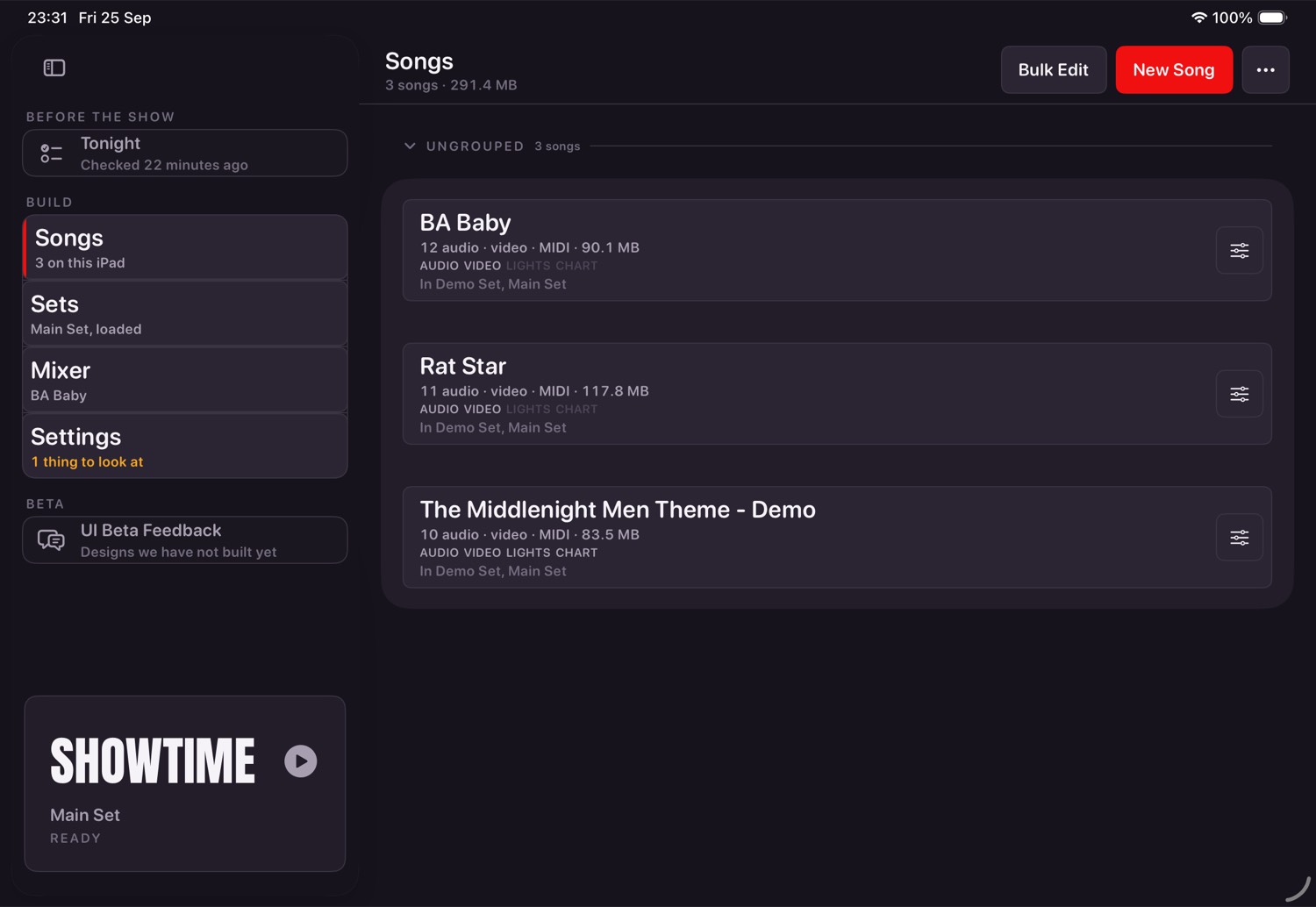
2 · Tonight
The pre-show check, and the first thing on the list for a reason. It looks at the set, the rig and every bus, and tells you what will bite before the doors open rather than after.
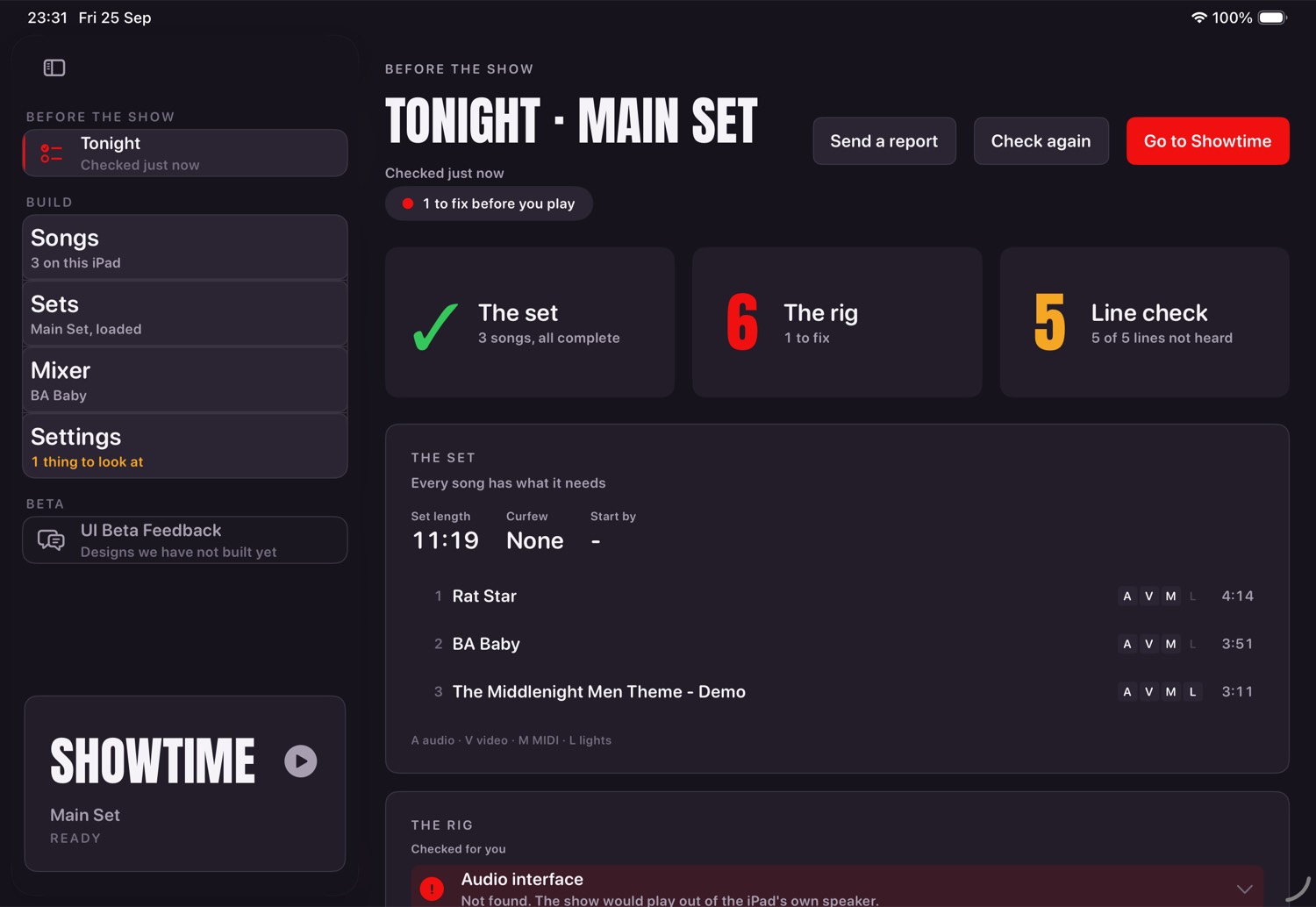
- The line check plays a tone down one bus at a time. Tap Heard it and it moves on. It is the fastest honest way to find out which speaker is which.
- A red line is something to fix. An amber one is worth a look. Going on with problems is allowed — it asks first and lists them.
- The Showtime door offers Tonight once per session when something is red, and never gets in the way twice.
3 · Getting songs in
What a song is
A folder with up to sixteen audio tracks, and optionally a video, a MIDI file, a lighting file, a chart and PDF parts. Every track is separate: its own fader, its own name, and its own destination. A stereo file arrives as two tracks, because two sides means two faders.
Two ways in
- Import Songs on the Songs screen. Point it at a folder of exports and it opens the grid: one row per song, one column per track position. There is a short video on that screen showing exactly what it does.
- New Song, then add tracks one at a time in the song editor.
You can also copy folders in with the Files app, since the app's Documents folder is exposed. If you add files while the app is running, tap Rescan — that is what tells it to look again.
The song editor
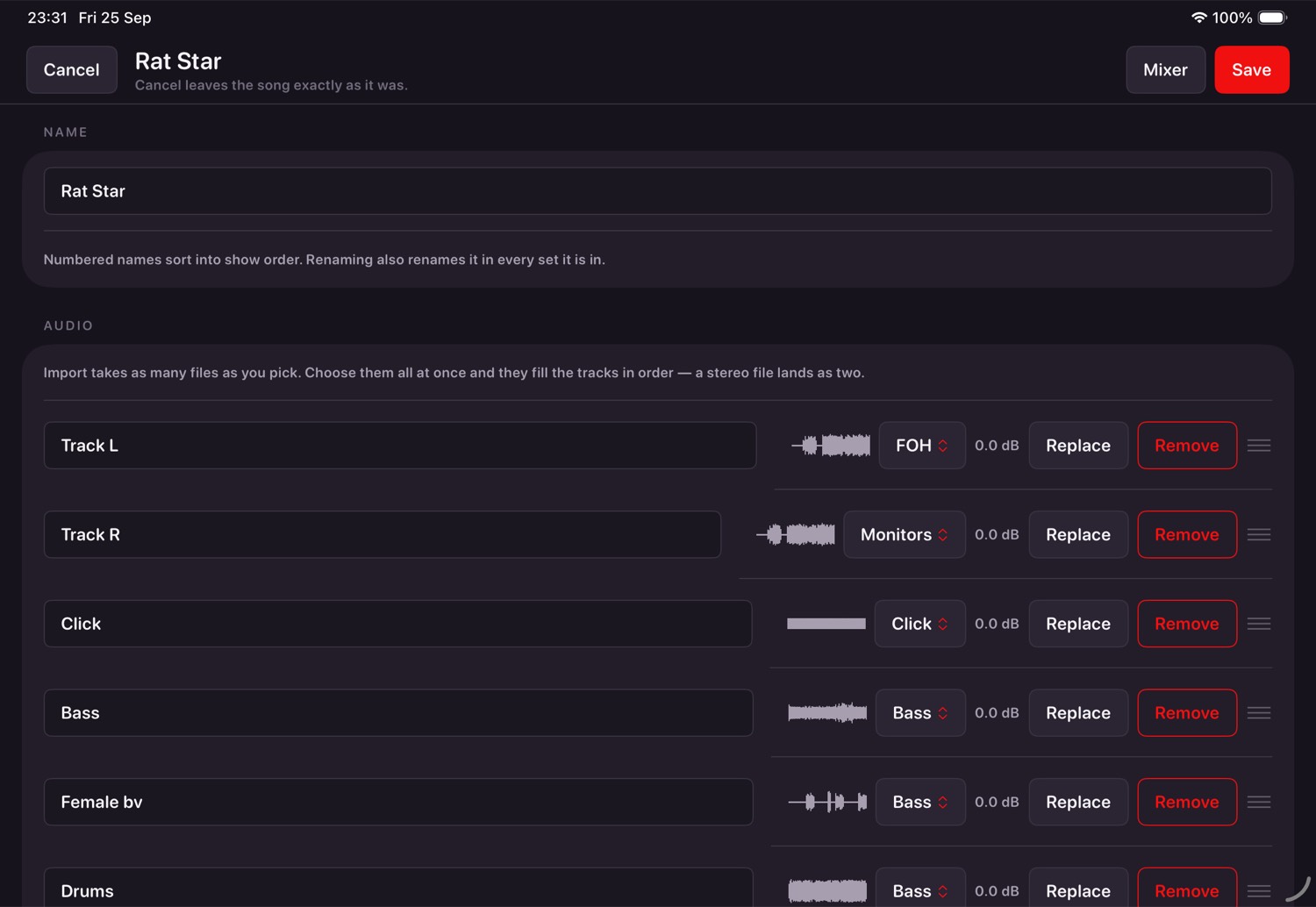
| Section | What it's for |
|---|---|
| Name | Numbered names sort into show order. Renaming also renames it in every set it is in. |
| Audio | Tracks in order, each with where it goes. Drag to reorder. Replace swaps a file and keeps the name and level. |
| Video | The song's own video. It tells you the file's frame rate and whether that will judder. |
| MIDI | The file sent to your destination, in time with the song. |
| DMX | Import a lighting file, or capture one live from the rig. |
| Alignment | Opens the alignment window, where video and lighting are lined up against the audio. |
| Lead-in | Whether the song waits for its video or starts on time and clips it. |
| Metronome | Off, the song's click track, a tempo you type, or the song's own MIDI tempo map. |
| Chart and scores | Words and chords, and PDF parts for the stands. |
4 · Sets
A set is one night's running order. Sets is where you make, load and delete them; tapping one shows what is in it, and Edit opens it.
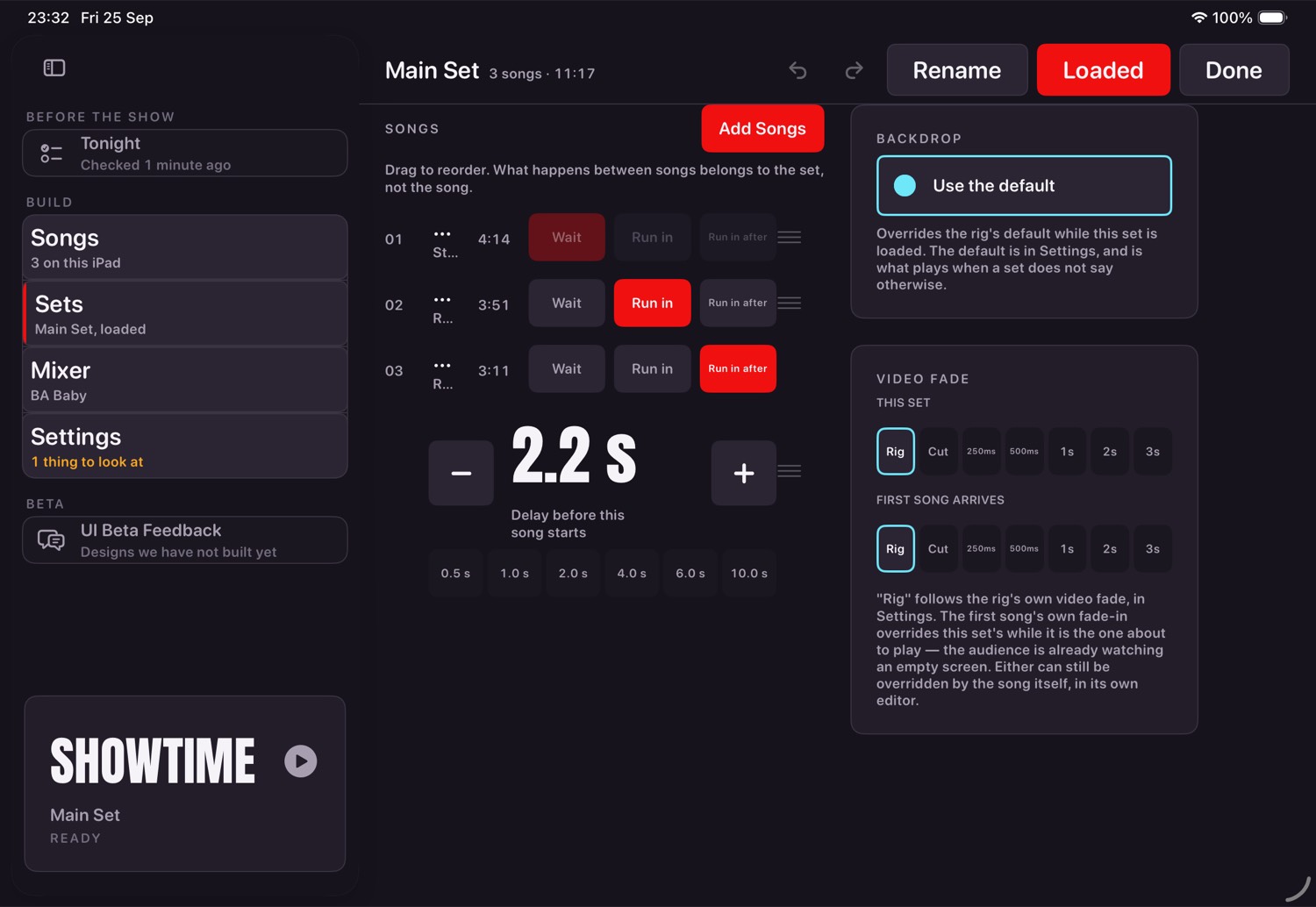
The same recording can wait for the singer in one set and run straight in on another, so each row chooses for itself:
- Wait — the show stops at the end and waits for you.
- Run in — the next song follows immediately.
- Run in after — the next song follows after a gap you set.
A song can appear twice; that is what an encore is. With no set loaded the show plays everything on the iPad in name order, which is fine for a rehearsal.
5 · The mixer
One mixer, reached three ways: the Mixer door, the song editor's Mixer button, and by tapping the song title on Showtime.
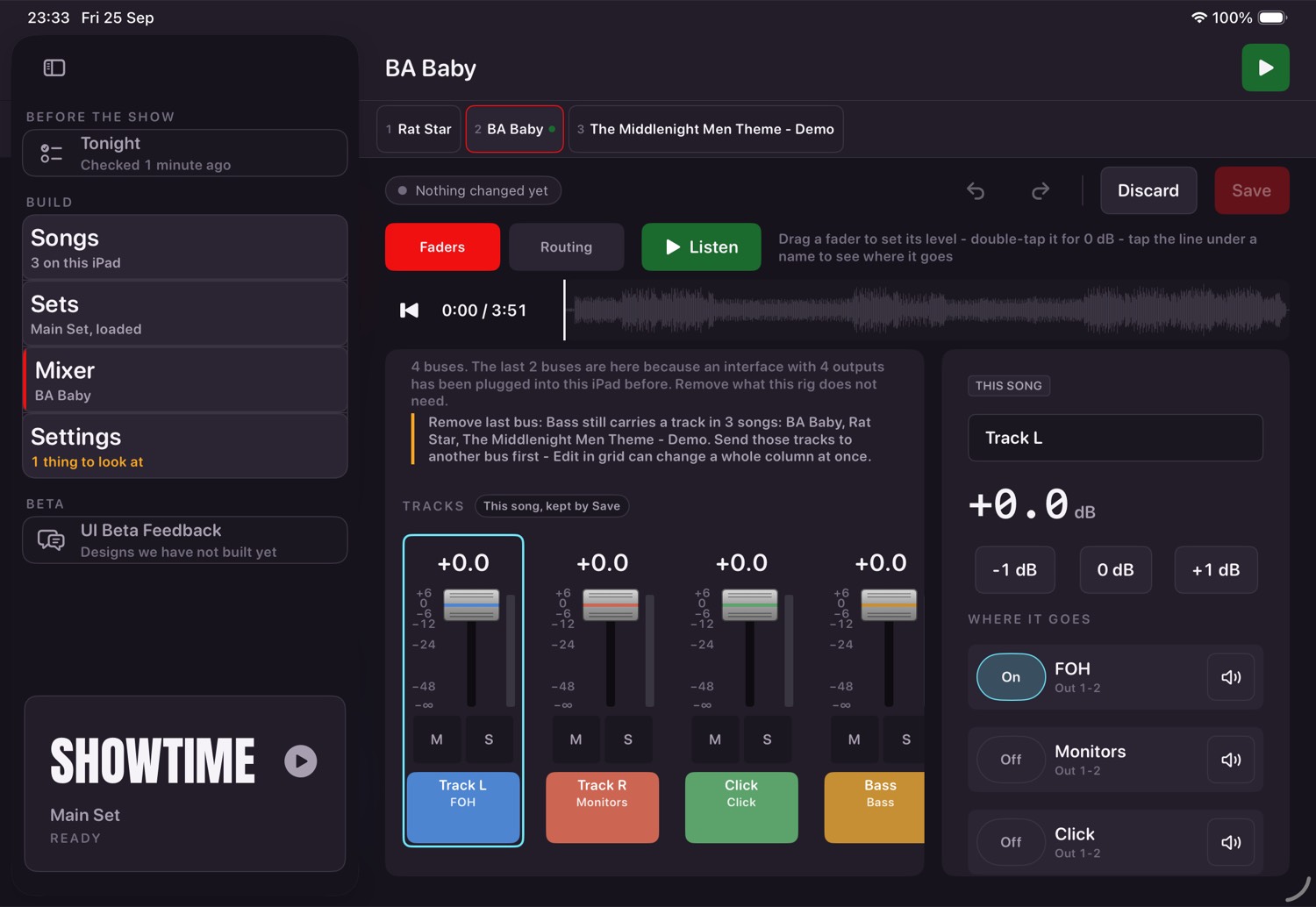
- The strip across the top moves you between songs in the set. It changes which song you are editing, never which song will play.
- Faders move by dragging the cap, never by a tap landing somewhere — a drumstick can knock a screen. Double-tap a cap to put it back to 0 dB.
- M and S are live listening aids and are never saved. Showtime says MUTE/SOLO ACTIVE · Clear whenever any are on, so you cannot leave one up by accident.
- Listen plays the song here, through the alignment window's own preview, only while the show is stopped.
- Tap a track's name plate to rename it; tap a bus's to rename it or send it somewhere else.
6 · Showtime
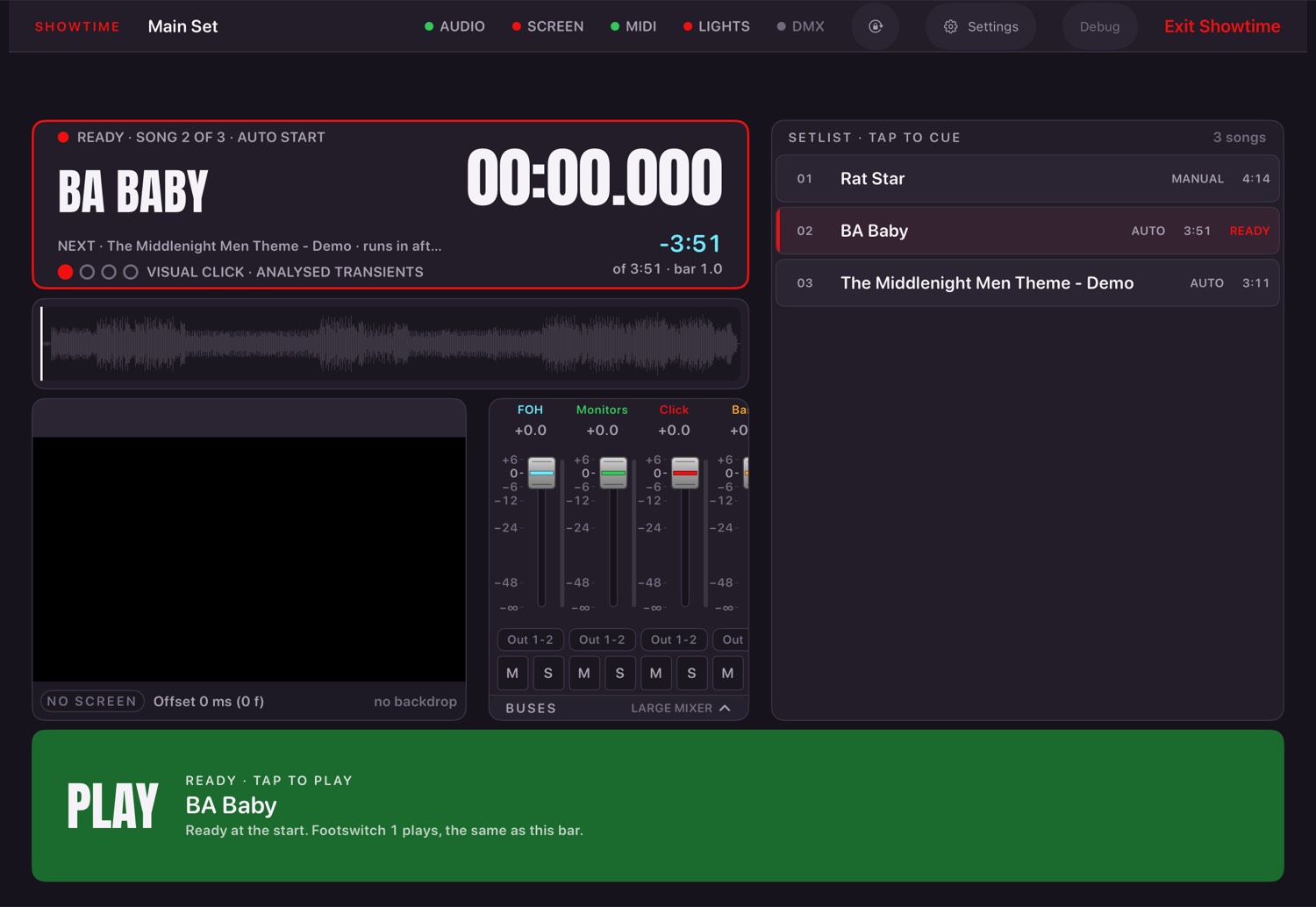
| Where | What |
|---|---|
| Top bar | The set, the time, and a dot each for AUDIO, SCREEN, MIDI, LIGHTS and DMX. Green means working, amber means look at it, grey means there is nothing to say. Then Settings, Debug and Exit. |
| Now playing | Song, timers, and under the title what comes next and how it starts. Tap the title for the mixer; hold it for more. |
| Waveform | The whole song with the playhead. |
| Video | What the audience sees. |
| Buses | Output faders with meters, M and S. Tap BUSES for the large mixer. |
| Setlist | Tap a song to cue it. It scrolls itself as the set moves on. |
| Play bar | The one big control. Green to play, red while playing. |
The beat border
The edge of the screen flashes on the beat, the downbeat marked differently, from whichever source the song's metronome setting names. Settings chooses whether it frames the whole screen or only the video, and how bright and how wide it is. It is never shown on the external display.
Leaving
Exit asks first, and offers to leave the show playing — you drop back to Build mode with the bottom bar still running the song. Debug needs a press and hold of about two seconds; a stray tap does nothing. Set a passphrase in Settings if someone else can reach the iPad at a gig.
7 · Video
- Plug the display in before the show. The app holds a surface open so a song can start instantly.
- A song with no video of its own shows the backdrop — a still or a loop, set per rig and optionally per set.
- Fades are rig-wide by default, overridable per set, and per song for the way it arrives and the way it leaves.
- Screen latency in Settings compensates a projector that is always late. A song whose file was exported wrong gets its own offset in the alignment window instead.
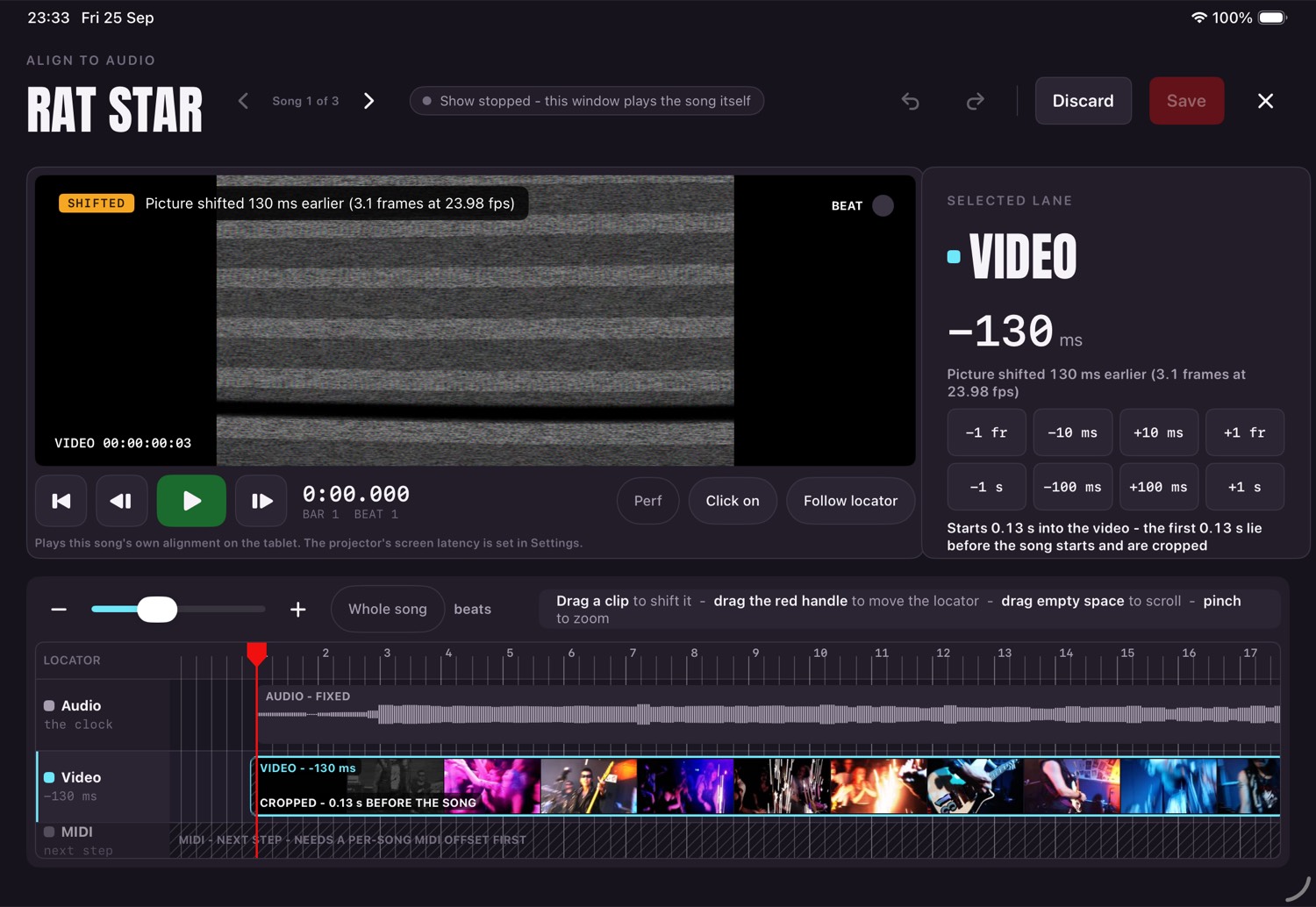
Audio is the clock and cannot be moved. Drag the video or lighting clip to shift it, drag the ruler to move the playhead, pinch to zoom, and press Play to watch it. Nothing is written until you press Save.
8 · MIDI
On stage this is what starts Ableton, changes patches, or both. A song's MIDI file plays in time with the song, from the same clock.
The simplest way to reach a Mac is a cable — your interface's own MIDI out. Nothing to pair, nothing to set up. Wireless is the fallback for when that port is spoken for, and there is a video in Settings → MIDI that walks through the pairing, which happens entirely on the Mac.
Pick the destination in Settings and send the test note to prove the chain before the first song does it for you. If it cannot send, it says why rather than looking like it worked.
9 · Lighting
DMX here means any DMX, not only lamps — hazers, motors, anything on the same wire.
Getting it talking
Whether that is the iPad, a travel router and the node, or just one cable from the iPad to the node, is a question about spare ports rather than about networking. There is a video in Settings → Lighting that walks through both.
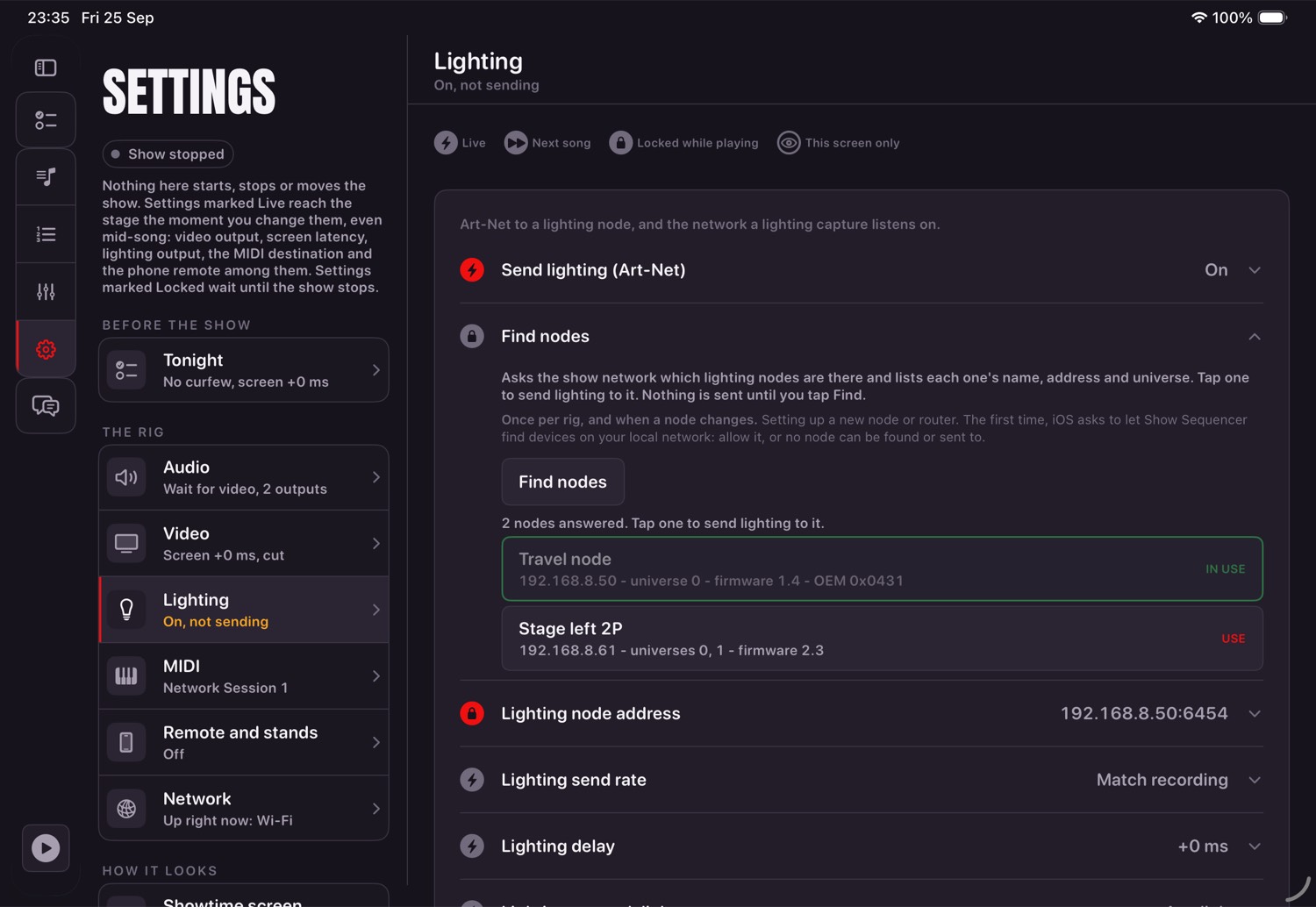
Settings → Lighting also sets the rate and a latency offset. The app holds the last look when you stop and between songs, and sends nothing at all until the first Play after launch — set the node to hold on signal loss and a crash leaves the stage lit.
Capturing your lighting show
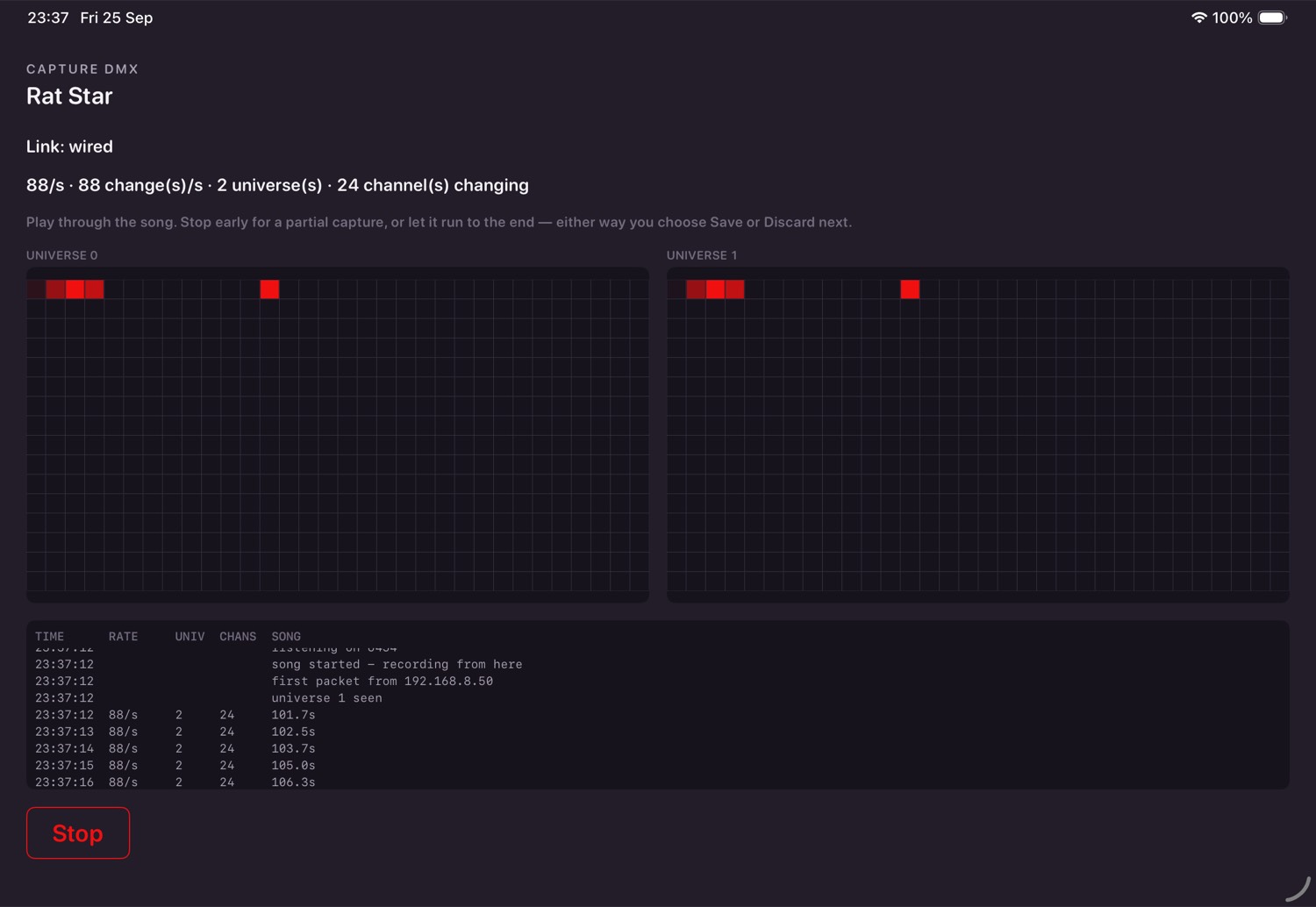
A capture is a round trip, which is why your lighting software has to be running: the song's own MIDI note fires your usual cue, your lights answer with Art-Net, and the iPad records what arrives against song time. Nothing is copied off the Mac.
10 · Charts and stands
A song can carry a chart — words and chords — and any number of PDF score parts. Switch Stands on in Settings and the address it shows opens on any phone or tablet on the same network: the chart follows the song, parts turn by tap, swipe or a page-turn pedal.
Nobody can control the show from a stand. It is a window, not a remote.
A chart can be timed by tapping along once while the song plays. After that it scrolls itself and highlights the line you are on.
11 · Your phone
Two different things, and it is worth knowing which you want.
| What it is | |
|---|---|
| Remote mode | The app on your iPhone, driving the show running on the iPad. It finds the tablet by itself — nothing to type. |
| The web remote | A page the iPad serves, opened in any phone's browser. No app needed, so anyone in the band can use it. |
- Watching needs nothing: the setlist, what is armed, what is playing, time left.
- Controlling needs the remote password, typed once on that phone and remembered.
- Play, Stop, cueing — and the mixer: track and bus levels, mute and solo.
- Changing the password revokes every phone that remembered the old one.
Everything is served by the iPad, so it works with no internet at all. A dead phone backstage strands nobody: anyone else can type the password and take over.
12 · Backup
Settings → Backup. Back Up Now writes one file and hands it to the Files app, so you choose where it goes — the app never uploads anything anywhere. It shows a progress bar, because on a real library it takes a while, and tells you where it went and how big it is when it is done.
It holds every song whole, every set, every backdrop, every design you dropped in, and the rig's own settings. Restore… shows what it would replace and what it would add before doing anything; rig settings come back only if you tick the box, because another iPad's outputs may differ.
Both are refused while anything is playing.
13 · Settings
A list of areas down the left, the settings themselves on the right. Every setting says what it does, when you would change it, and — the important one — what it would do to a running show.
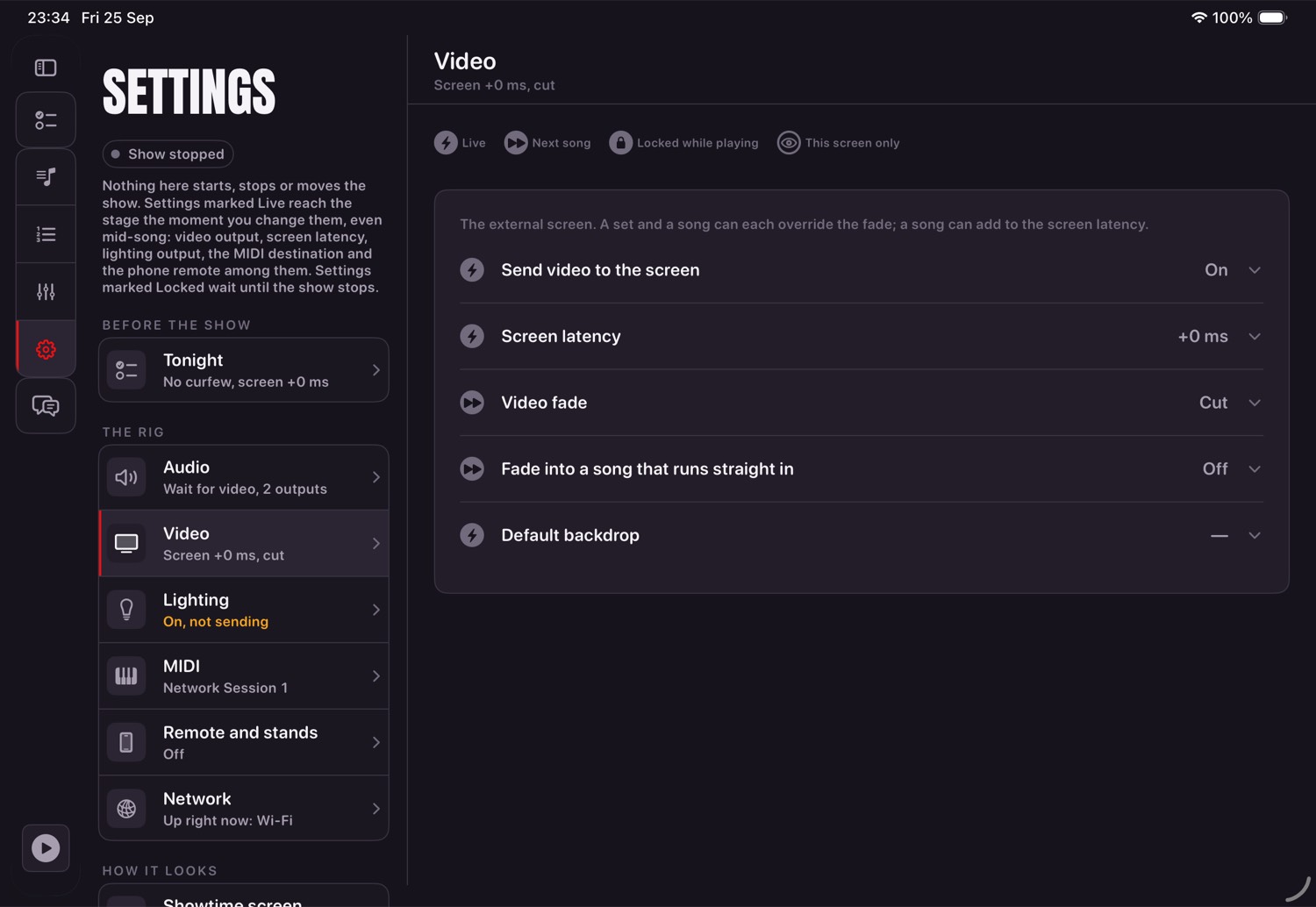
| Mark | Means |
|---|---|
| Live | Reaches the stage the moment you change it, even mid-song. |
| Next song | Takes effect at the next song boundary. |
| Locked while playing | Waits until the show stops. It says so rather than going grey. |
| This screen only | Changes nothing the audience can hear or see. |
The areas: Tonight, Audio, Video, Lighting, MIDI, Remote and stands, Network, Showtime screen, Theme, Backup and Troubleshooting.
14 · When something's wrong
| What you see | What it means |
|---|---|
| A new file isn't there | Tap Rescan on the Songs screen. Files copied in behind the app's back are not noticed until something looks again. |
| A track plays but no bus fader moves it | That track is sent somewhere this rig has no bus for, so it goes to the front-of-house bus. The mixer says which tracks, and ticking a bus on the track fixes it. |
| Lighting never sends | It holds until the first Play after launch, on purpose. Before that, "not sending" is correct. |
| The node cannot be found | Check both ends are on one network. A node fresh out of the box usually is not. |
| Capture shows nothing arriving | Packets are not reaching the iPad. Broadcast, or add an output aimed at the iPad's own address. |
| Capture DMX is greyed out | The show is playing, the app is still preparing, or there is no network. It says which. |
| Video won't be presented | No display attached, or video output is off in Settings. |
| The rig is in a state you cannot undo | Settings → Troubleshooting has Forget the remembered interfaces and Start the rig settings again. Neither touches your songs or sets. |
| Debug won't open | Hold it for two seconds. That is deliberate. |
Settings → Troubleshooting → Send a report gathers the device, the rig and what went wrong into one message with the session log attached. It shows you the whole thing before it sends anything, and it carries no song names or file paths.
15 · Rules the app always follows
- One clock: the audio. Everything else follows it.
- Nothing plays by itself, ever.
- Heavy work happens before the show, not during it.
- Nothing needs the internet.
- Your show data is plain, versioned files you can read and copy.
- Anything that cannot be done right now says why, rather than failing quietly.
- Reliability beats features, and beats how it looks.